Volunteer & Worshipper Guide
Find masjids and jamat times, follow your masjid, join its events and offer your help. Step by step, with pictures.
Download PDF PDF · 2.3 MB
How to use this guide. Each step has a picture from the website. A gold ring shows where to tap. Words in this style are exactly what you see on the screen.
Welcome
Shabaka al-Masajid is a free website that brings masjids and the people who love them together. It shows every listed masjid, its azan and jamat times, its events and how you can help.
It works on any phone, tablet or computer, in English, اردو, हिन्दी, العربية and తెలుగు. There are no ads. You do not need to install anything: open shabakaalmasajid.com in your browser.
You can look at masjids and times without an account. You need a free account only to follow a masjid, say you will help, answer an event or get notifications.
Find a Masjid
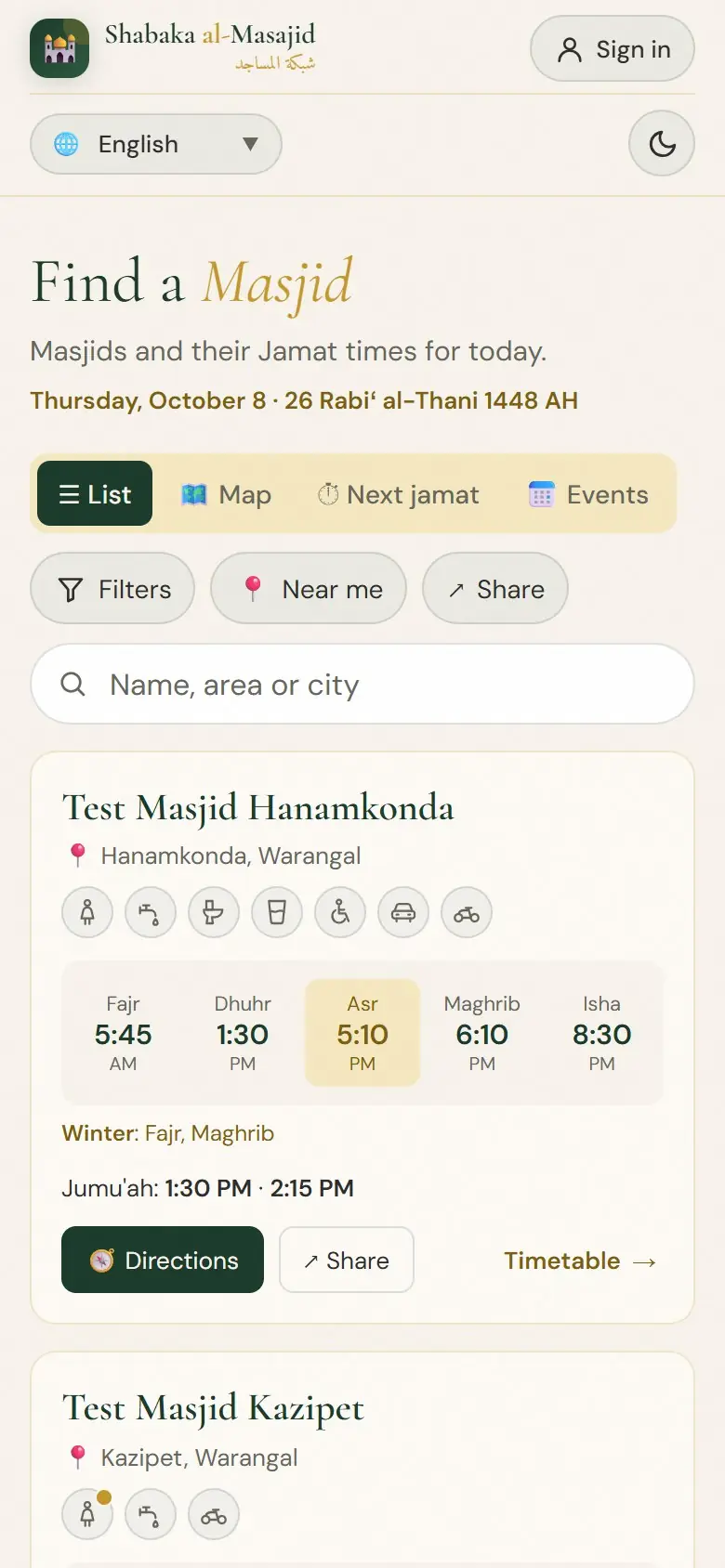
Everything starts on the Find a Masjid page. Open shabakaalmasajid.com and tap Find a Masjid.
The list of masjids
You see every listed masjid with today's jamat times. The next jamat is marked in gold. Today's date is shown with the Hijri date.
Search
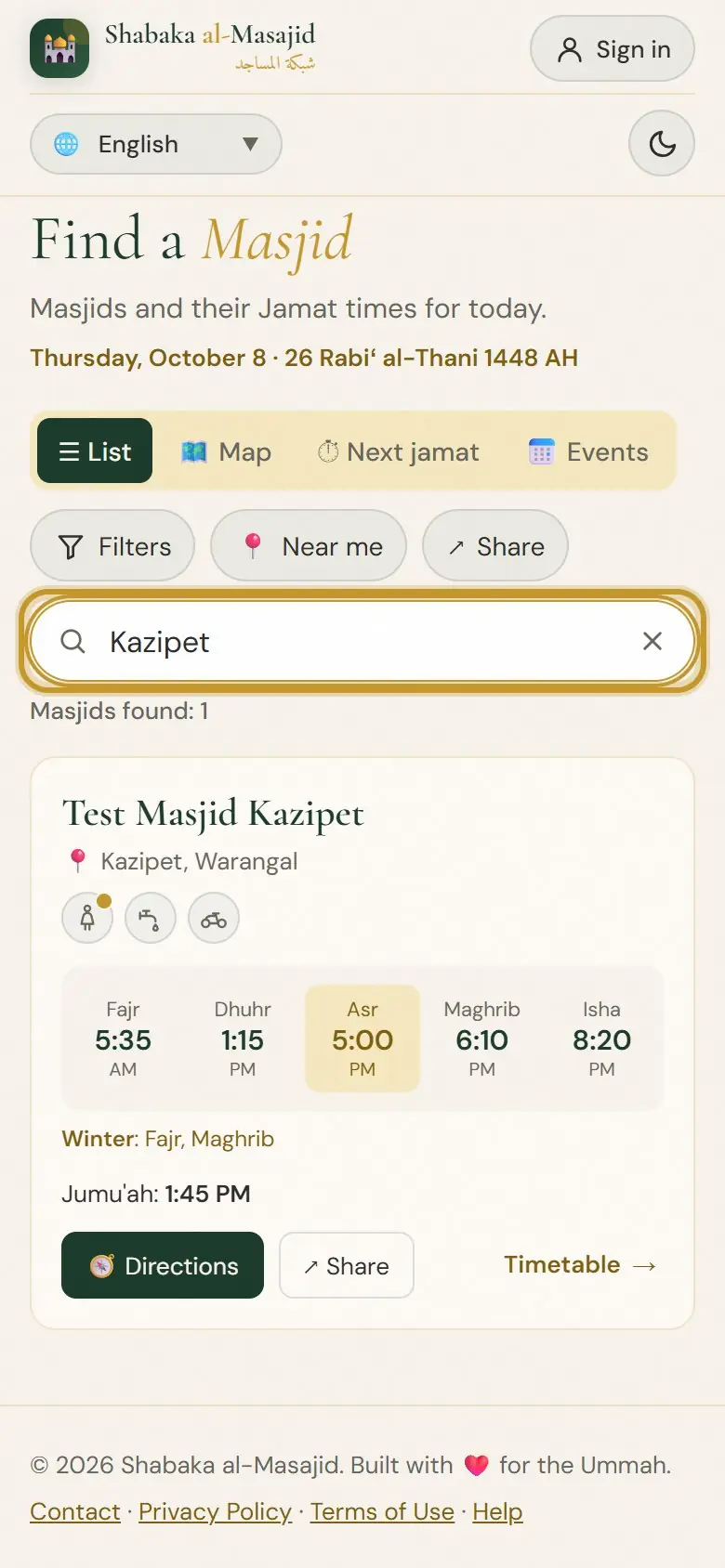
Type a masjid's name, its area or its city in the search box. The list shows only the masjids that match. Tap × to clear the search.
Filters: women's area, wudu, parking
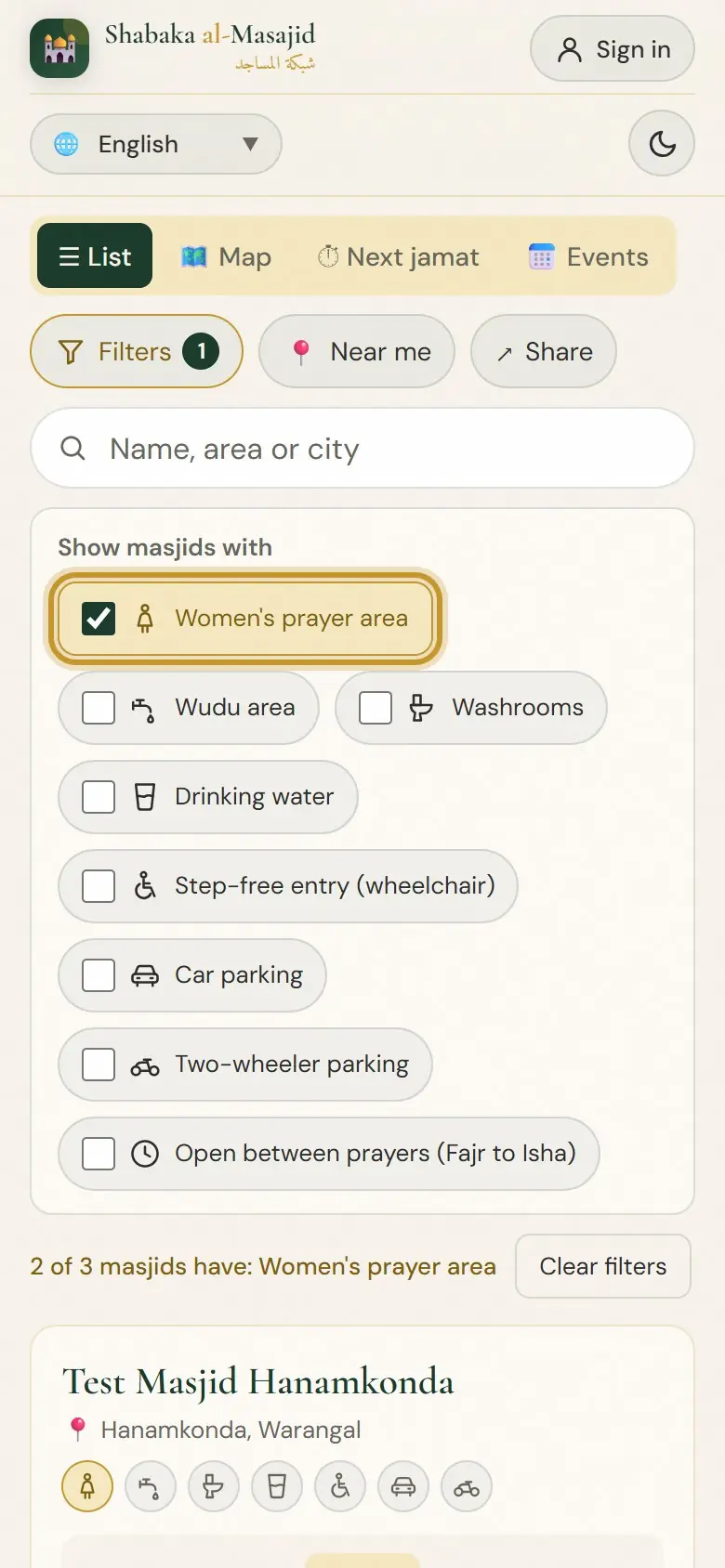
Tap Filters and tick what you need, for example Women's prayer area. Masjids that have not told us yet are still shown, marked “Not stated yet”. Tap Clear filters to see all masjids again.
The map
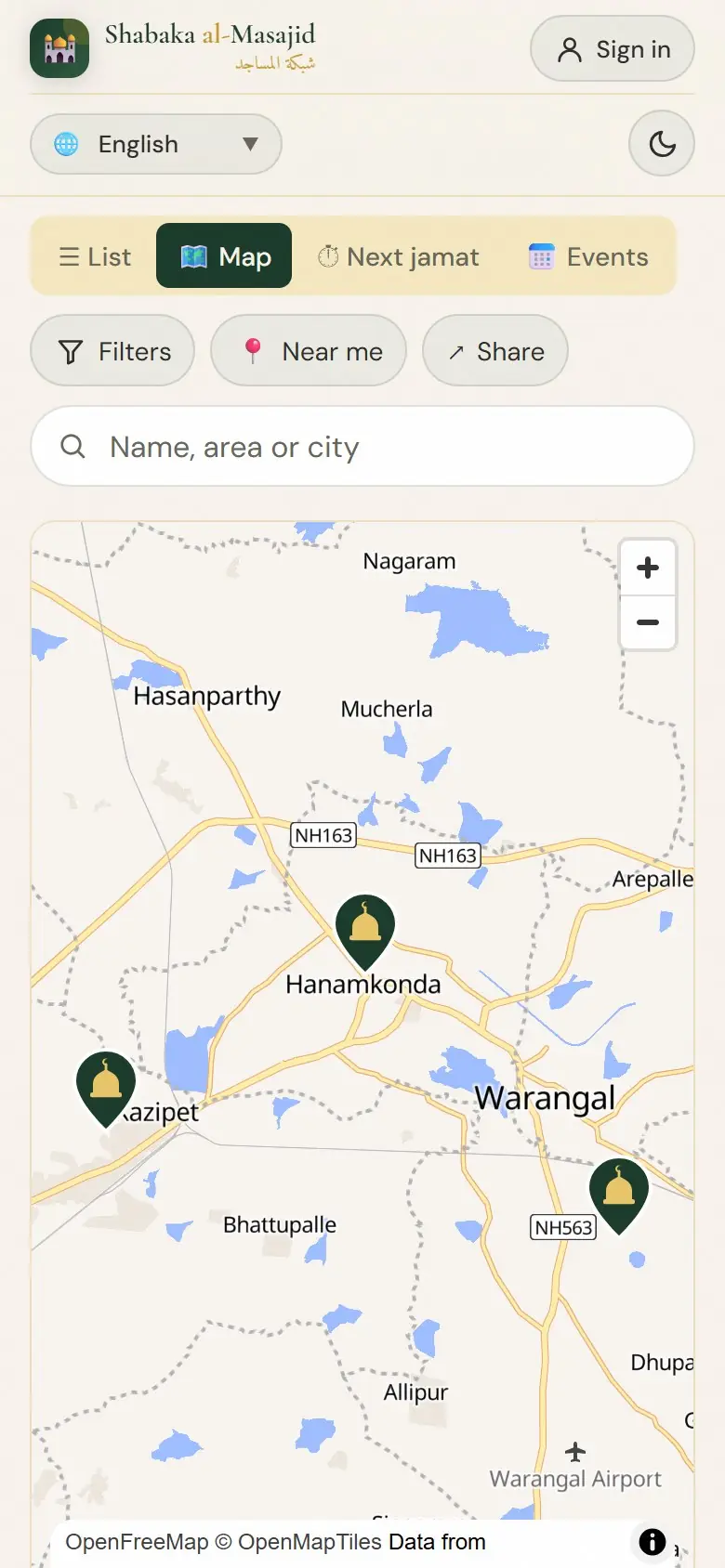
Tap Map to see the masjids on a map. Tap a pin to see the masjid's name and its next jamat. Use + and – or two fingers to zoom.
Next jamat near you
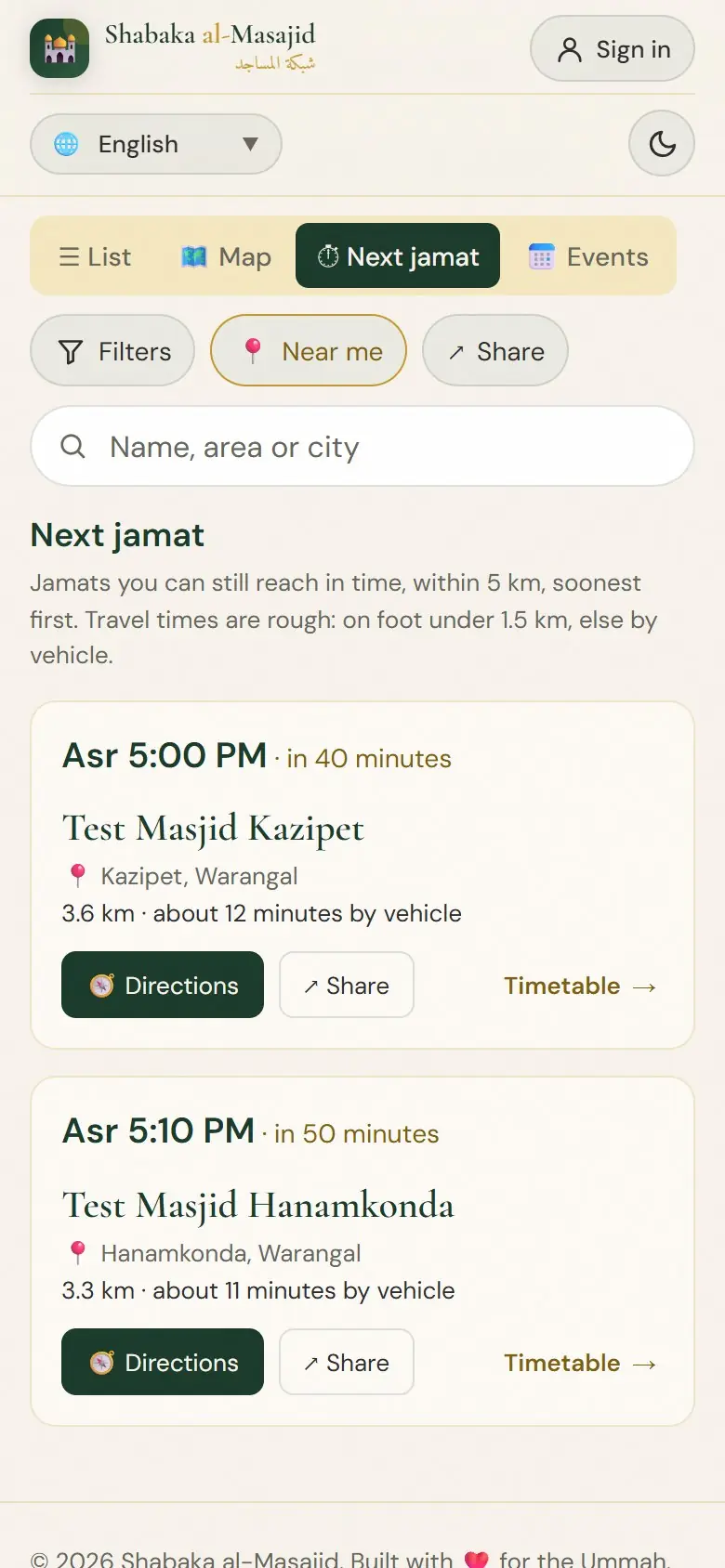
Tap Next jamat. When your phone asks, allow your location. You see the jamats you can still reach within 5 km, the soonest first, with the distance and the rough travel time.
The Jumu'ah finder
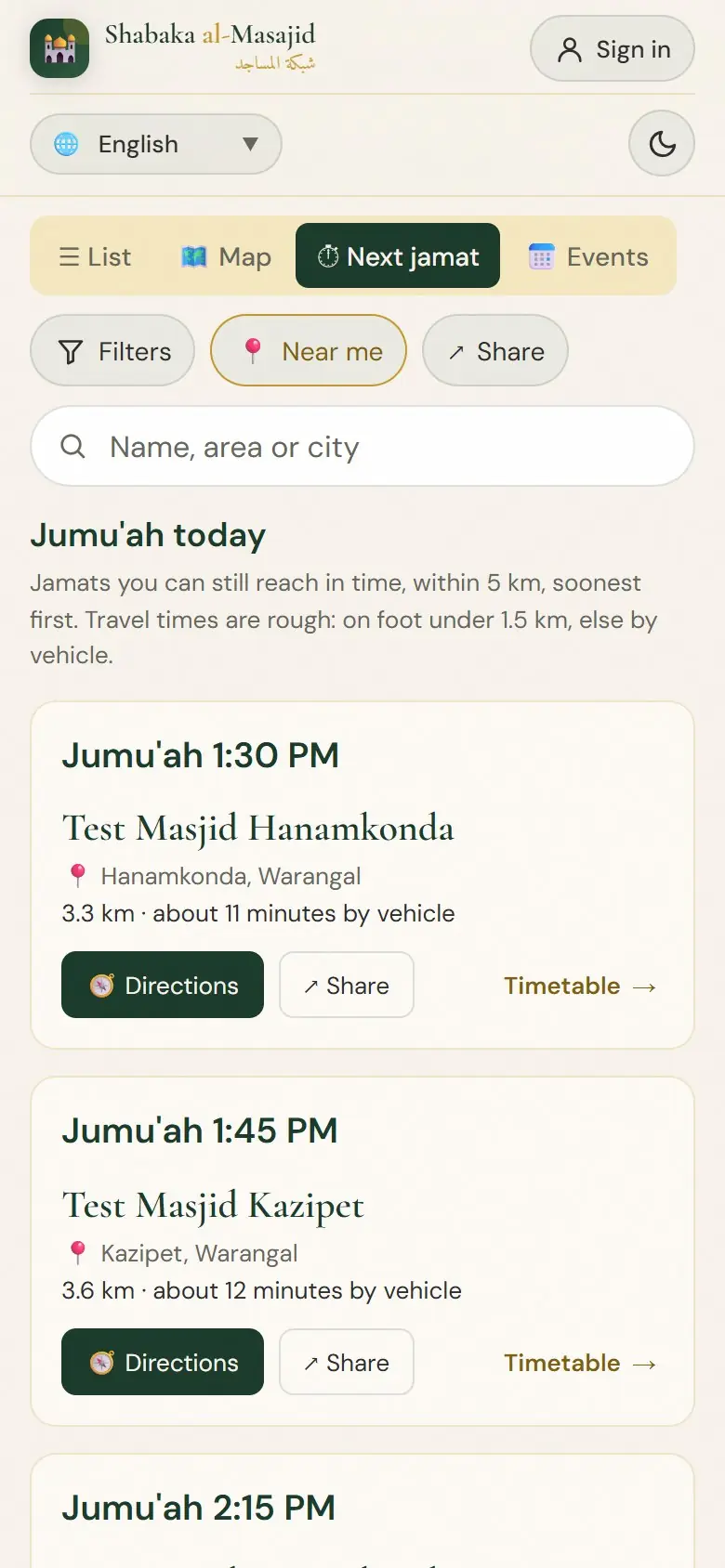
On Friday the same tab shows every Jumu'ah jamat near you, by time. So if you miss one, you can see where the next one is.
A masjid's timetable
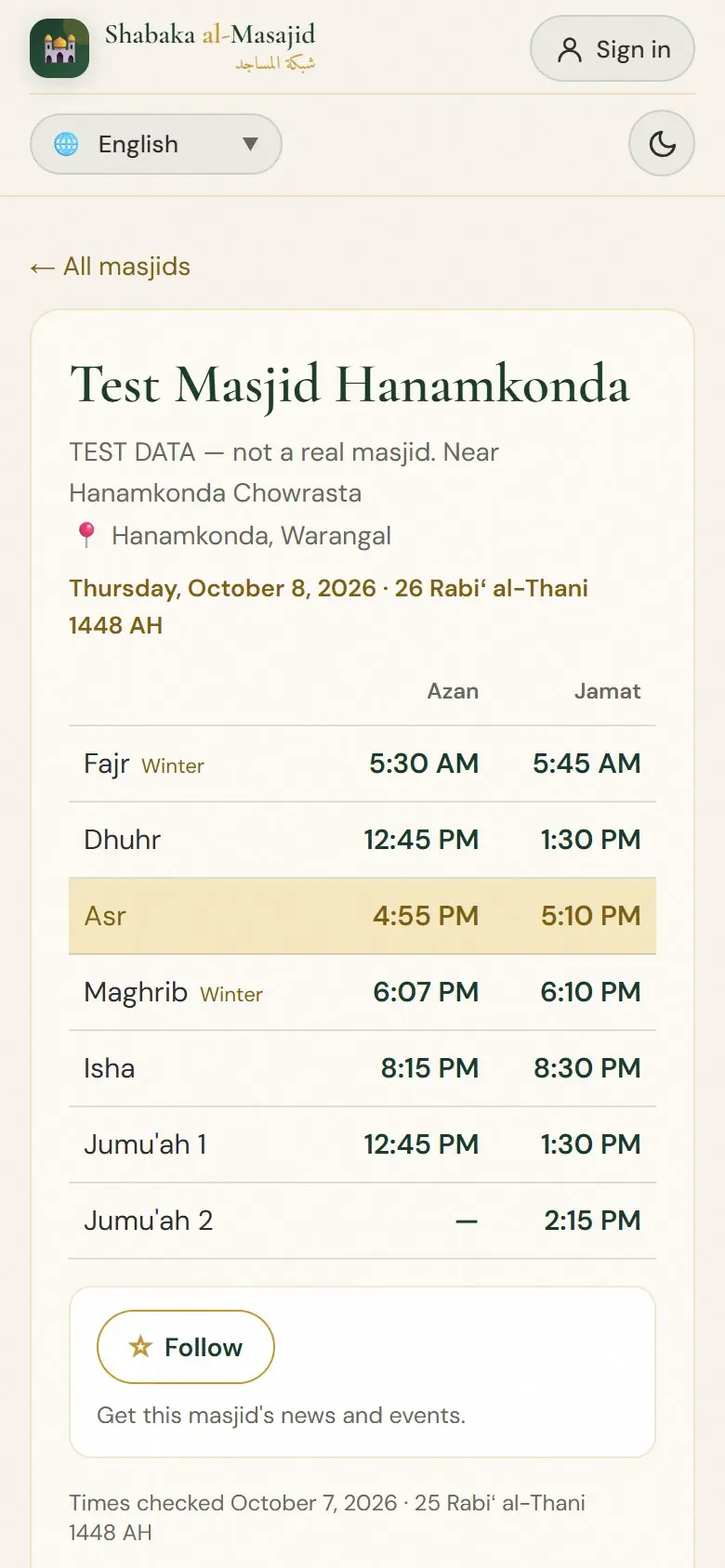
Tap Timetable on a masjid to open its page: the azan and jamat of each prayer today, Jumu'ah, and changes coming soon. “Times checked” shows when the masjid last confirmed its times.
Facilities and directions
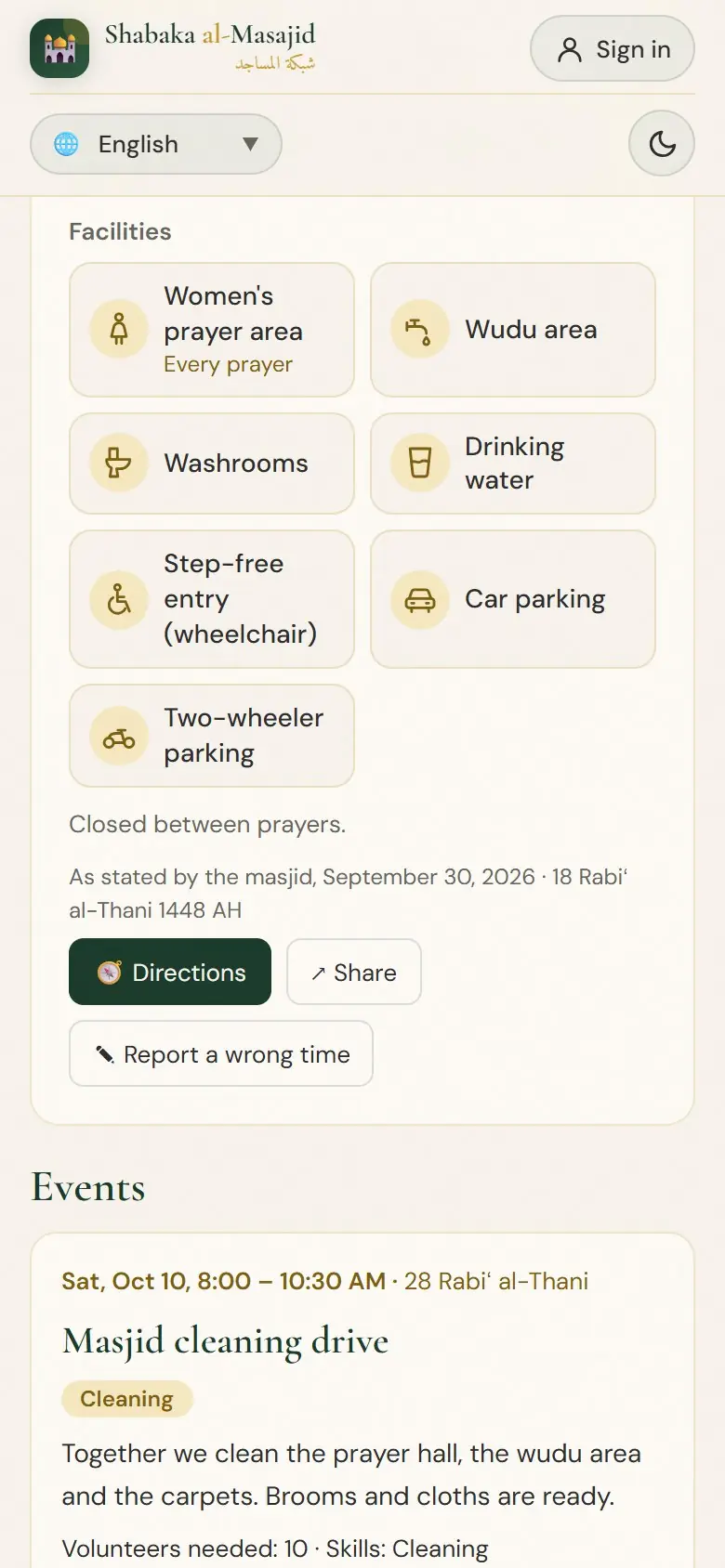
Further down you see the masjid's Facilities, as the masjid told us. Directions opens the way in your map app. Report a wrong time tells us if a time is wrong.
Share a masjid
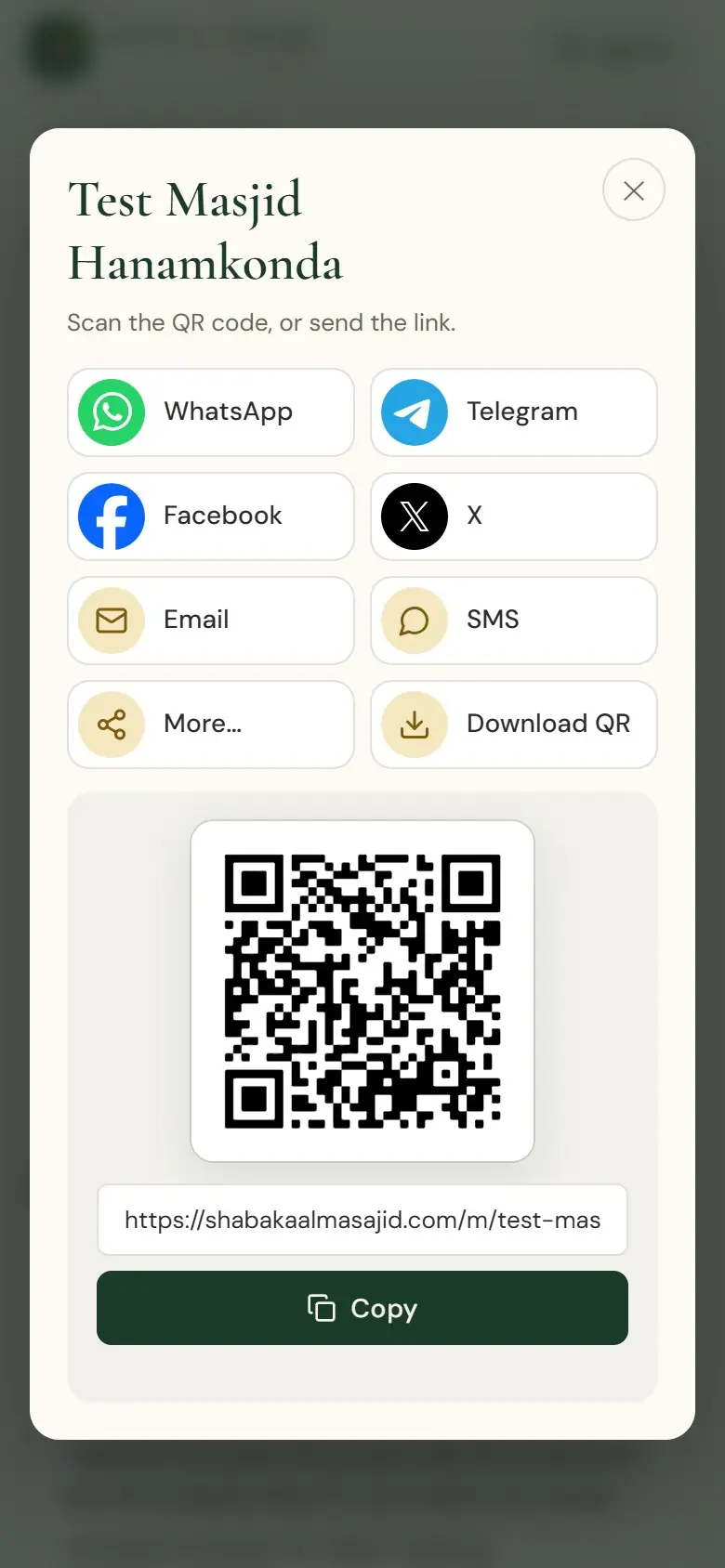
Tap Share to send the masjid's page on WhatsApp or any other app. The QR code can go on the masjid's notice board: Download QR saves it as a picture.
Put it on your phone
Add Shabaka al-Masajid to your phone's Home Screen. It then opens with one tap, like an app. Its icon is called ShaMa, our short name.
Android phone (Chrome)
Add to Home screen
- Open shabakaalmasajid.com in Chrome.
- Tap the menu at the top right.
- Tap Add to Home screen (on some phones: Install app).
- Tap Add or Install. The ShaMa icon is now on your Home Screen.
iPhone or iPad (Safari)
Add to Home Screen
- Open shabakaalmasajid.com in Safari.
- Tap the Share button (a square with an arrow up) at the bottom.
- Scroll down and tap Add to Home Screen.
- Tap Add. Open Shabaka al-Masajid from the new icon.
Ramadan and Eid
In Ramadan and at Eid the pages change by themselves. There is nothing to switch on.
Sehri and Iftar
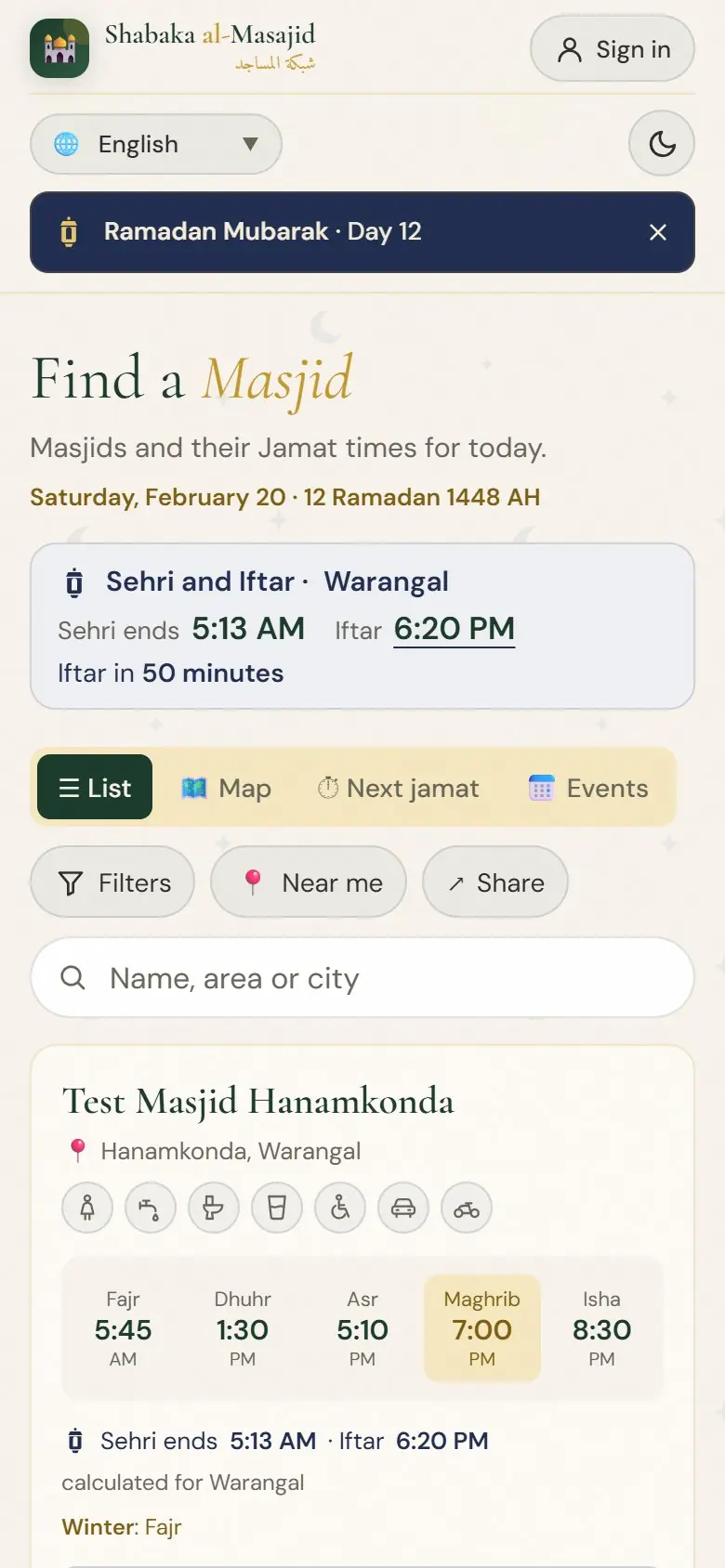
At the top of Find a Masjid you see Sehri ends and Iftar for your city, with the time left. Each masjid card shows its own Sehri and Iftar too. Taraweeh is shown in bold.
At your masjid
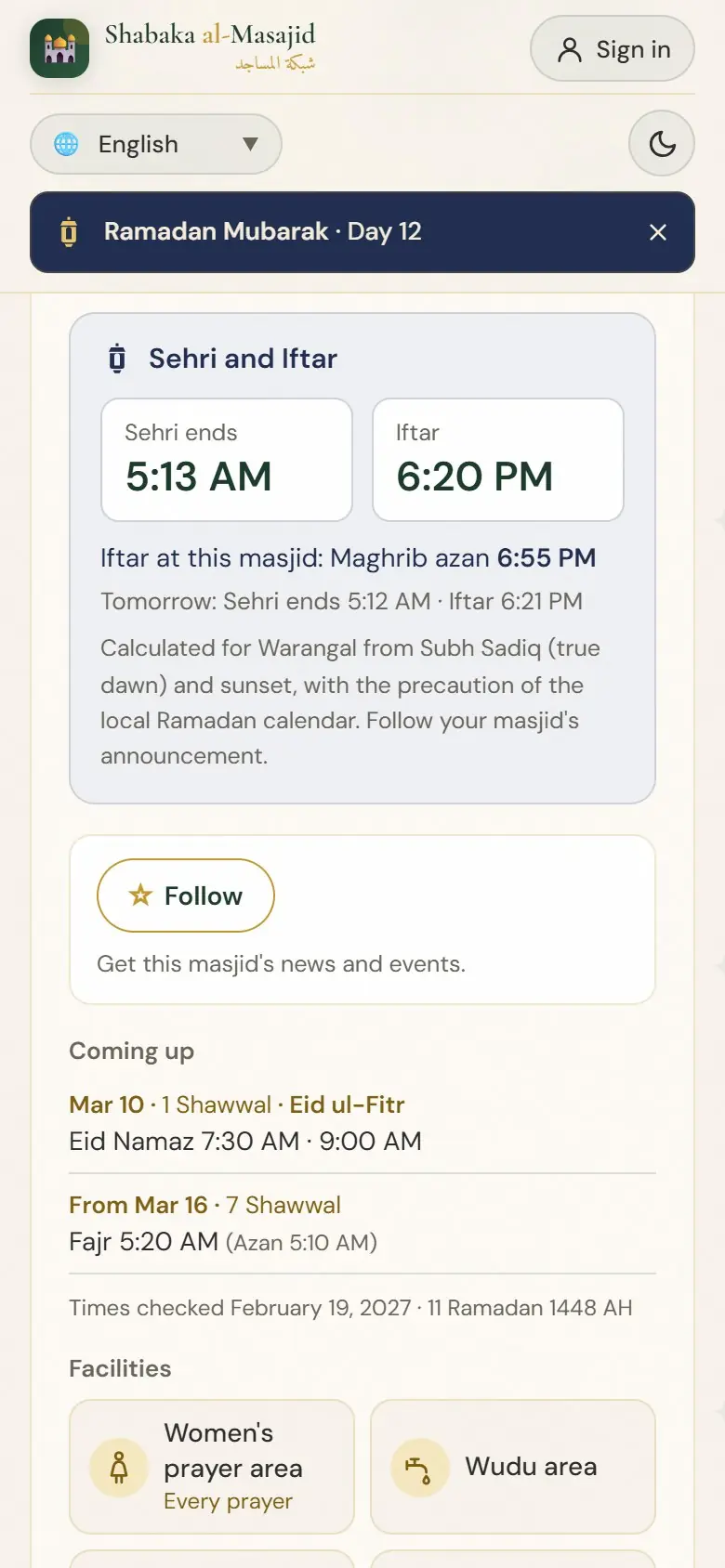
A masjid's page shows its Iftar (its Maghrib azan) and tomorrow's times. If the masjid gave its own Ramadan times, it says “as announced by the masjid”. If not, the times are calculated for your city.
Eid prayers
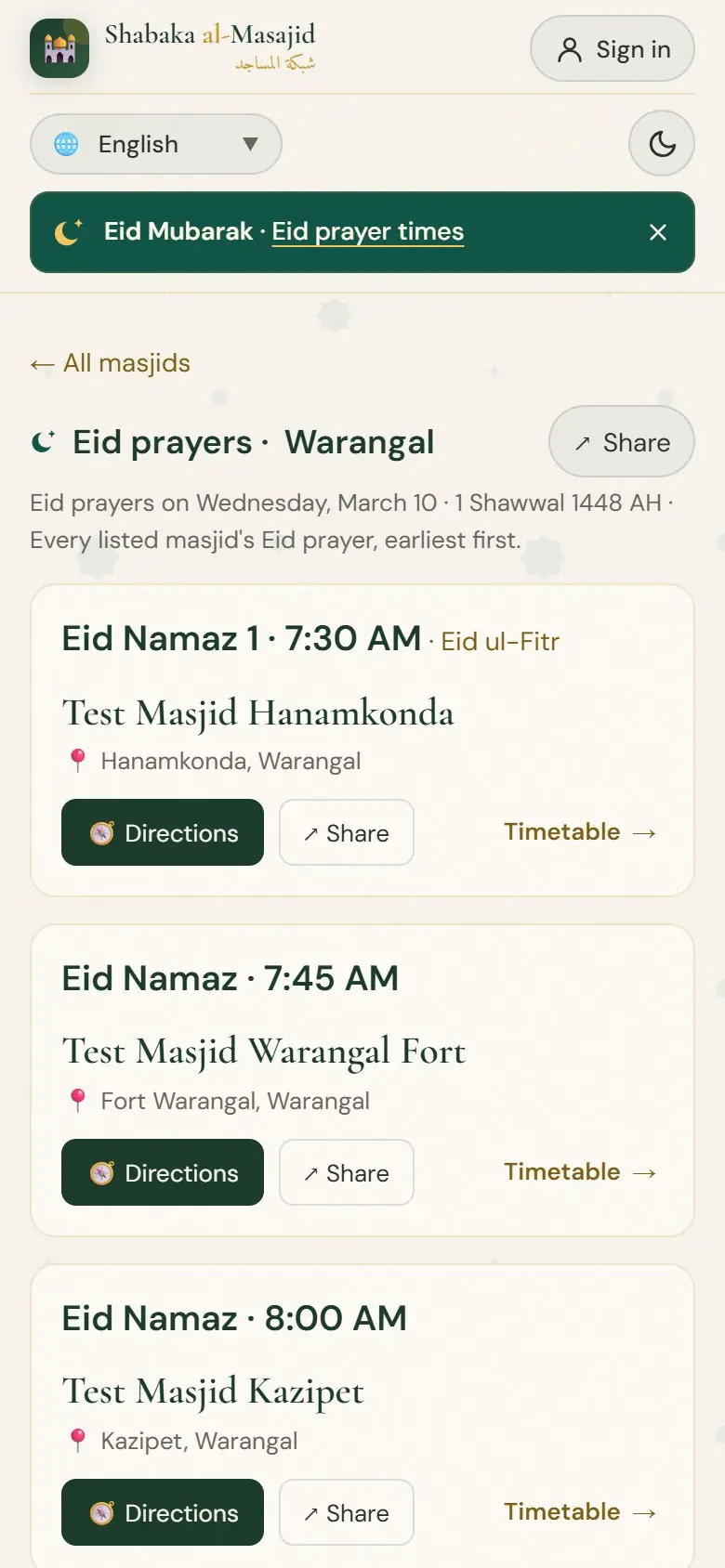
On Chand Raat and on Eid, the banner at the top leads to Eid prayers: every masjid's Eid namaz in your city, the earliest first, with the map below. Tap Share to send it to your family.
Create your account
An account is free. It lets you follow masjids, offer your help and answer events.
Sign up
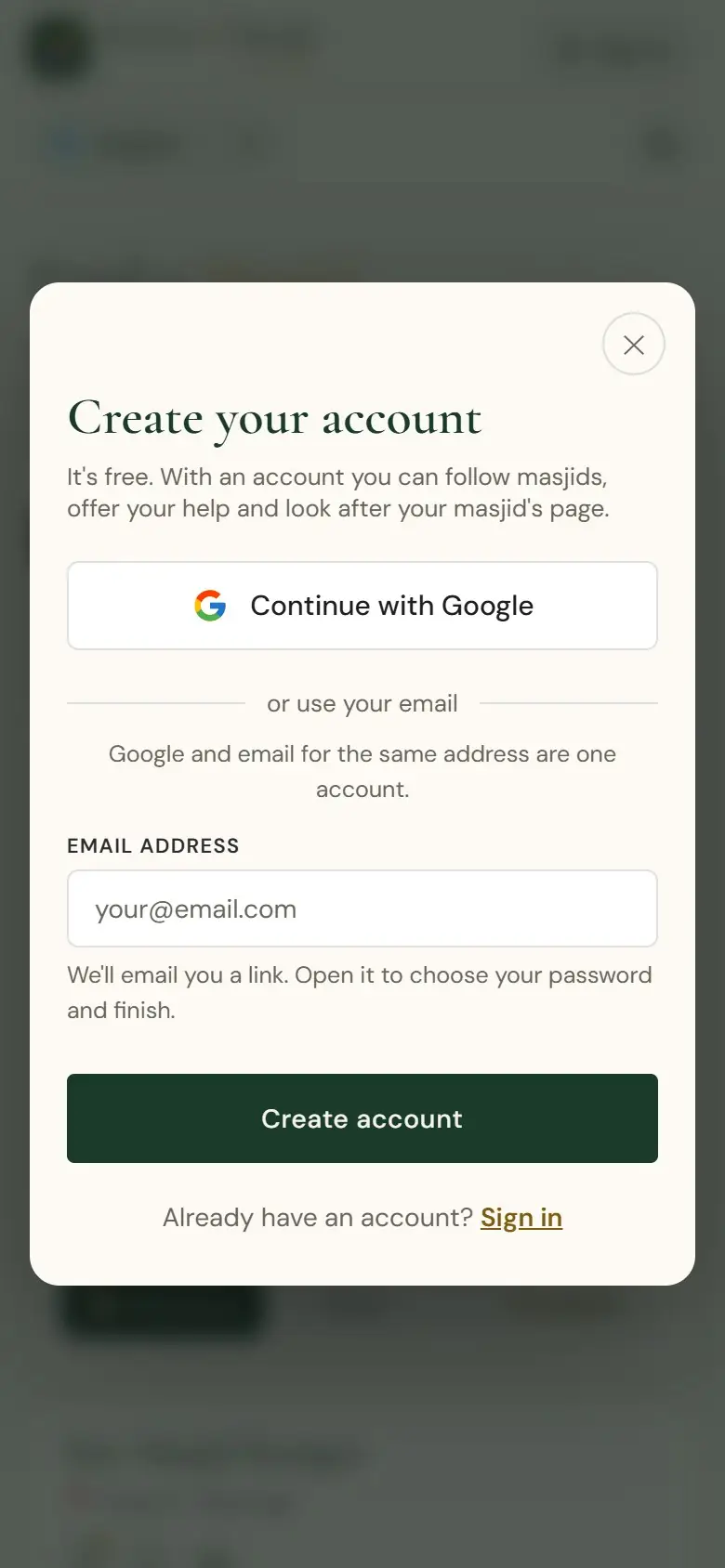
Tap Sign in at the top of the page. Choose Continue with Google, or type your email address and tap Create account. With email we send you a link: open it to finish.
One last step
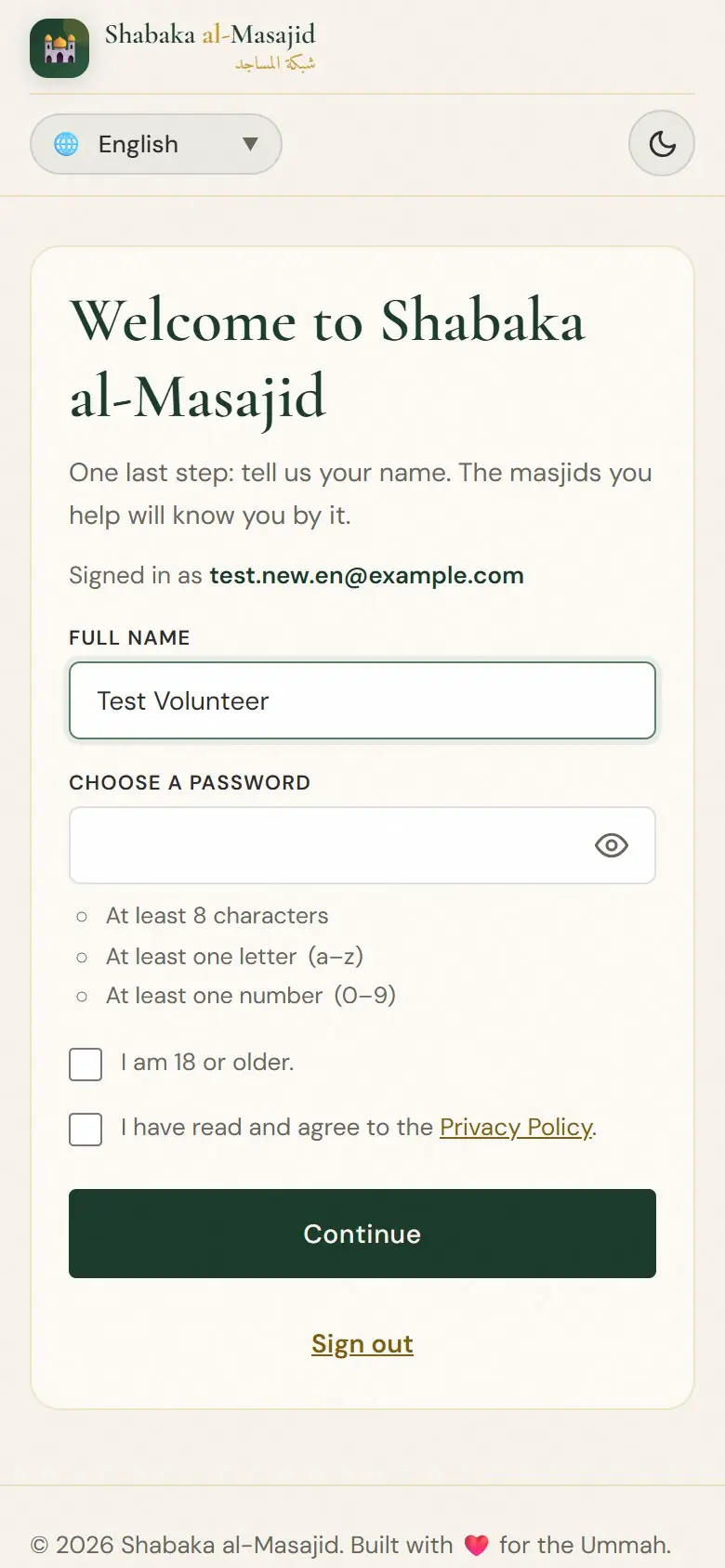
Type your name. The masjids you help will know you by it. With email, also choose a password. Tick “I am 18 or older” and agree to the Privacy Policy, then tap Continue.
Your account page
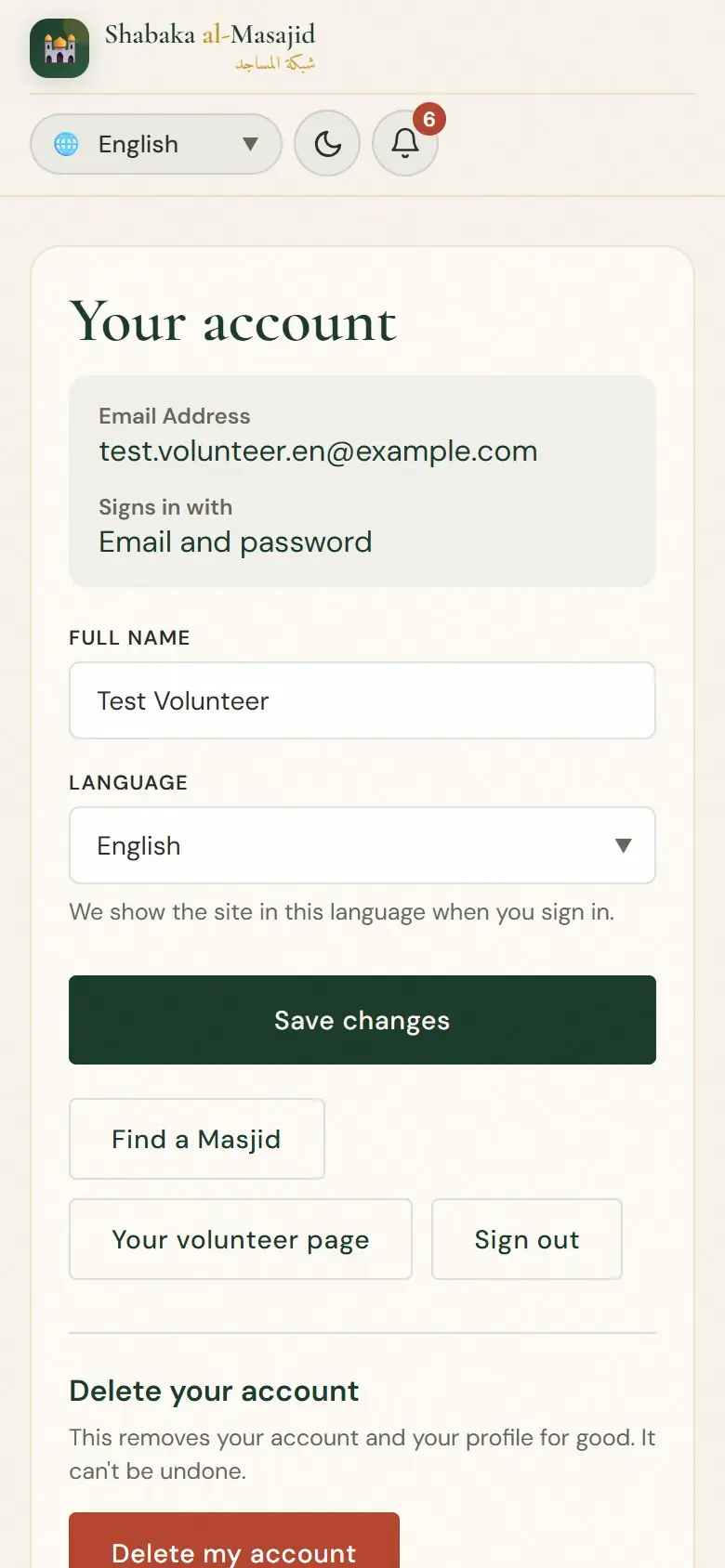
Tap your name at the top of any page. Here you change your name and your language, open your volunteer page, or Sign out.
Follow a masjid and offer help
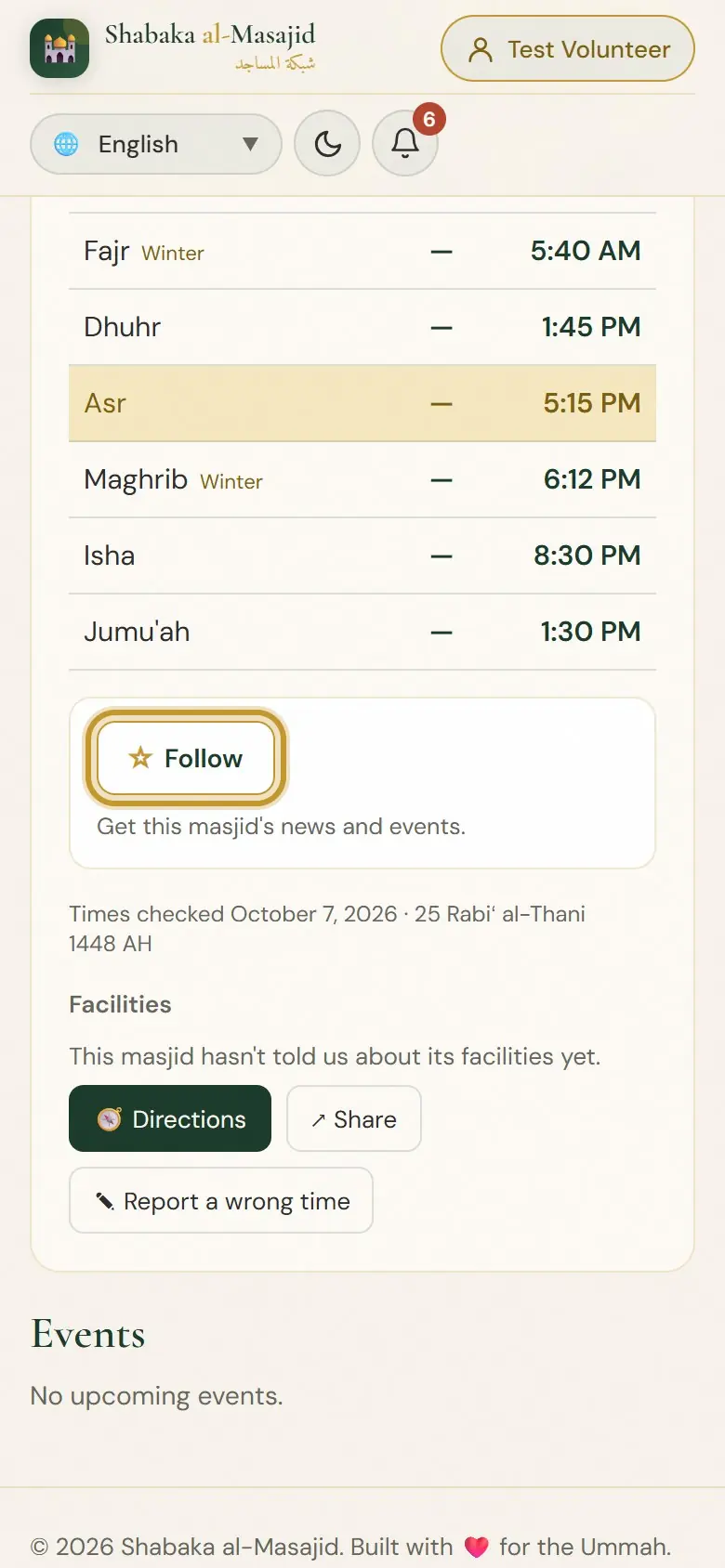
Follow the masjids you pray at. If you can help one of them, say so with one switch.
Follow
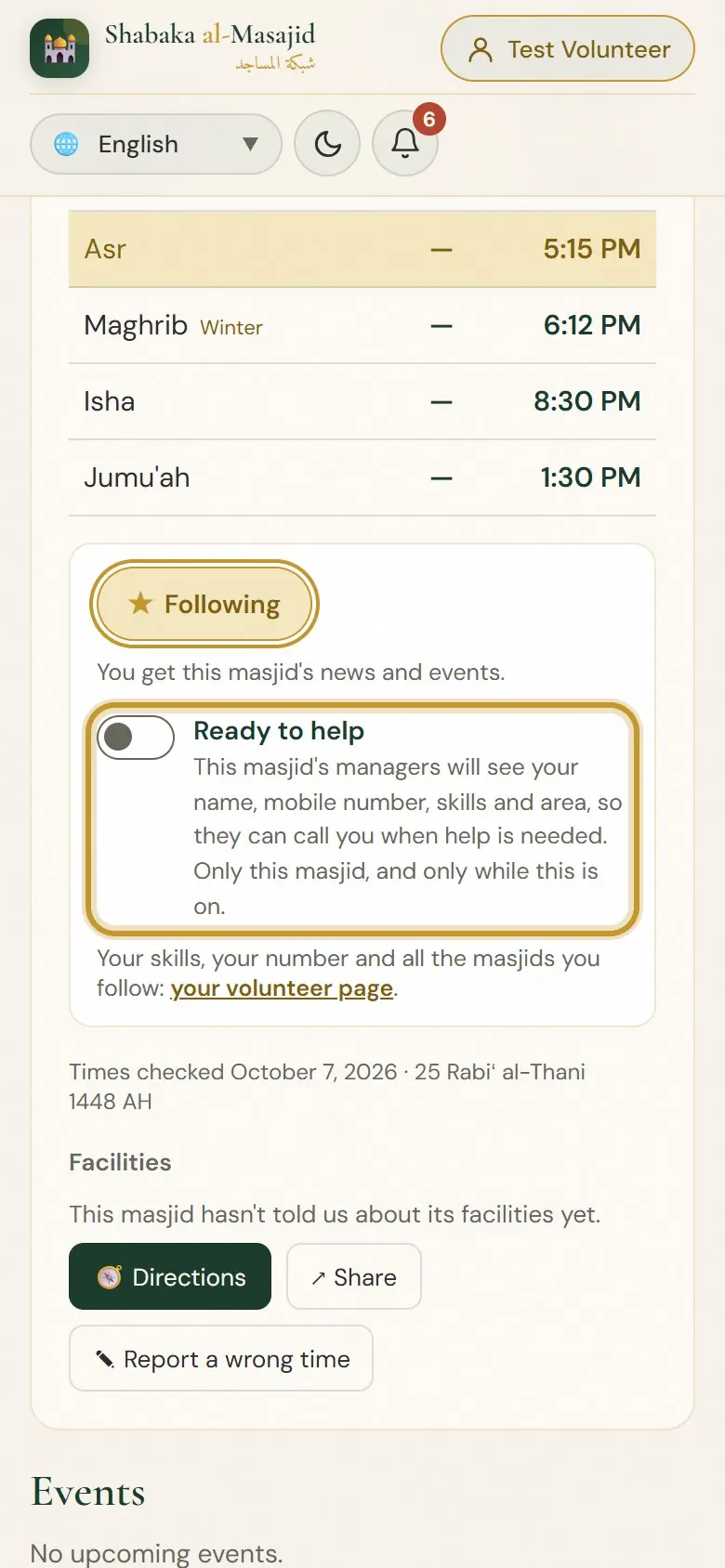
Open a masjid's page and tap Follow. You then get its news, its events and its Janazah announcements.
Ready to help
The button now says Following. Turn on Ready to help if you can help this masjid. Its managers then see your name, mobile number, skills and area, so they can call you. Only this masjid, and only while the switch is on.
Your volunteer page
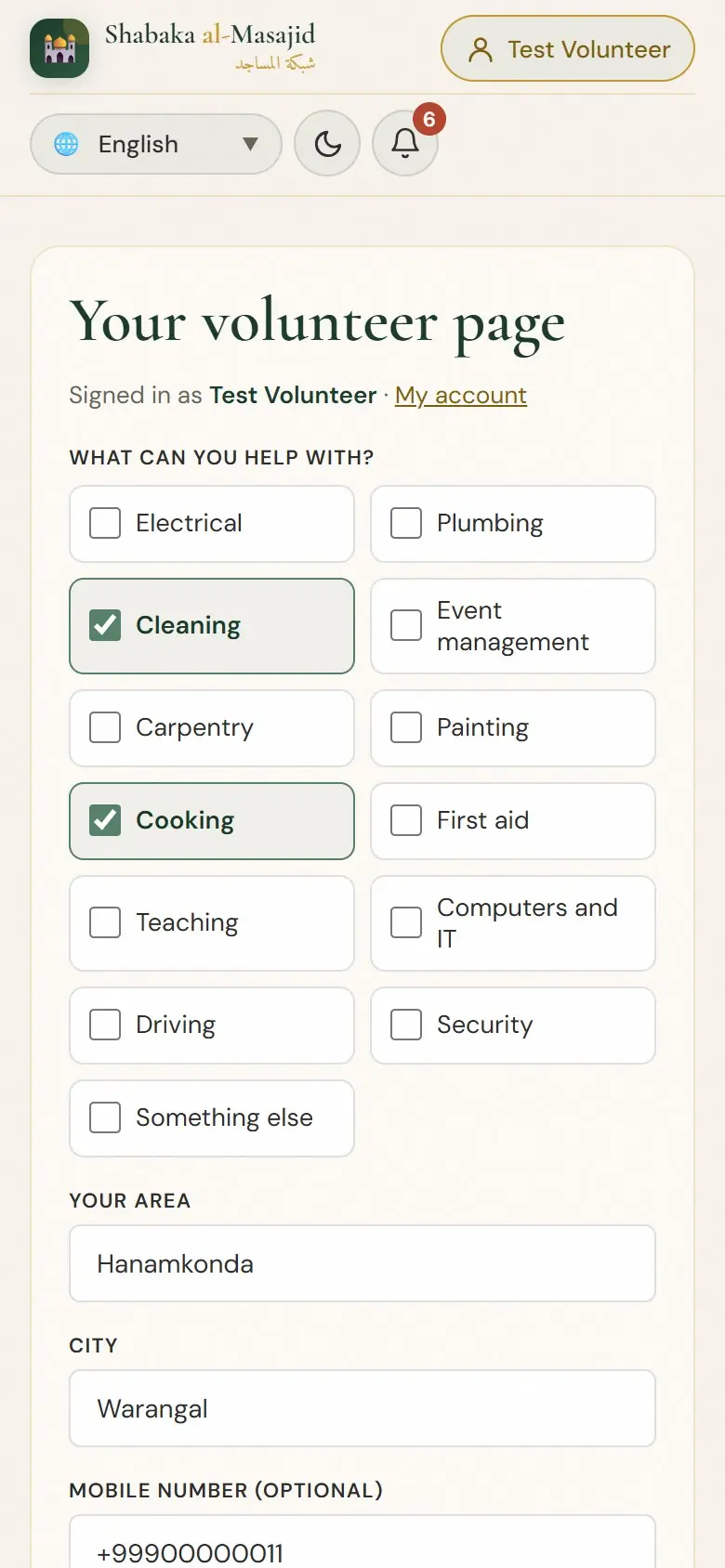
On Your volunteer page tick what you can help with, and give your area, your city and your mobile number. Ready to help needs your mobile number. Tap Save changes.
The masjids you follow
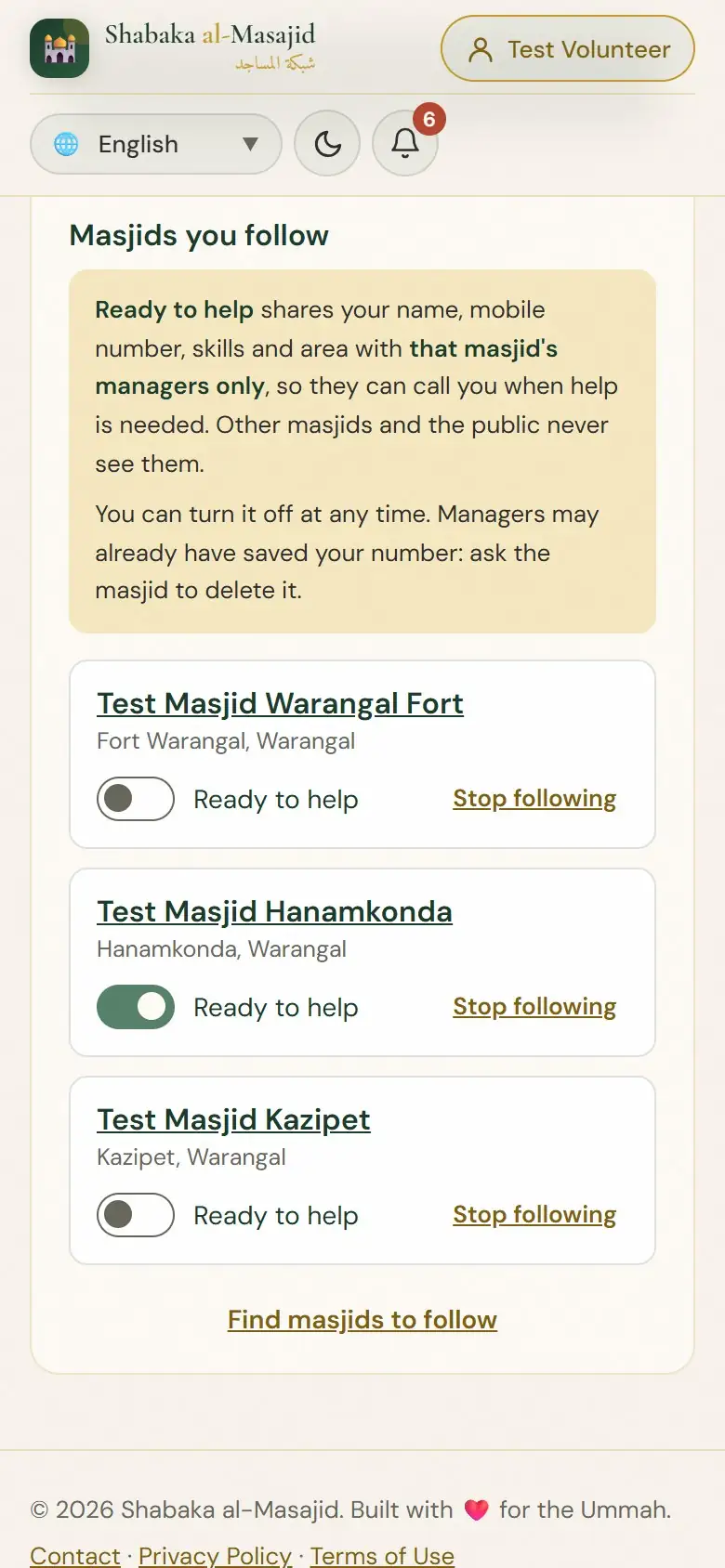
Further down are all the masjids you follow. Each has its own Ready to help switch and Stop following. Find masjids to follow takes you back to the list.
Events
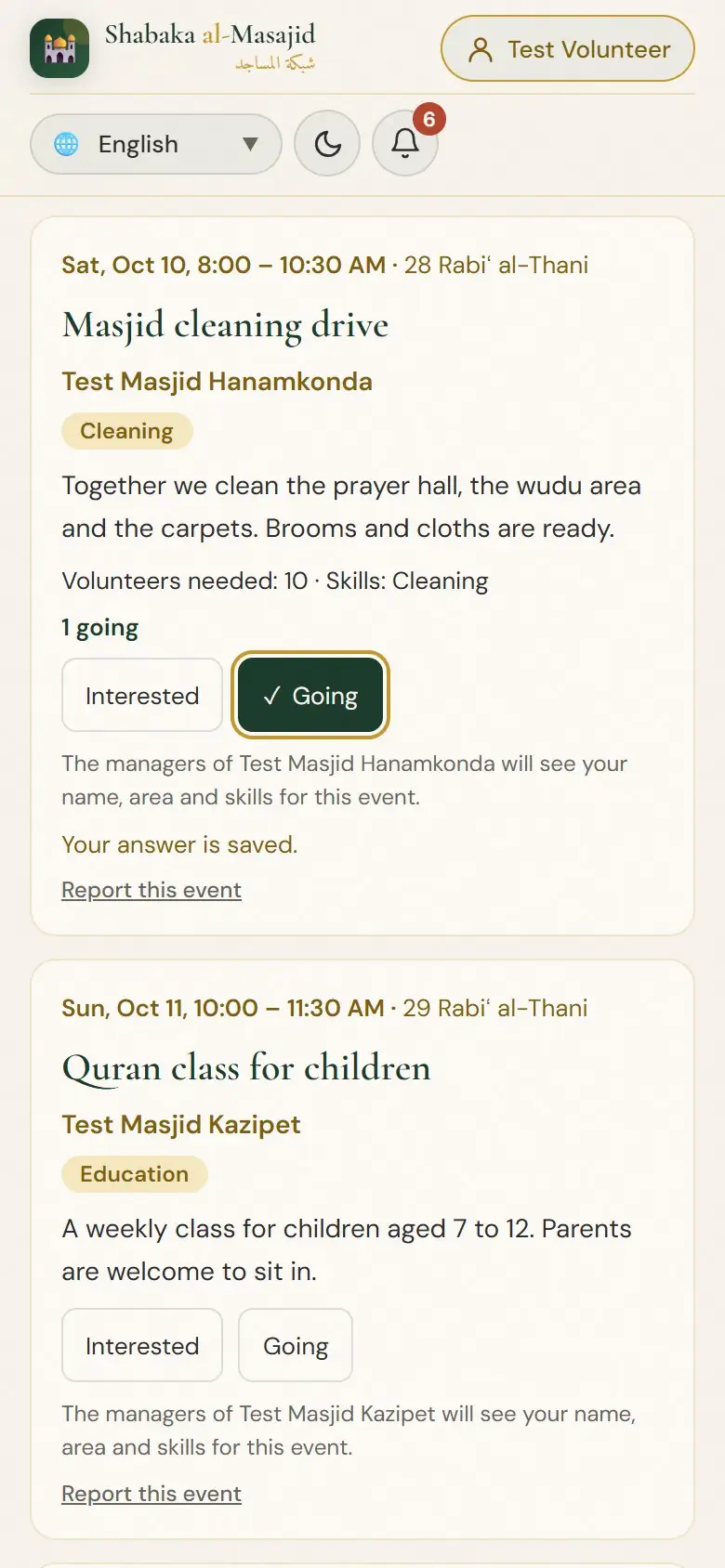
Masjids post their cleaning drives, classes, ijtemas and other events. You can say you are interested or coming.
See the events
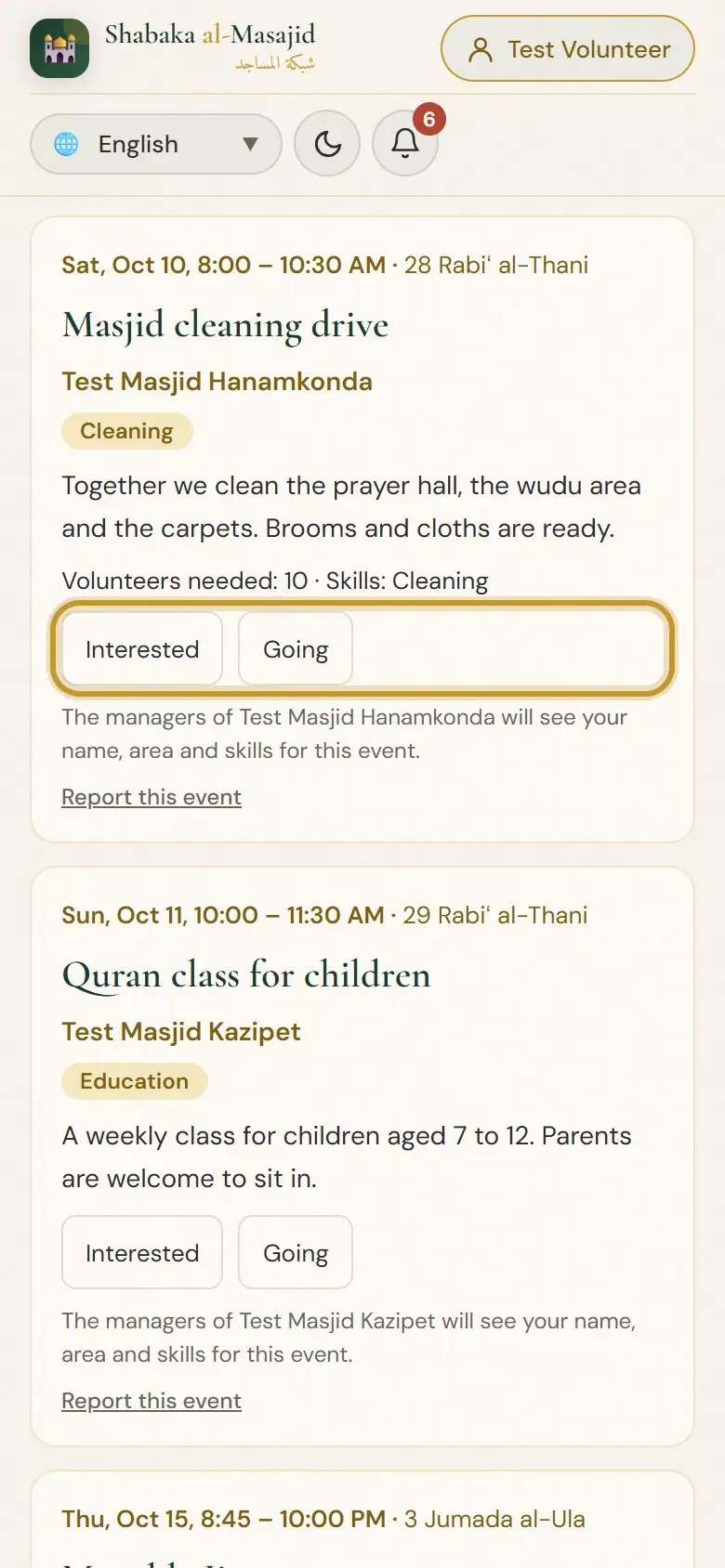
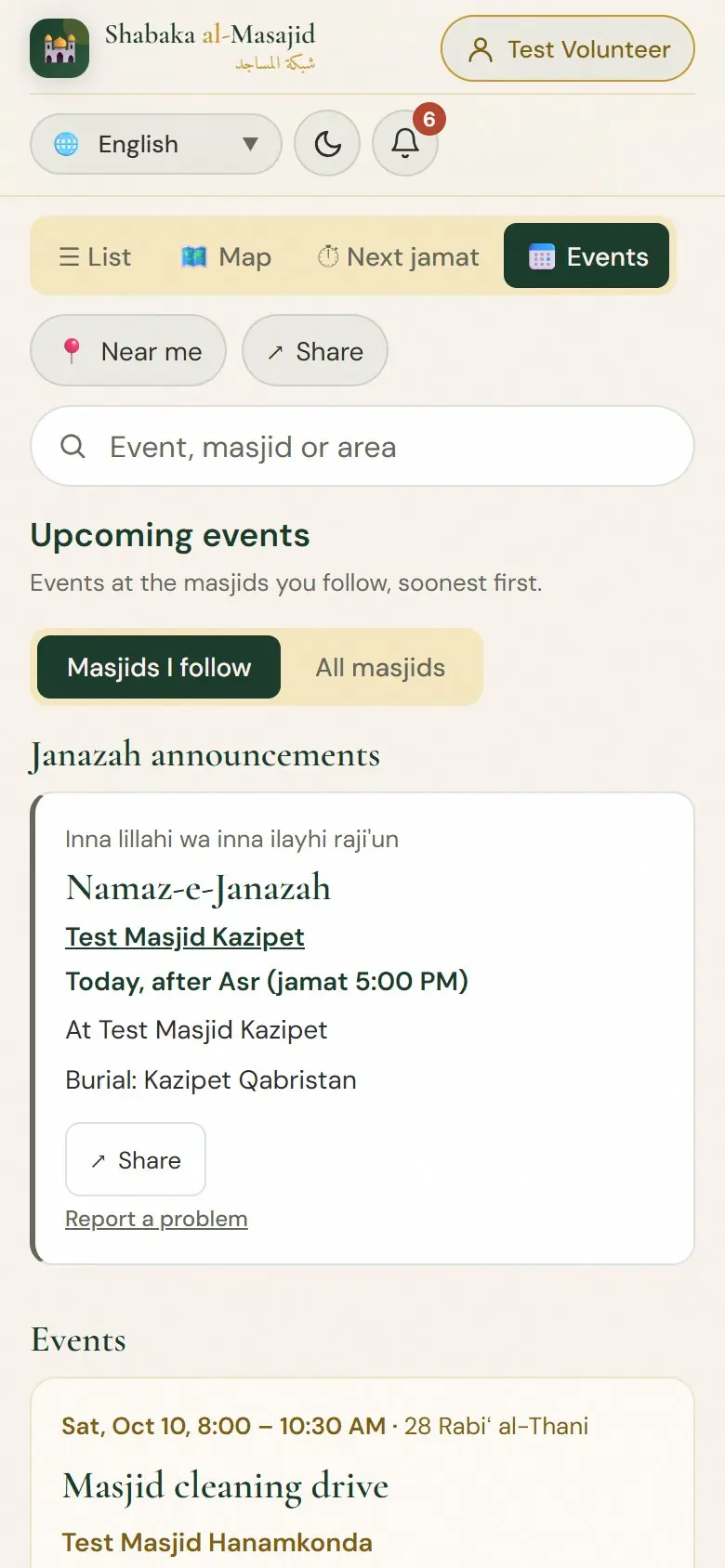
Tap Events. You see the events at the masjids you follow, the soonest first. Tap All masjids to see every masjid's events.
Interested or Going
Tap Interested or Going. The masjid's managers see your name, area and skills for this event, so they can plan. You can change your answer at any time.
Janazah announcements
When someone passes away, a masjid can announce the Namaz-e-Janazah on Shabaka al-Masajid.
What you see
The announcement shows at the top of Events and on the masjid's page: after which namaz it is, where, and the burial place. The name is shown only when the family agrees. Tap Share to send it on WhatsApp. It is removed two hours after the namaz.
Notifications
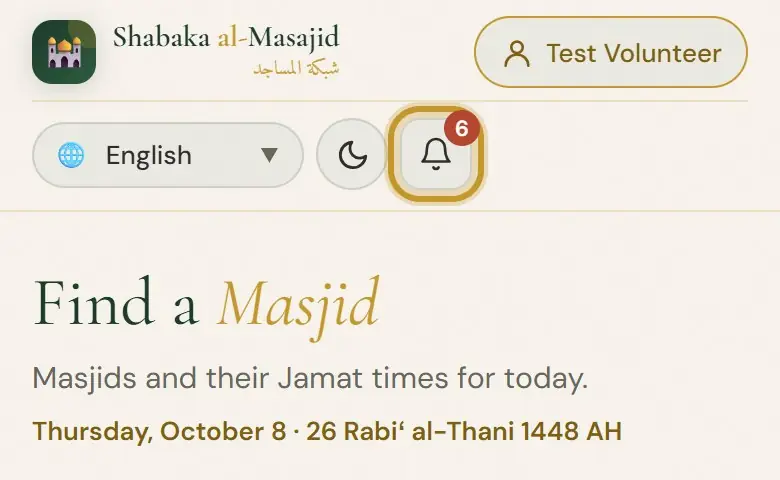
The bell keeps you up to date. It shows only when you are signed in.
The bell
The bell is at the top of every page. The red number shows how many notices are new.
Your notices
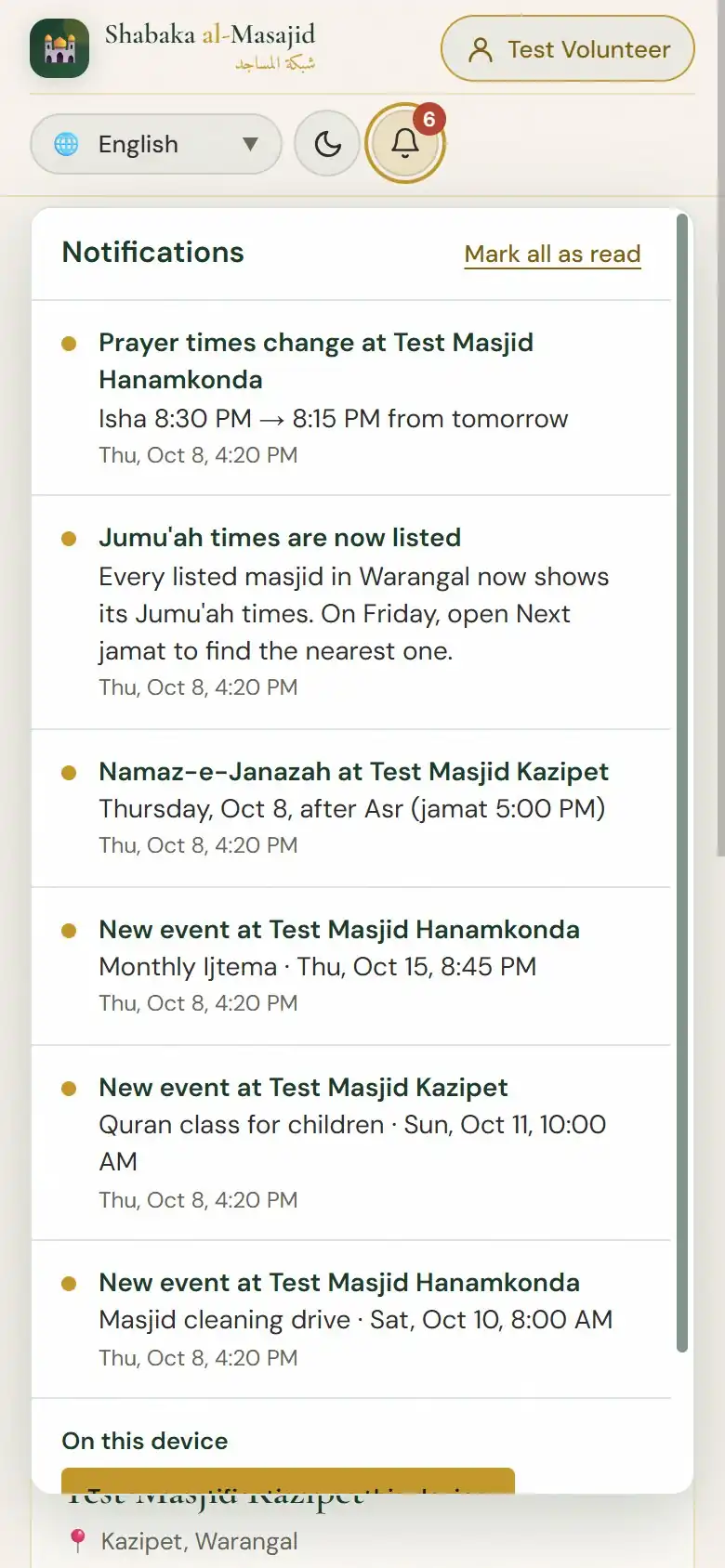
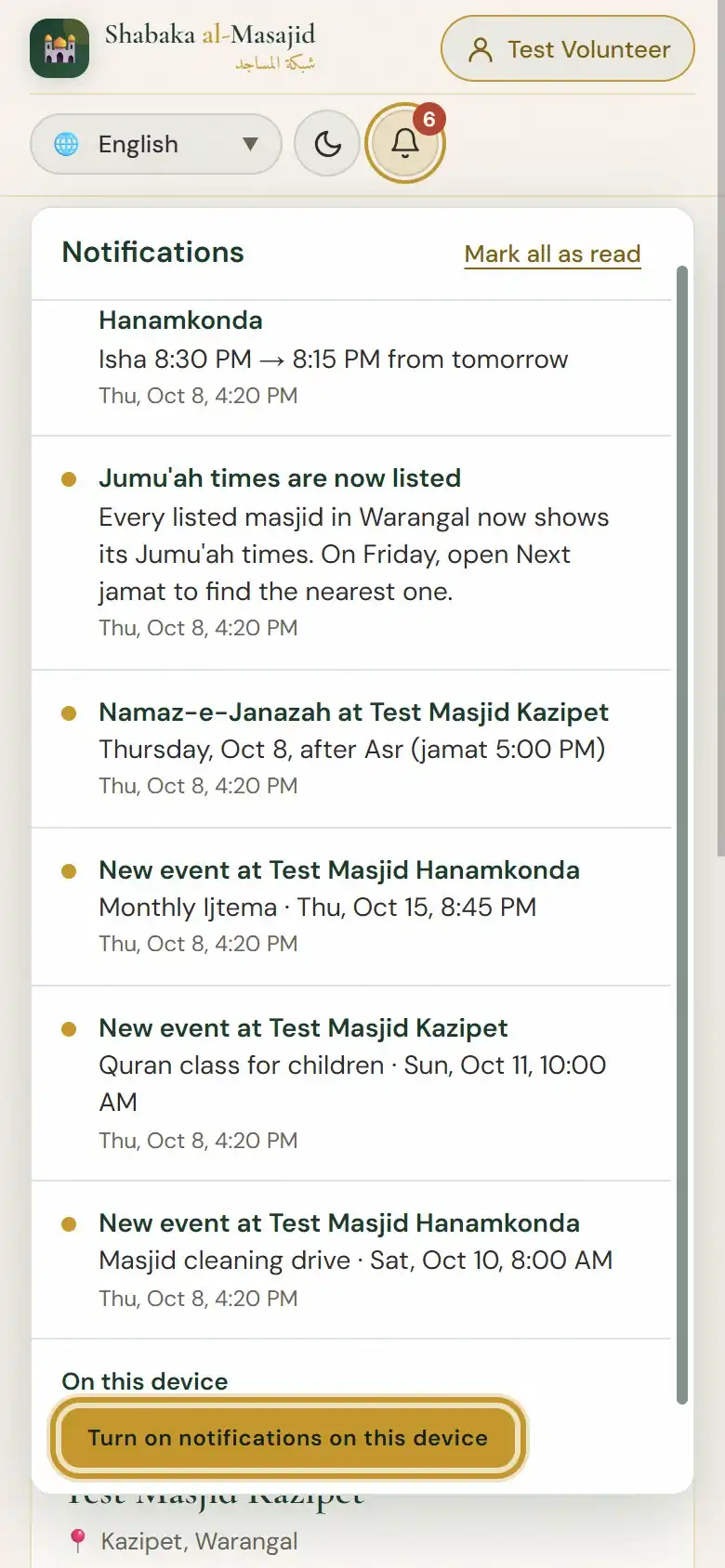
Tap the bell. You see prayer time changes at the masjids you follow, new events, Janazah announcements and news from our team. Tap a notice to open it. Tap Mark all as read when you have read them.
On your phone
To get them on your phone even when the website is closed, tap Turn on notifications on this device and then Allow. On iPhone, first add Shabaka al-Masajid to your Home Screen (section 3).
Choose what you get
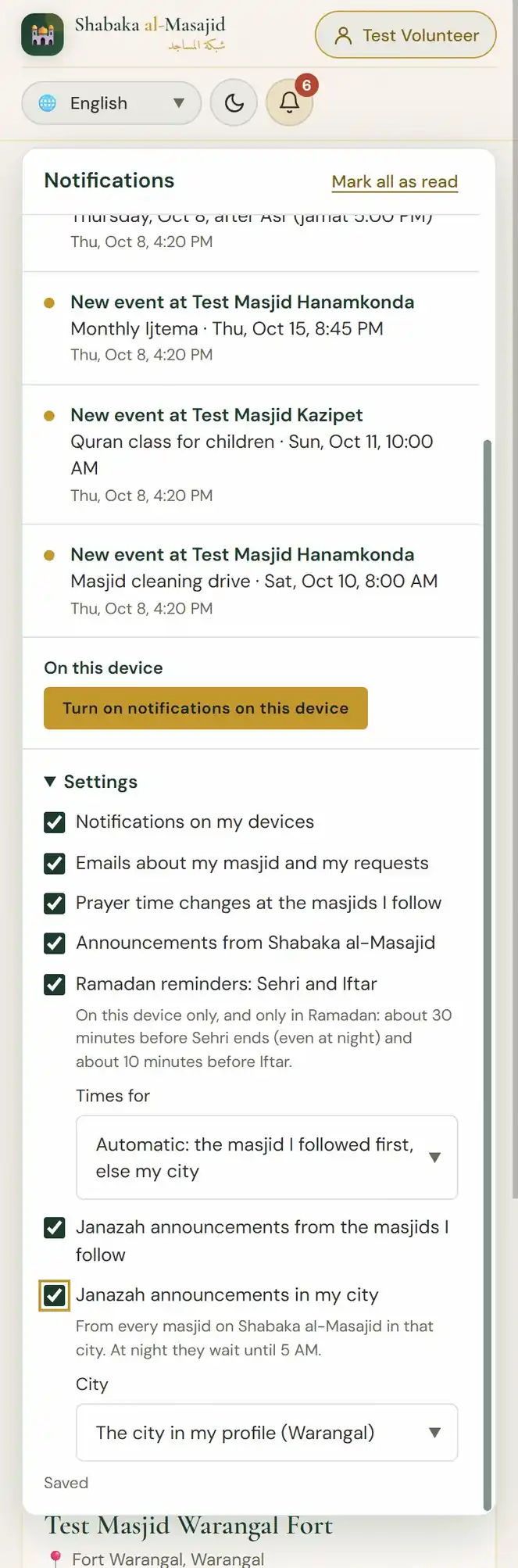
Tap Settings. Each switch is saved at once:
- Prayer time changes at the masjids I follow
- Announcements from Shabaka al-Masajid
- Ramadan reminders: Sehri and Iftar: about 30 minutes before Sehri ends and 10 minutes before Iftar, only in Ramadan. Choose the masjid or city under Times for.
- Janazah announcements from the masjids I follow
- Janazah announcements in my city
Language and dark mode
Language and dark mode
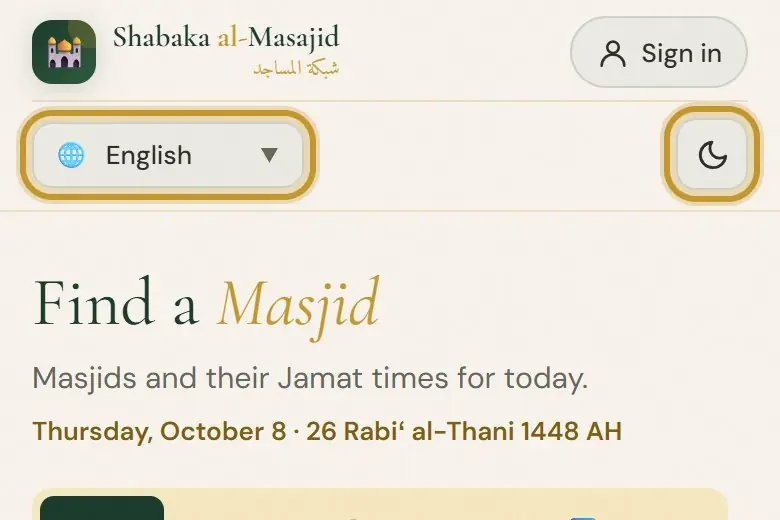
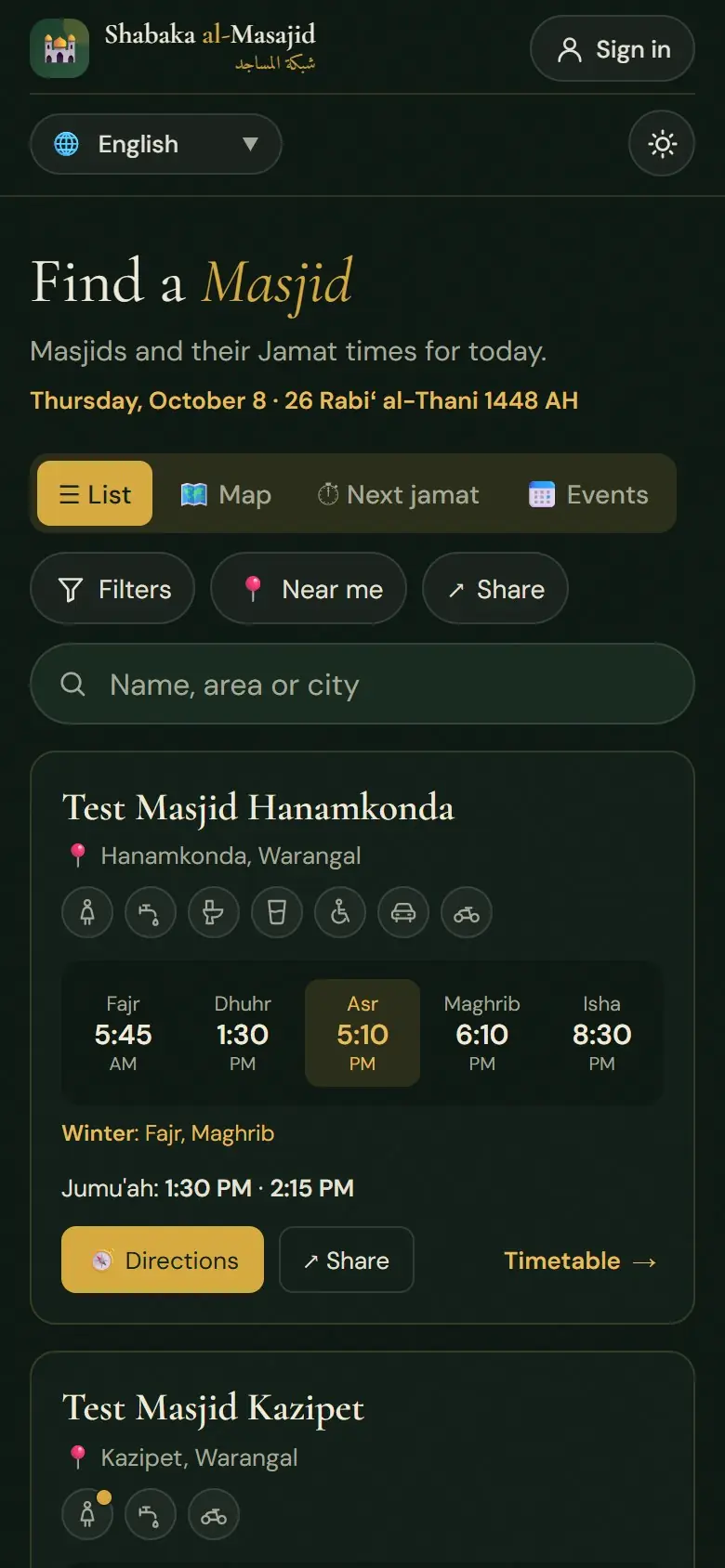
Choose your language in the menu at the top: English, اردو, हिन्दी, العربية or తెలుగు. The moon button changes the page to dark mode; the sun button changes it back.
Dark mode
Dark mode is easier on the eyes at night, for example before Fajr. Your choice is remembered on this phone.
Delete your account
You can delete your account yourself, at any time.
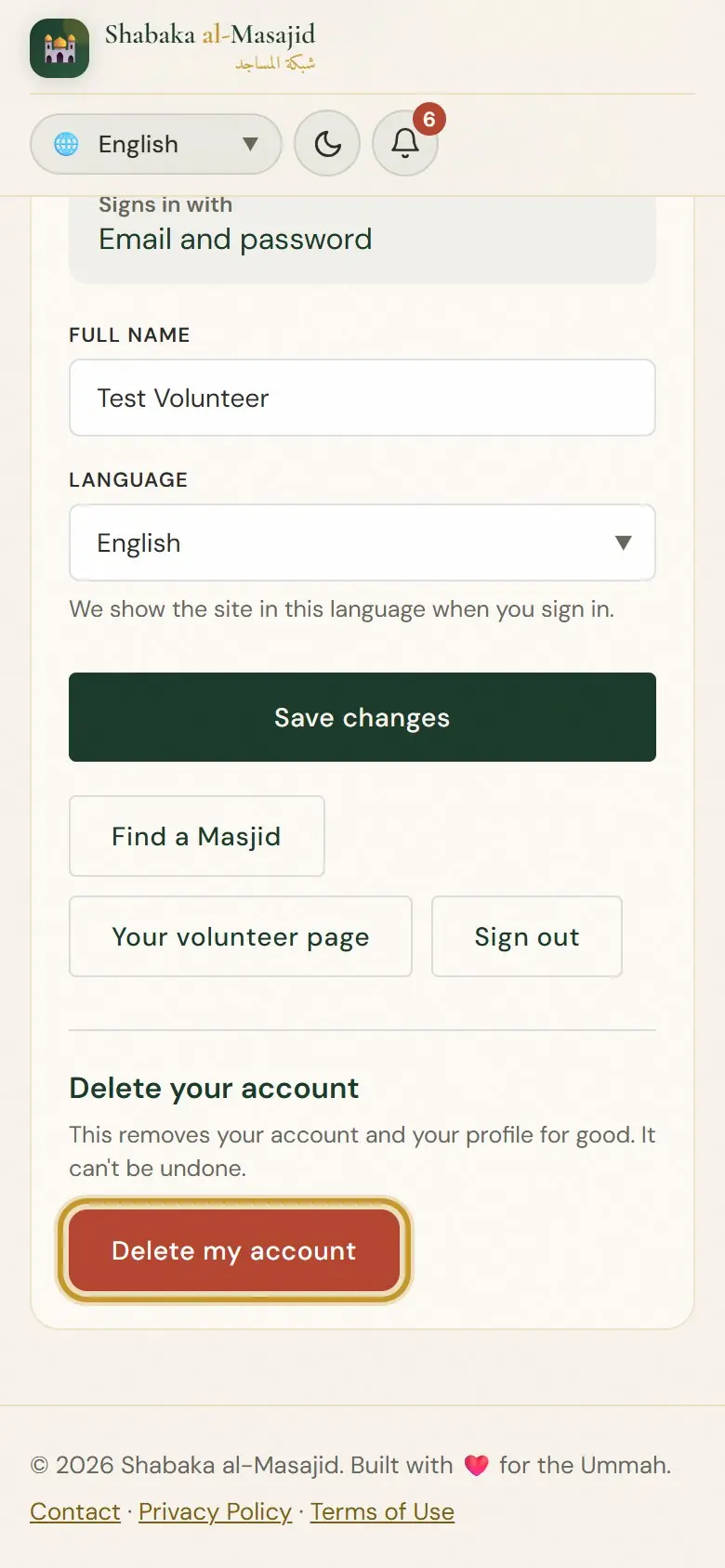
Open Delete
Open your account page and tap Delete my account. For your safety, if you signed in more than 10 minutes ago, it asks you to sign in again first.
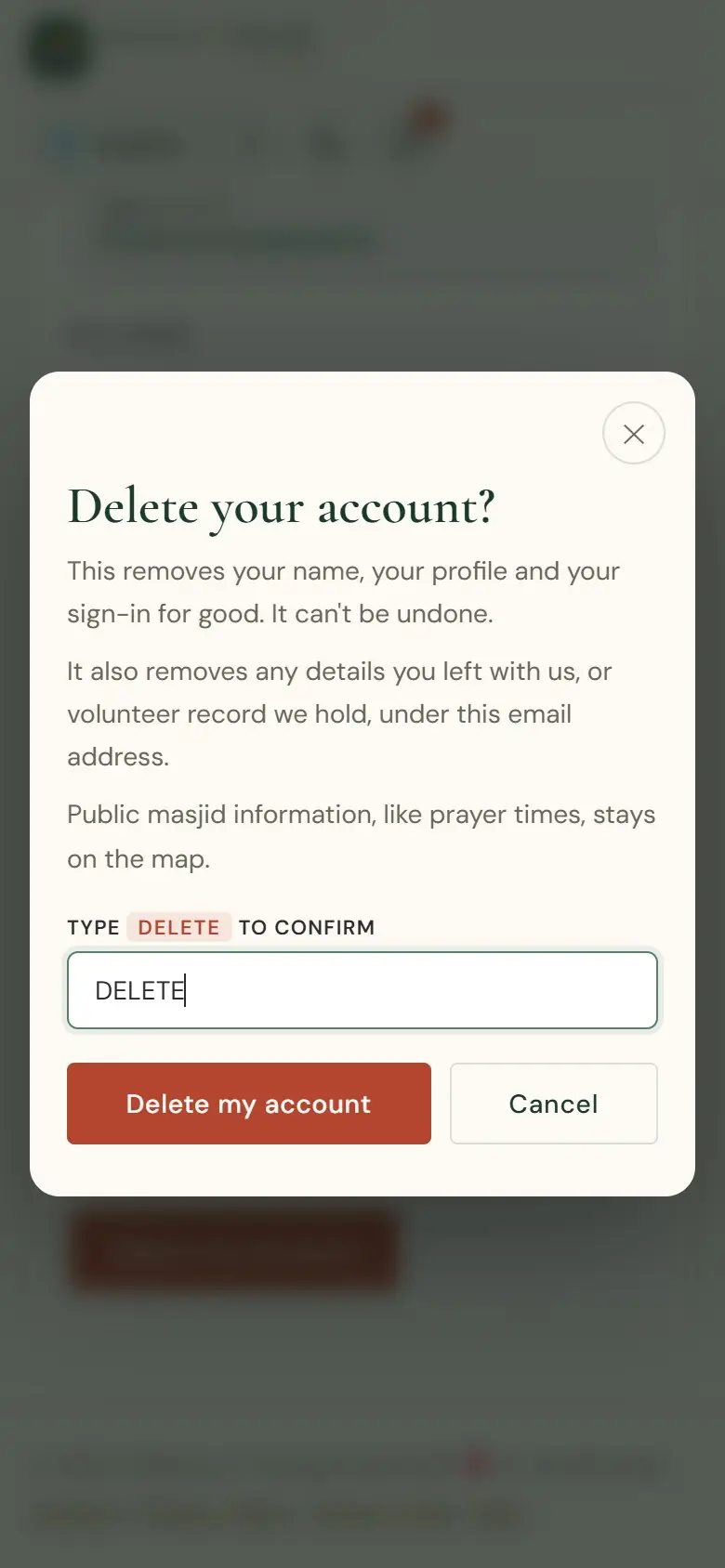
Confirm
Type DELETE and tap Delete my account. Your name, your profile, the masjids you follow and your sign-in are removed for good. It cannot be undone. Masjid information, like prayer times, stays.
Your privacy
We keep only what the website needs: your name, email address and language, the masjids you follow and, if you give them, your mobile number, skills and area. A masjid's managers see your name, number, skills and area only when you turn on Ready to help for that masjid, and only while it is on. We never sell, trade or rent your information. There are no ads and no tracking cookies. Notifications are deleted after 30 days. You can delete your account at any time. The full Privacy Policy is at shabakaalmasajid.com/privacy.
Need help?
Write to us at contact@shabakaalmasajid.com, or use Contact at the bottom of any page. JazakAllah khair for being part of Shabaka al-Masajid.
Still need help? Write to us at contact@shabakaalmasajid.com.