Masjid Manager’s Guide
For trustees and committee members who look after their masjid’s page
Download PDF PDF · 3.3 MB
How to use this guide: each part has numbered steps, with a picture of the real screen next to them. Names in bold are the words you see on the screen.
About Shabaka al-Masajid
Shabaka al-Masajid is a free website that connects masjids with the people who pray in them and serve them. On Find a Masjid, anyone can see a listed masjid’s Azan and Jamat times, its facilities, its events and its Janazah announcements. As a masjid manager, you keep your masjid’s page correct. It is sadaqah jariyah: always free for masjids, with no ads.
On your phone, open shabakaalmasajid.com/manage. This is the managers’ page. Free for every masjid. Up to 5 people can manage one masjid, each with their own account.
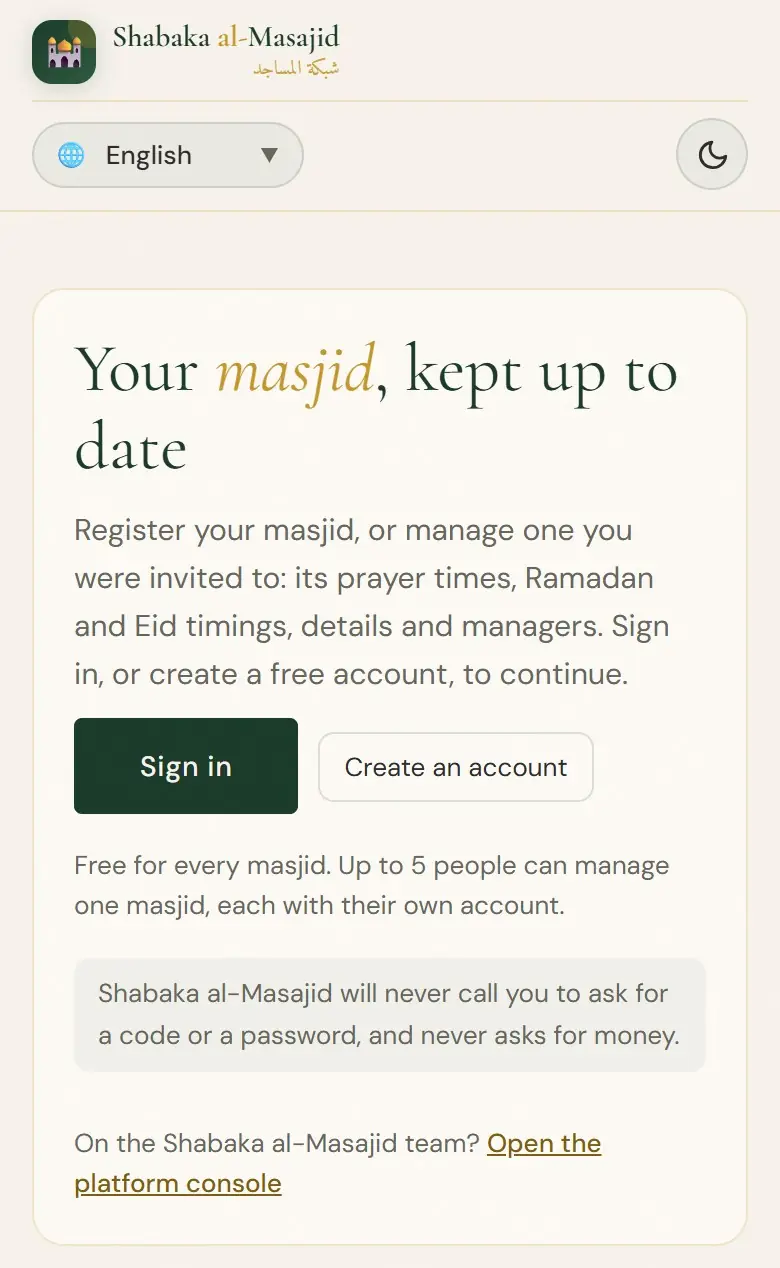
Create an account and sign in
Every manager has their own free account. Use your email address, or your Google account.
Tap Create an account. Type your email address and tap Create account.
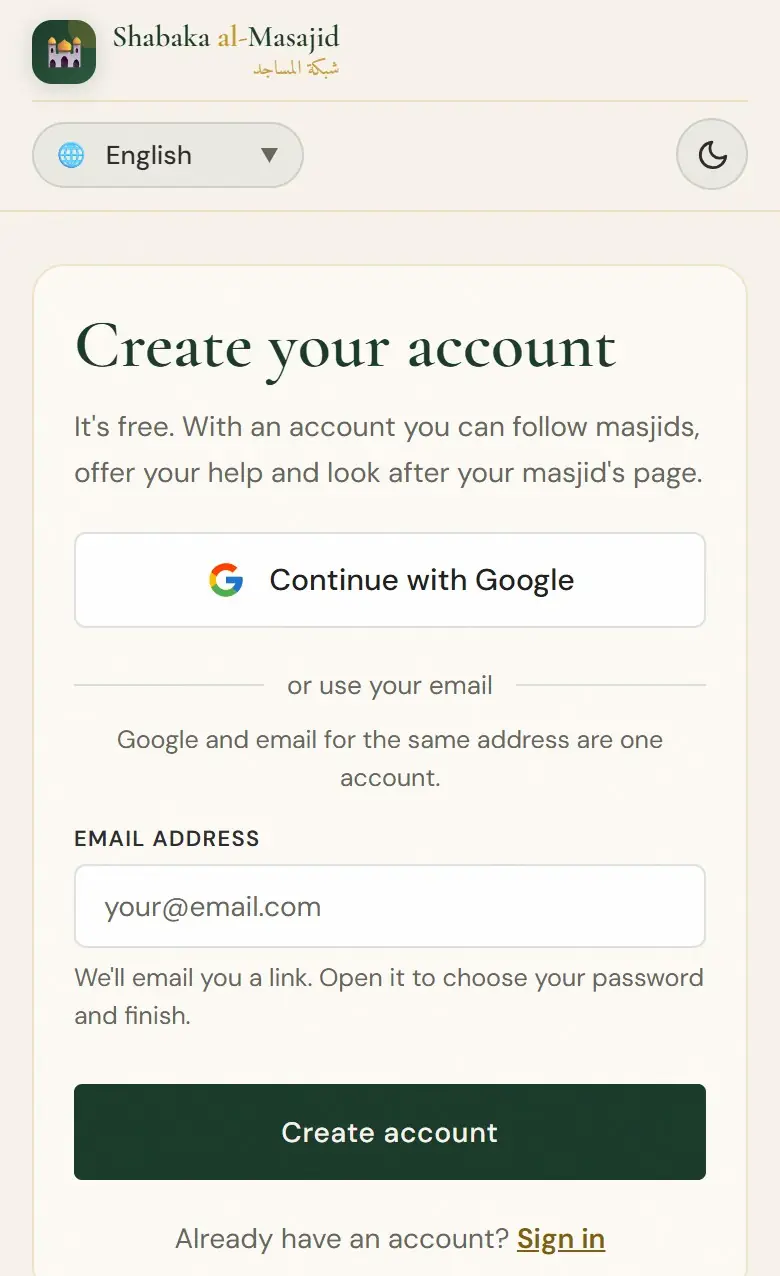
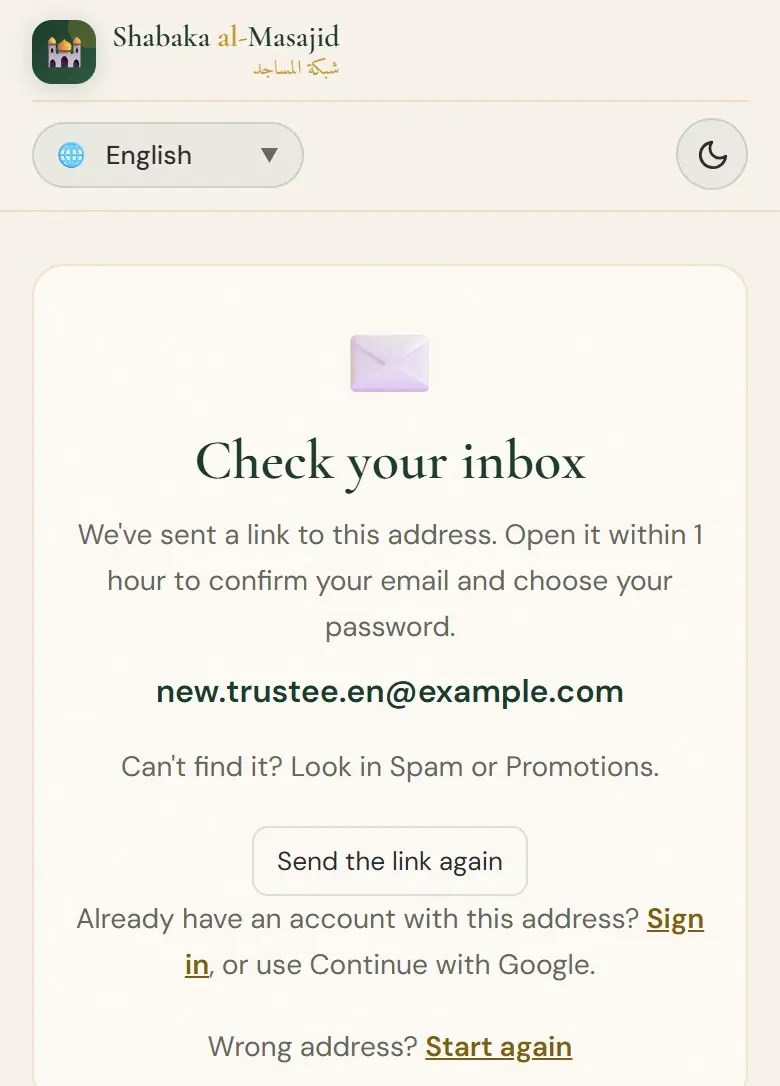
We've sent a link to this address. Open it within 1 hour to confirm your email and choose your password. Can't find it? Look in Spam or Promotions.
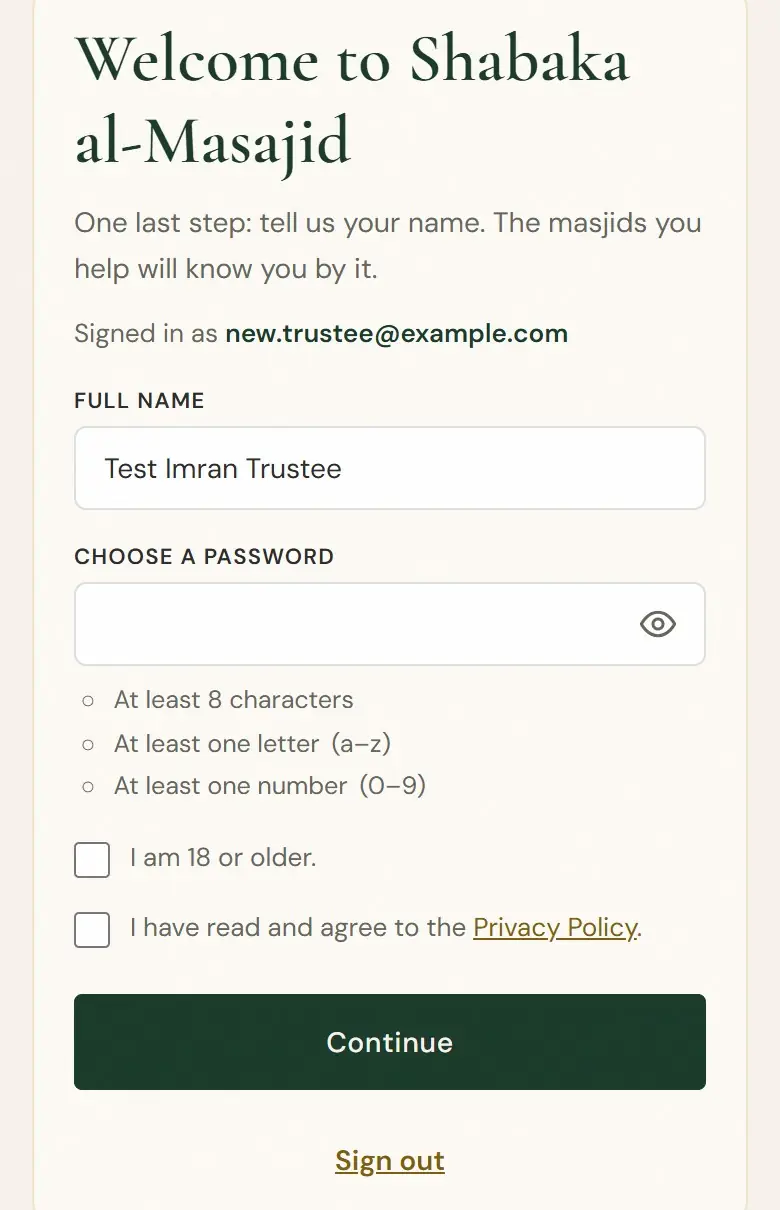
The link opens Welcome to Shabaka al-Masajid. Type your name, choose a password, tick I am 18 or older. and the Privacy Policy, then tap Continue.
Or use Google: tap Continue with Google and choose your Google account. Google and email for the same address are one account.
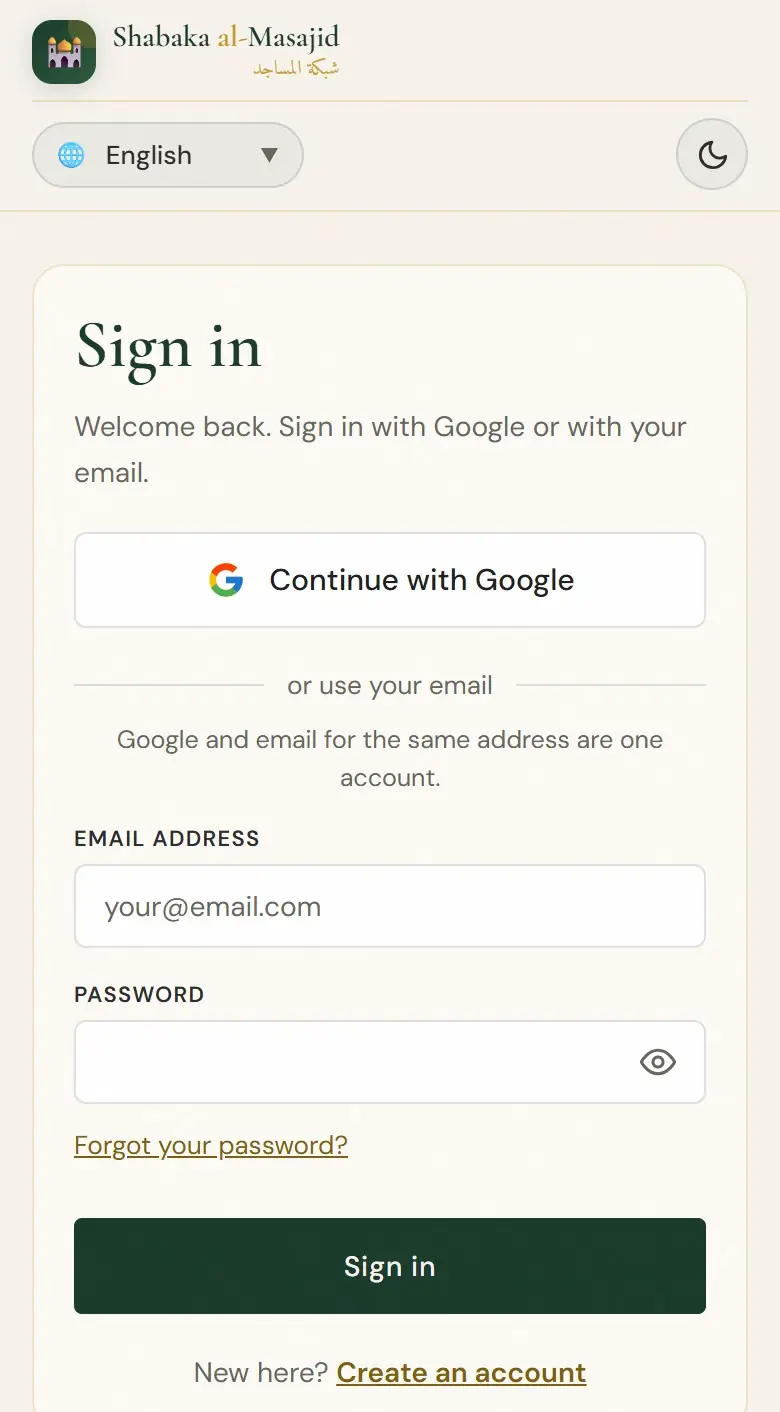
Next time, tap Sign in at the top of the home page. Forgot your password? Tap Forgot your password? and we email you a link to choose a new one.
Register your masjid
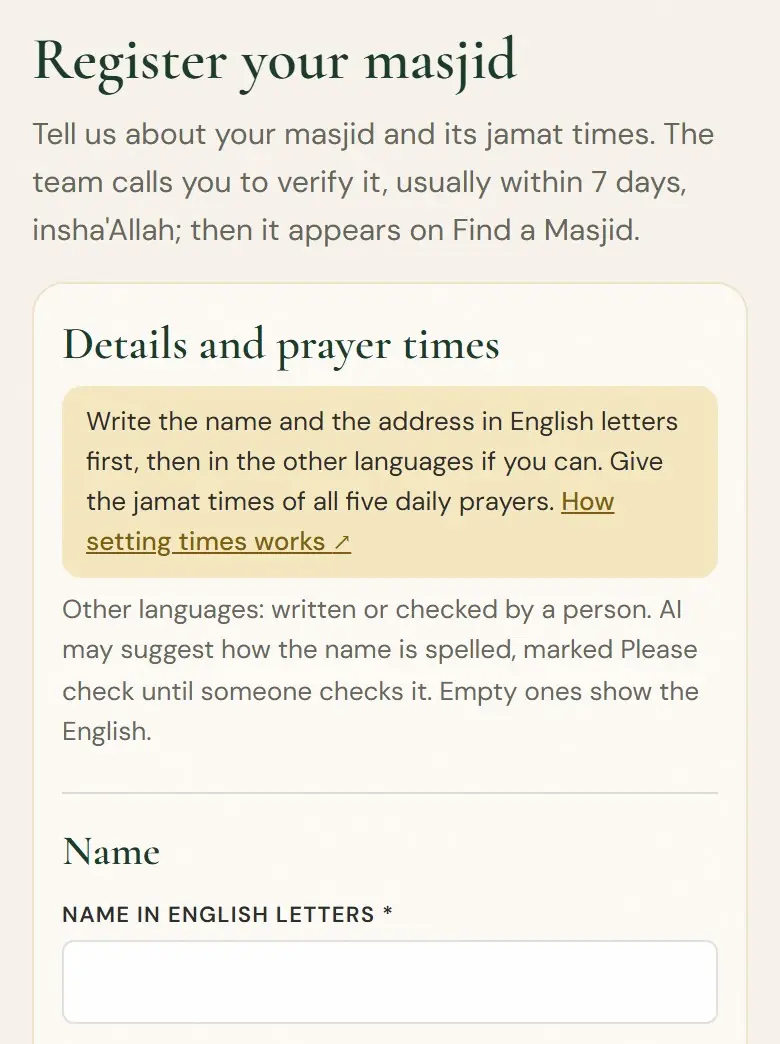
Tell us about your masjid and its jamat times. The team calls you to verify it, usually within 7 days, insha'Allah; then it appears on Find a Masjid.
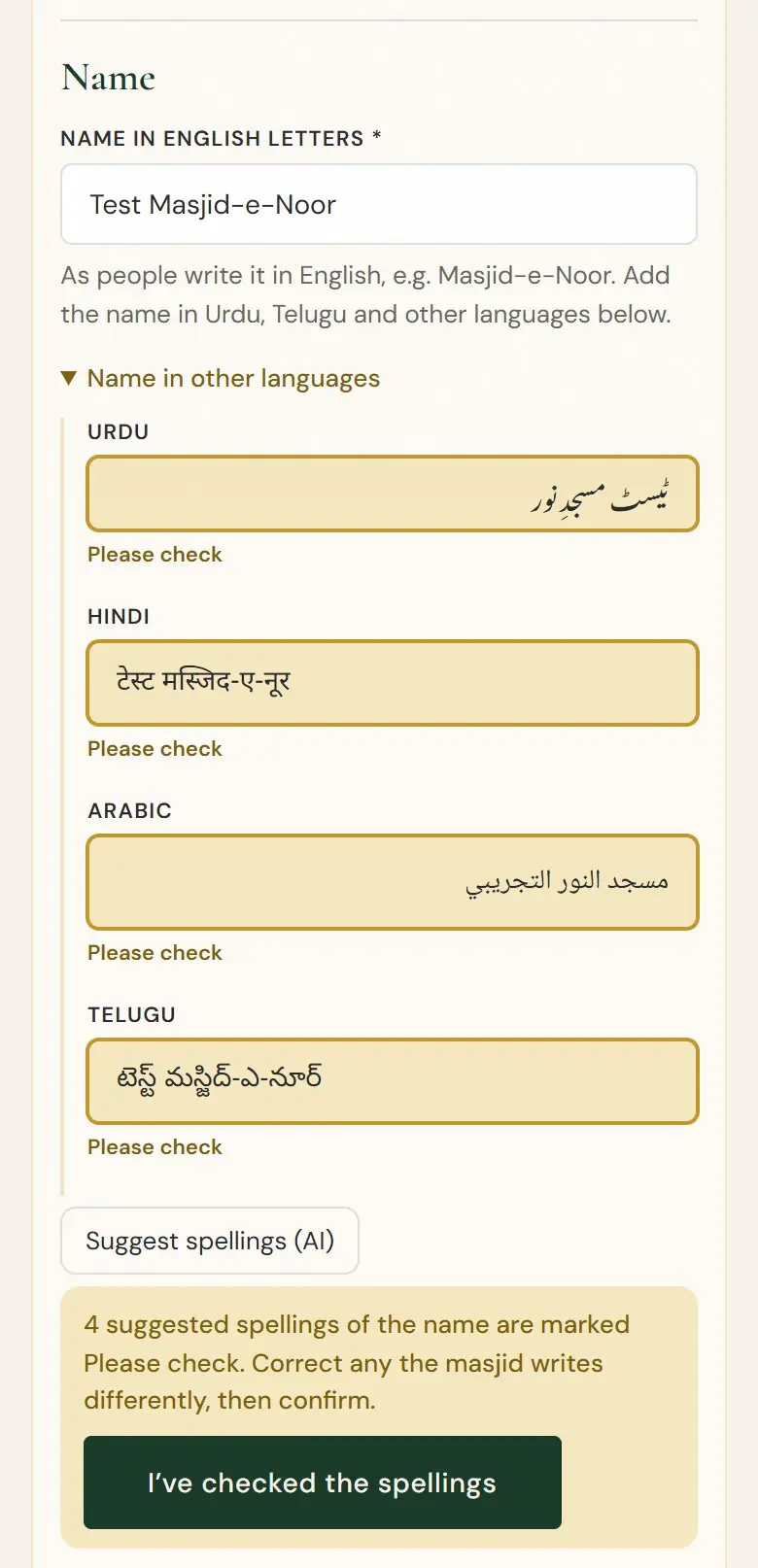
Sign in, open My masjids and tap + Register a masjid. Write the name and the address in English letters first, then in the other languages if you can. Give the jamat times of all five daily prayers.
- Tap “Find it on Google Maps”. Google Maps opens and looks for the masjid’s name, area and city.
- Press and hold on the masjid until a red pin drops on it.
- Tap Share, then Copy link.
- Come back to this page and paste the link in the box below.
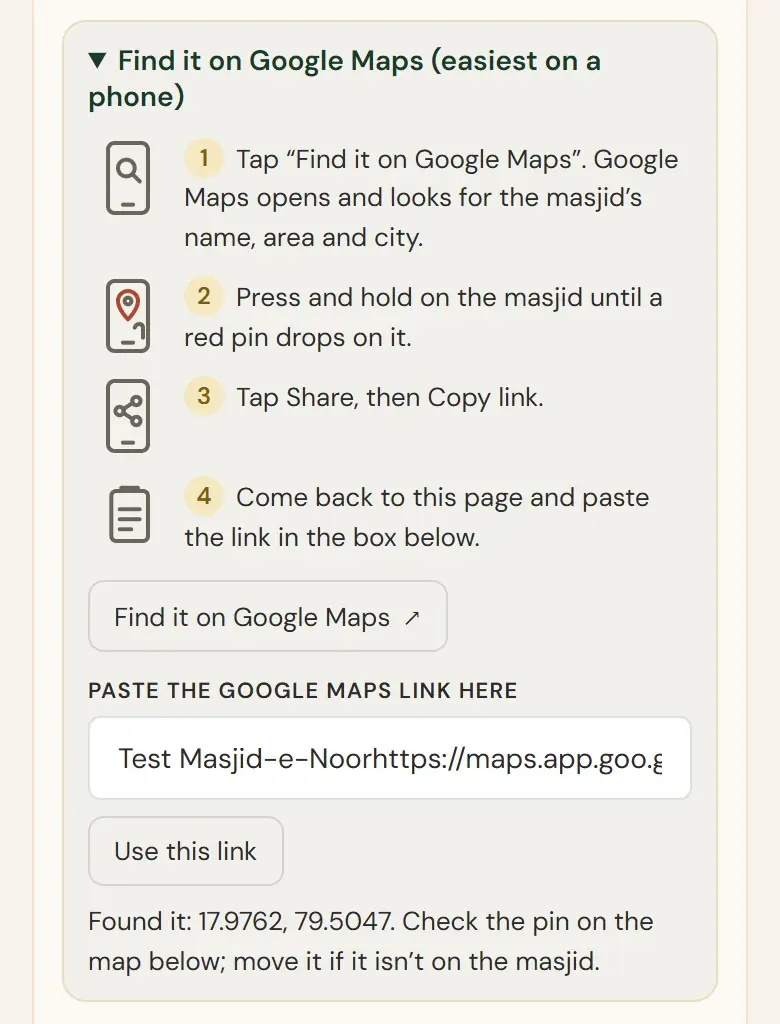
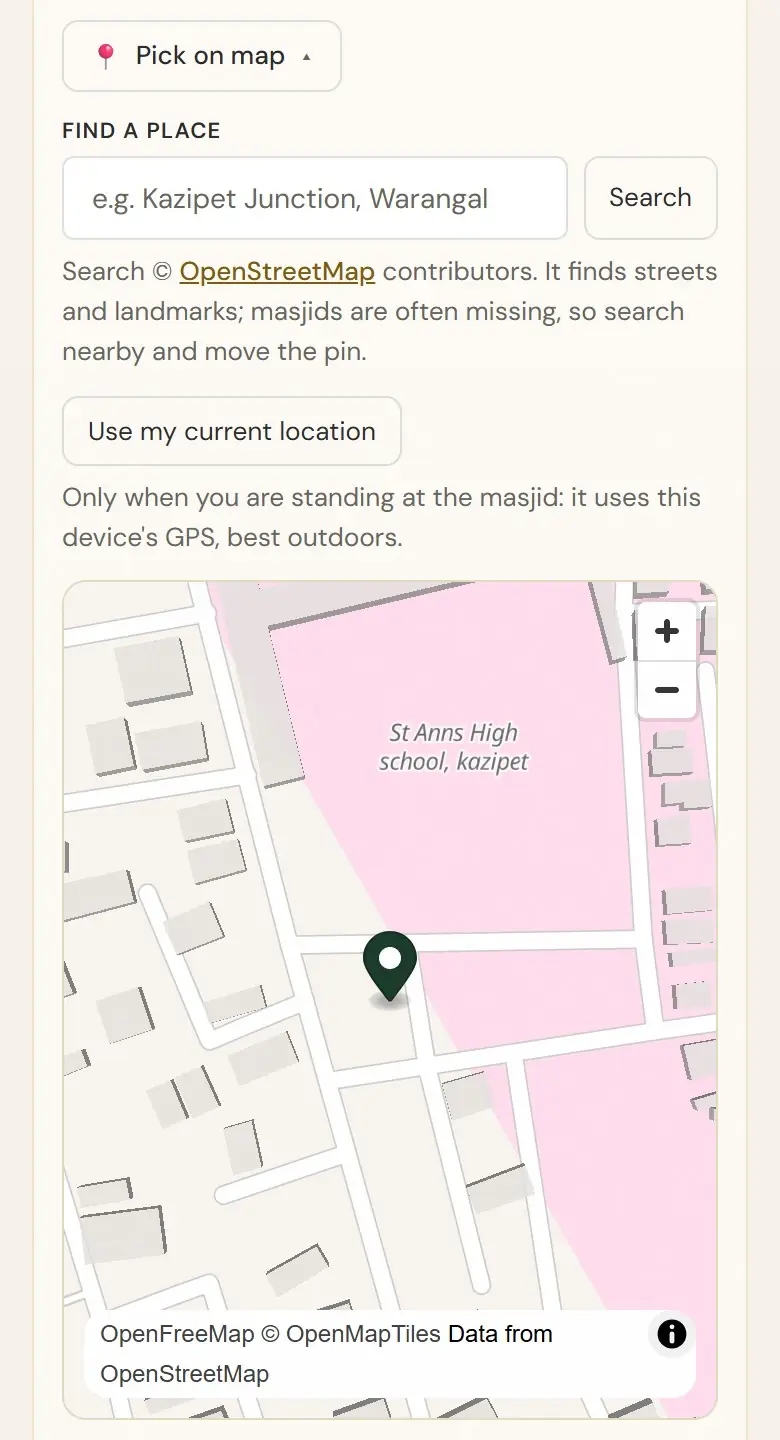
Check the pin with Pick on map: drag it onto the main gate people walk in by. Standing at the masjid? Tap Use my current location.
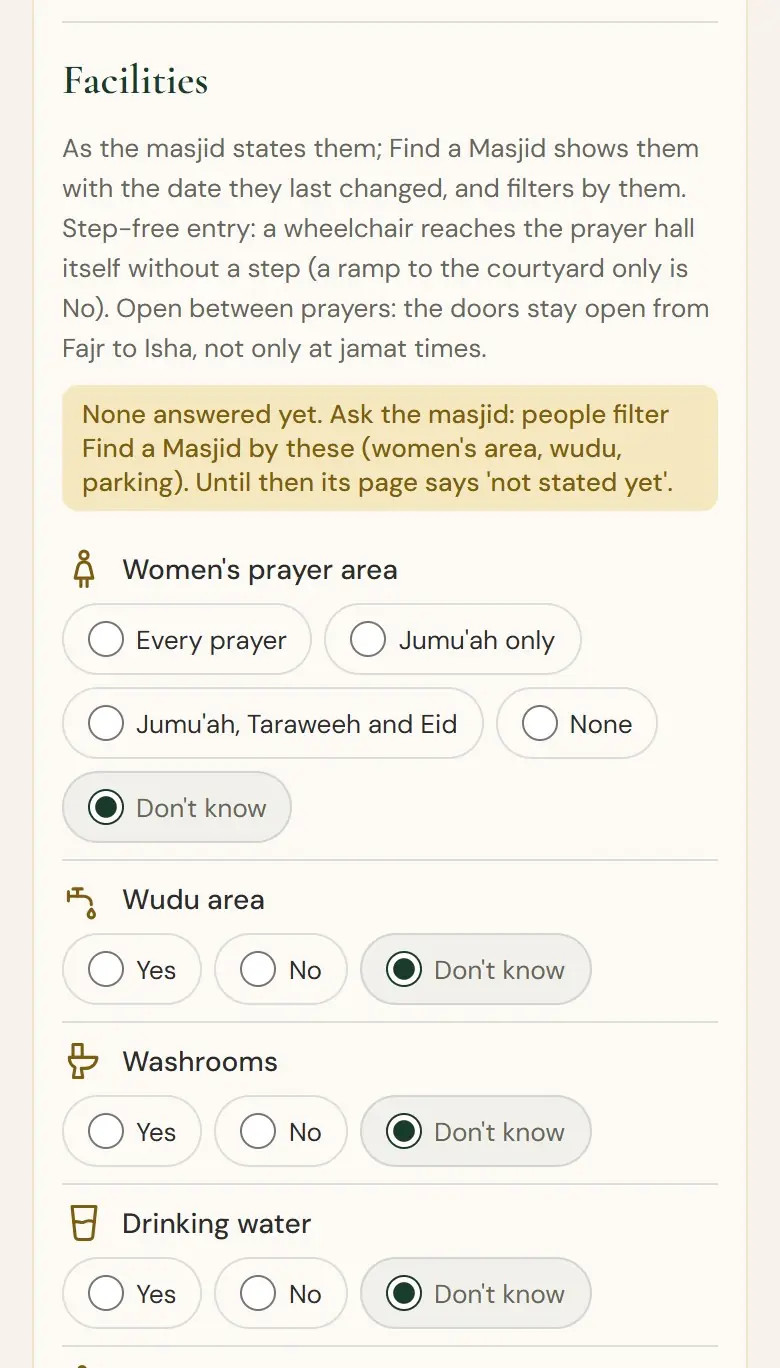
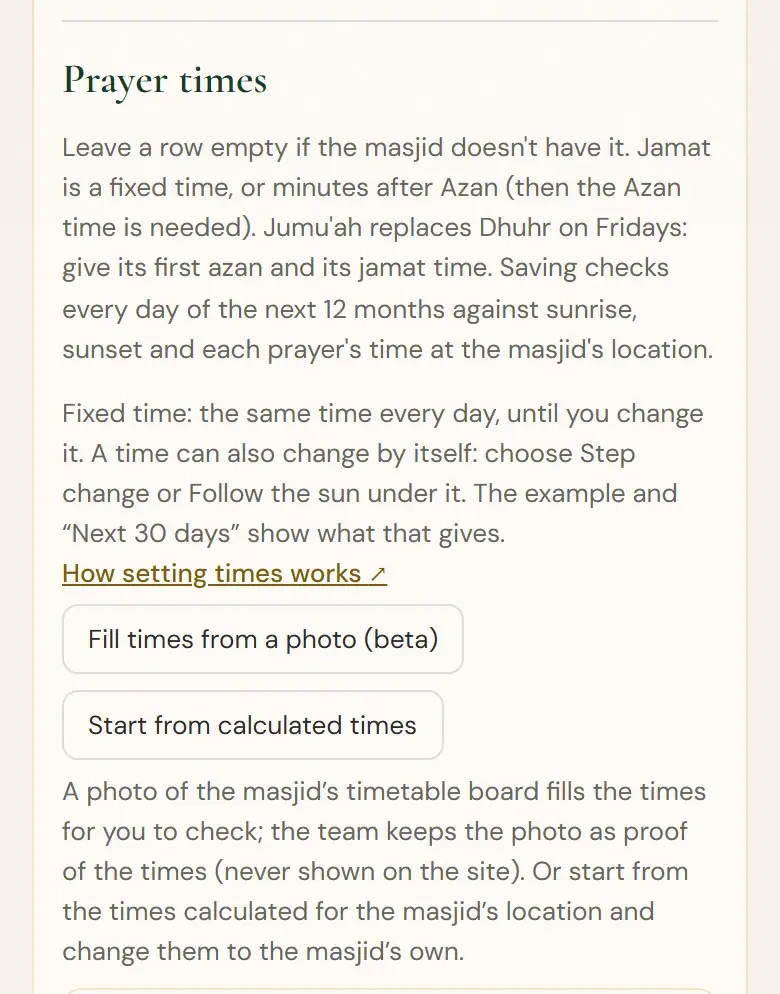
Every filled time is marked Please check in gold. Compare each with the board, change any that differ, then tap I’ve checked these. Nothing is saved until you have checked.
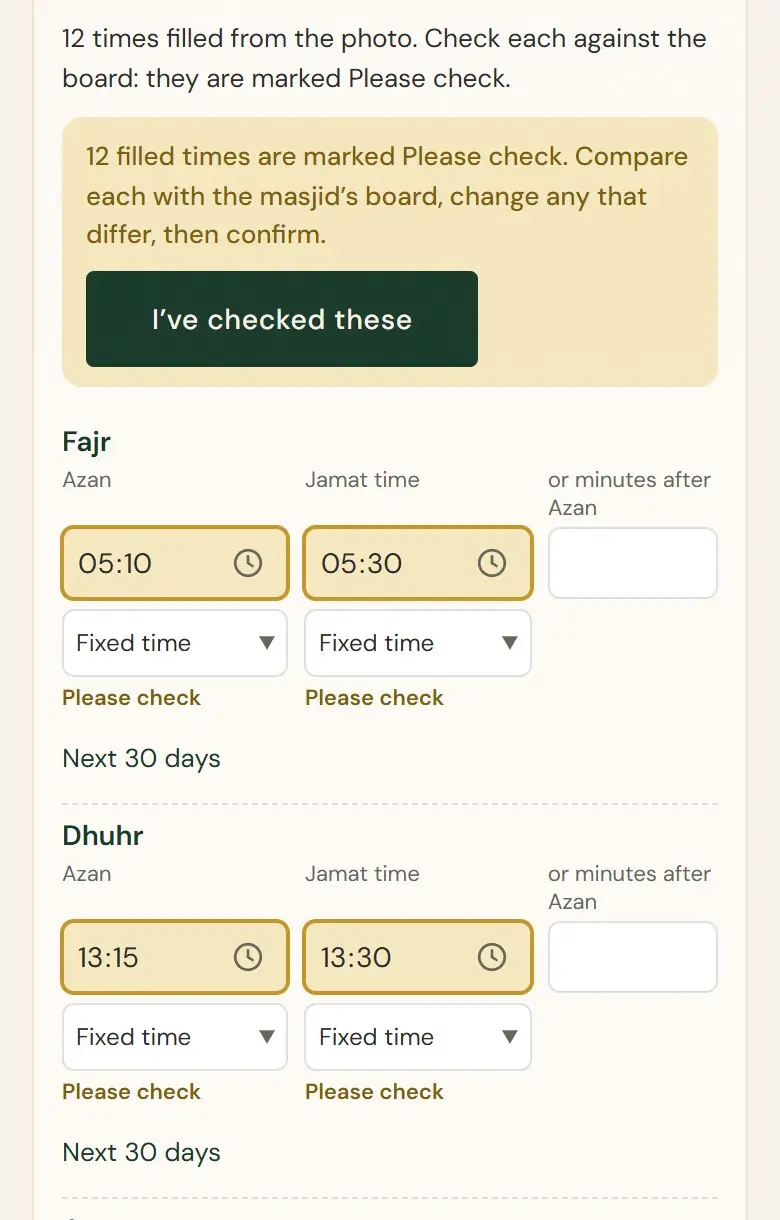
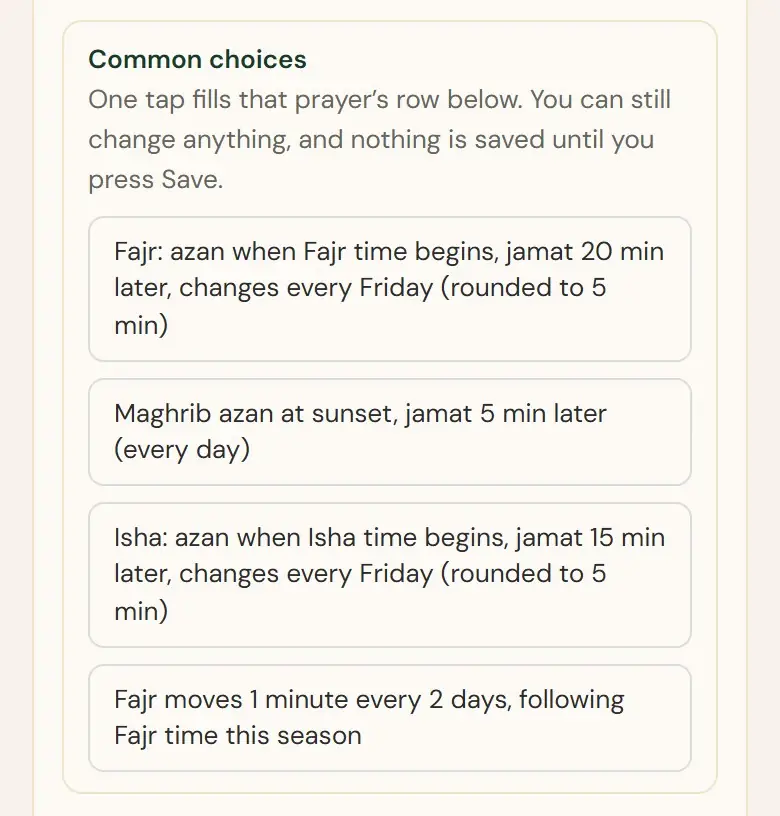
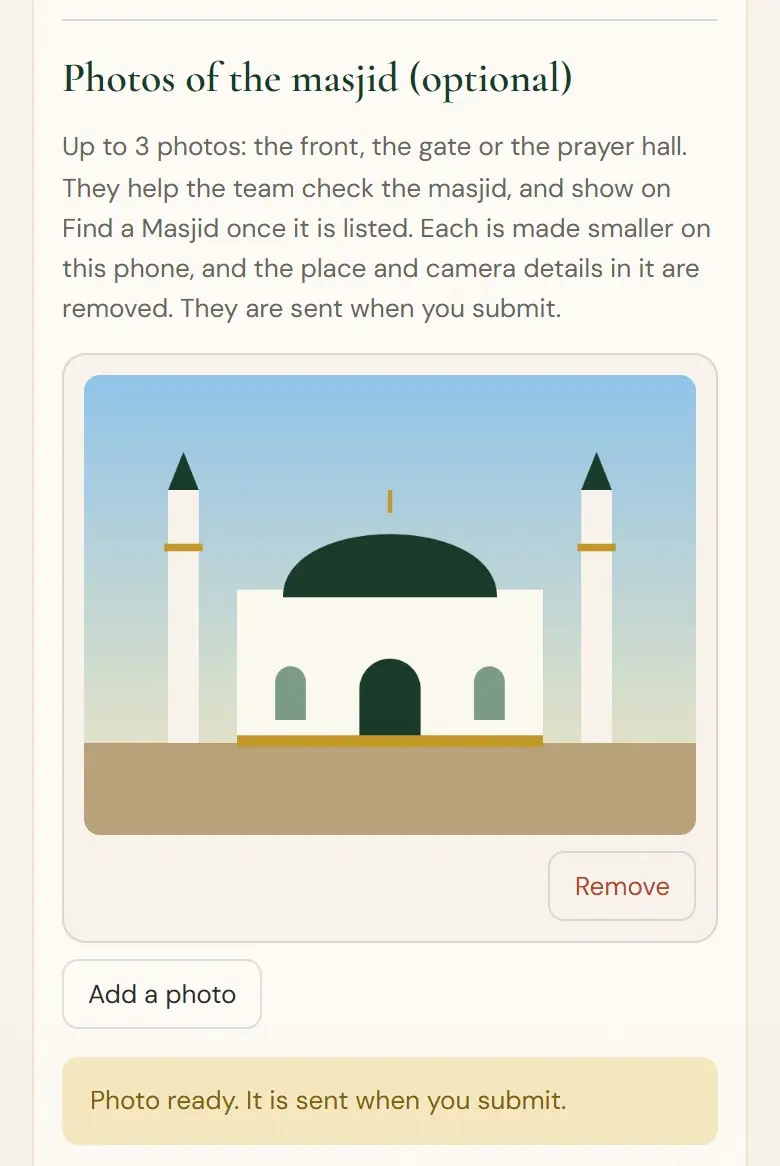
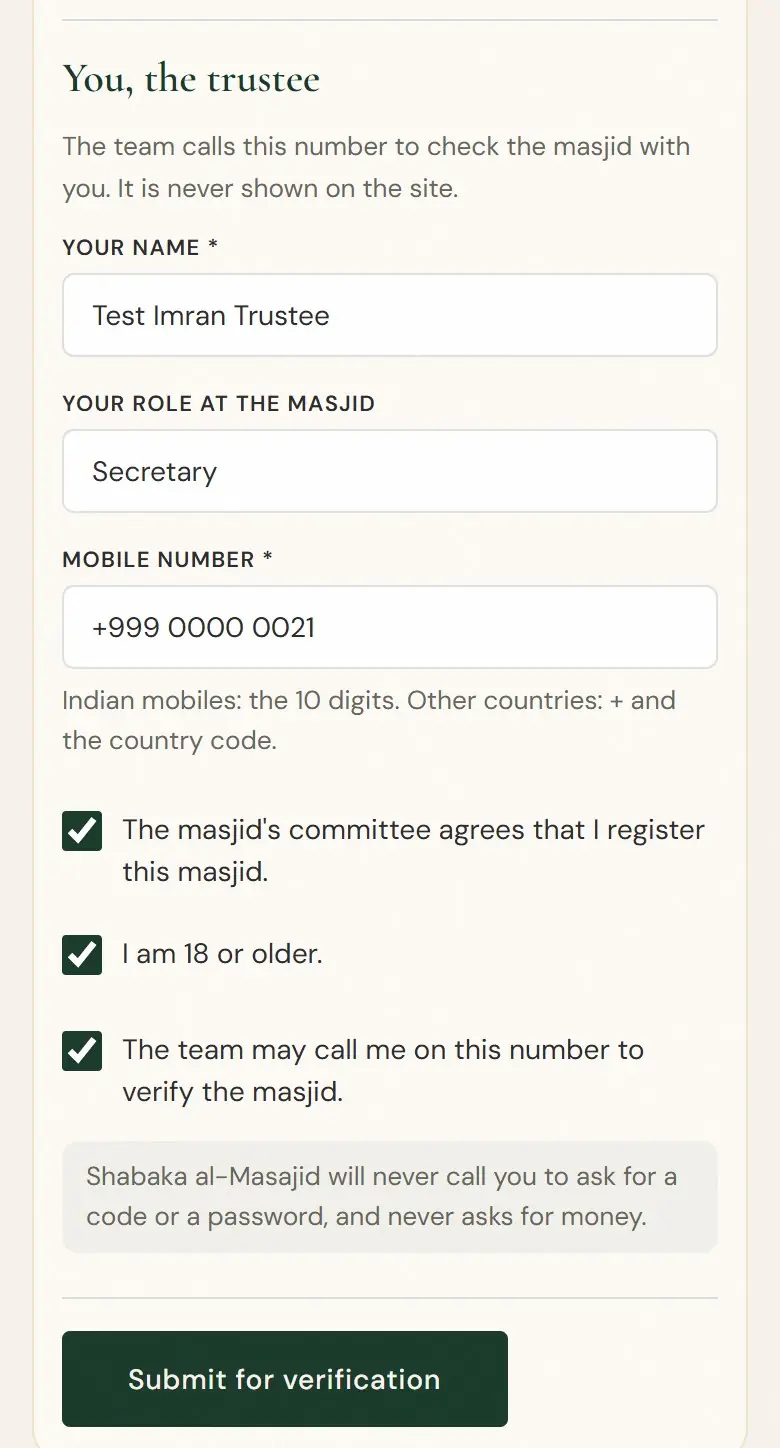
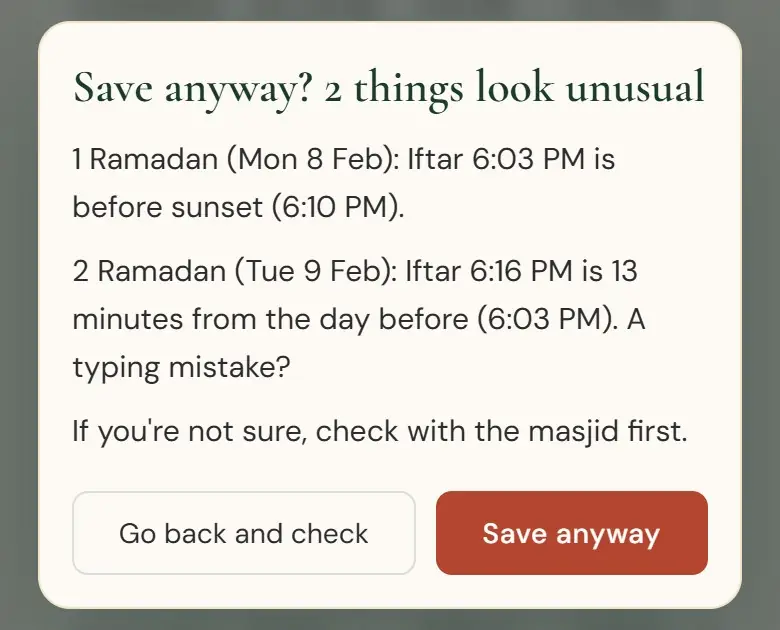
Tap Submit for verification. If a time looks unusual, you are asked whether to save anyway (see part 6).
What verification means
Before a masjid appears on Find a Masjid, our team calls the trustee on the mobile number given. We check that the masjid is real, that its committee agrees, and that the times match its board. This usually takes up to 7 days, insha’Allah.
Meanwhile your masjid shows Waiting for verification. Until the masjid is listed, everything you save applies at once.
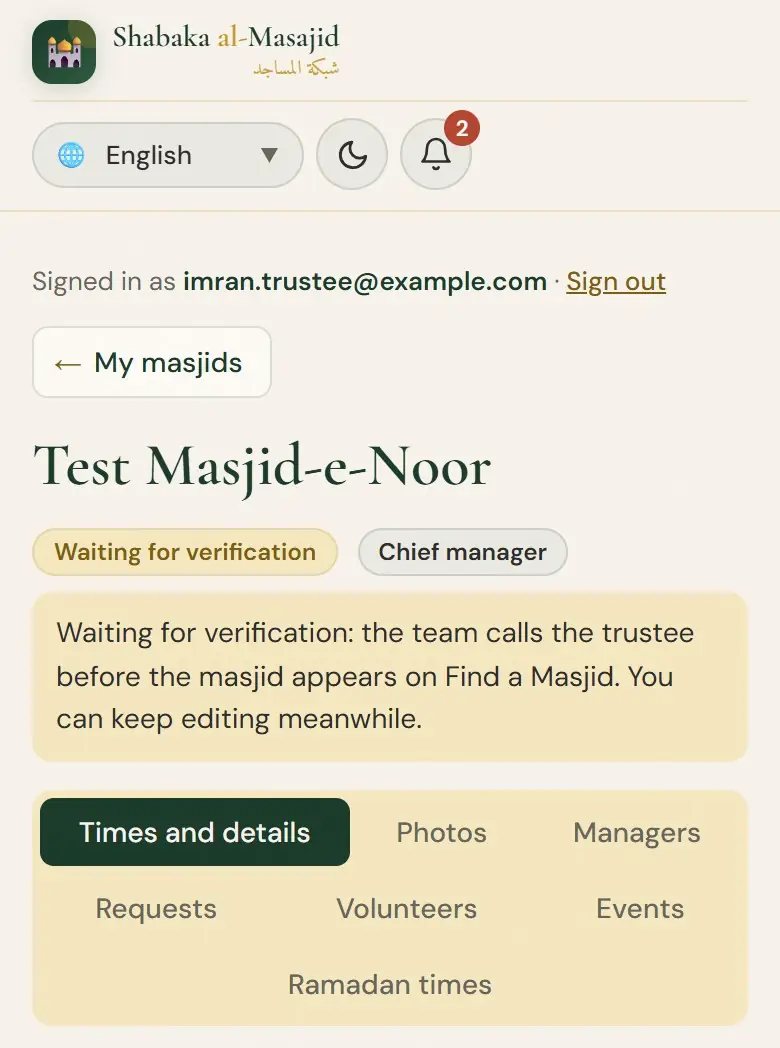
- Listed
- Listed: everyone can find it and its prayer times on Find a Masjid.
- Not approved
- Not approved by the team. If you think this is a mistake, please contact us.
- Suspended
- Suspended: not shown on Find a Masjid for now.
- Closed
- Closed: this masjid is no longer on Find a Masjid.
Once listed: Prayer times, seasonal changes, the area and the facilities show on Find a Masjid within a couple of minutes of saving. A new name, address or city, or a pin moved more than 100 m, is checked by the team first.
Your masjid’s page
After you sign in, My masjids lists every masjid you manage, with its status and your role: Chief manager or Manager. Next time, open My masjids at the top of the home page.
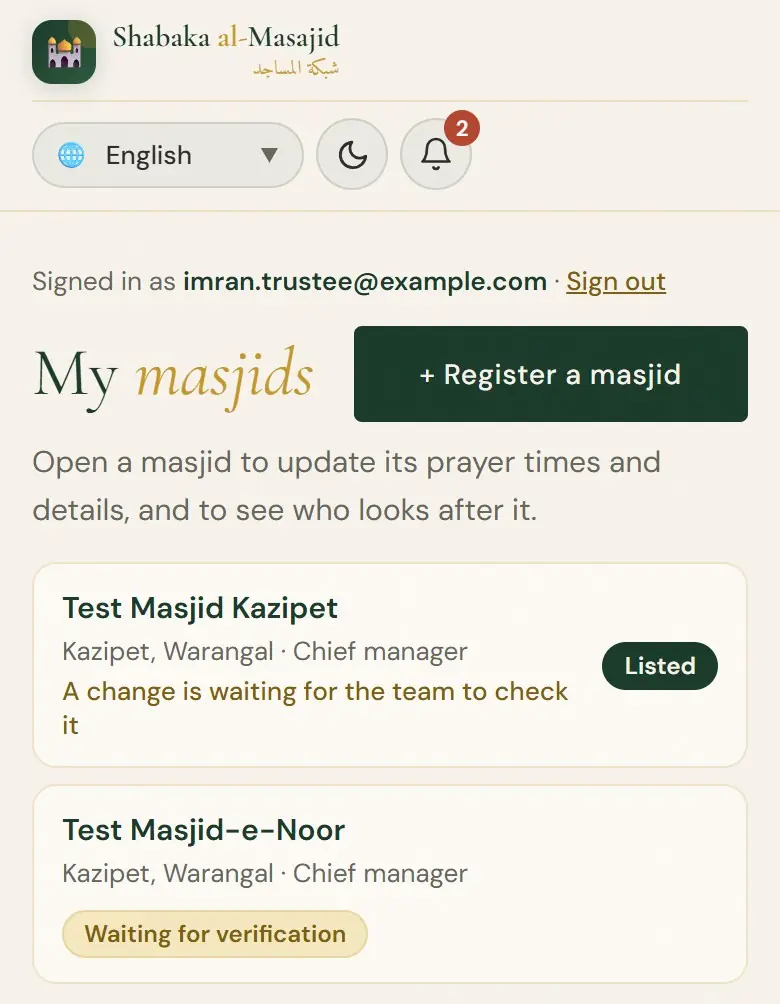
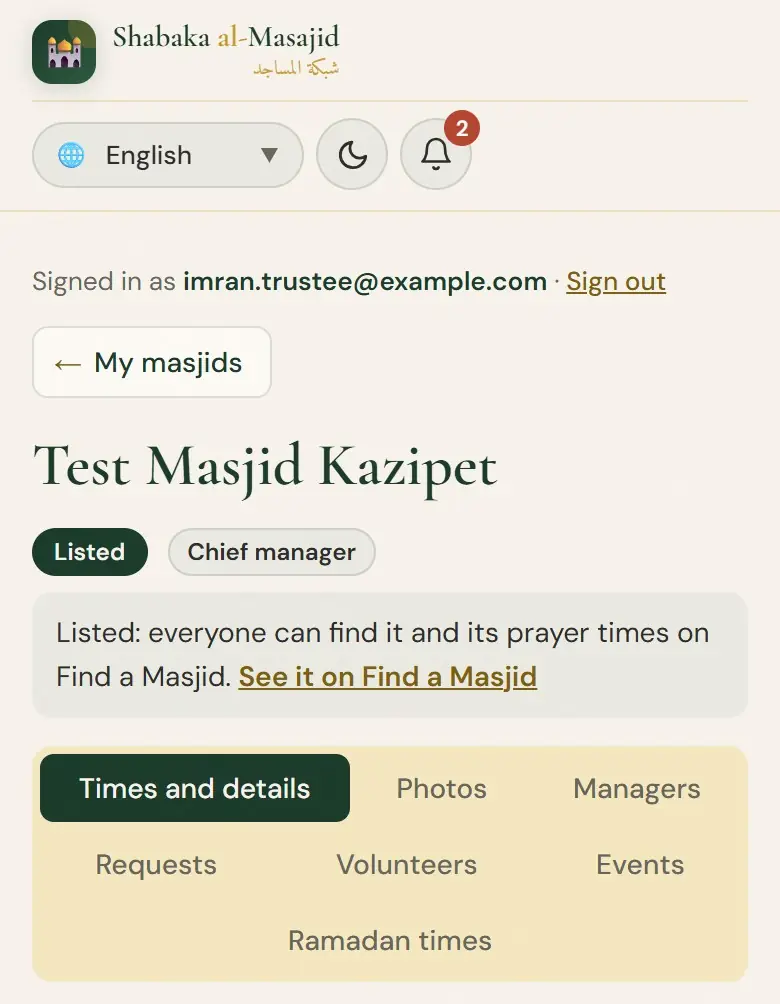
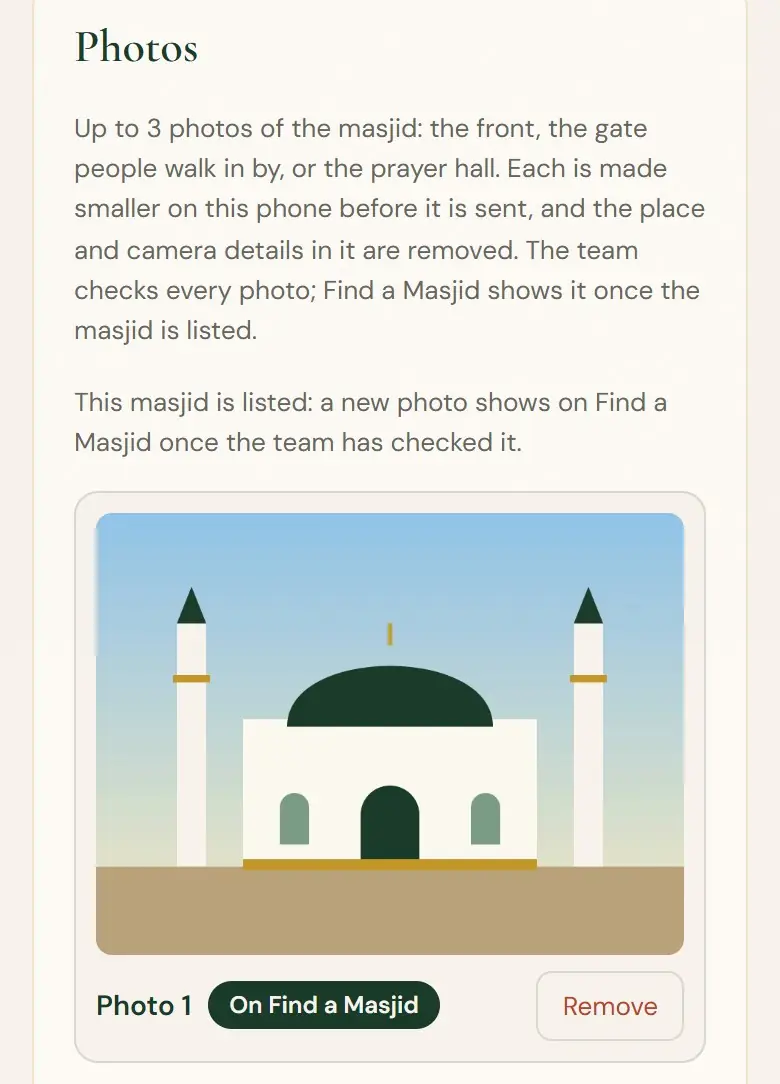
Tap a masjid to open its page. At the top: its status, and a link to see it on Find a Masjid. Below are its parts: Times and details, Photos, Managers, Requests, Volunteers, Events and Ramadan times.
Prayer times
Open Times and details and scroll to Prayer times. When you save, every day of the next 12 months is checked against sunrise, sunset and each prayer’s time at your masjid.
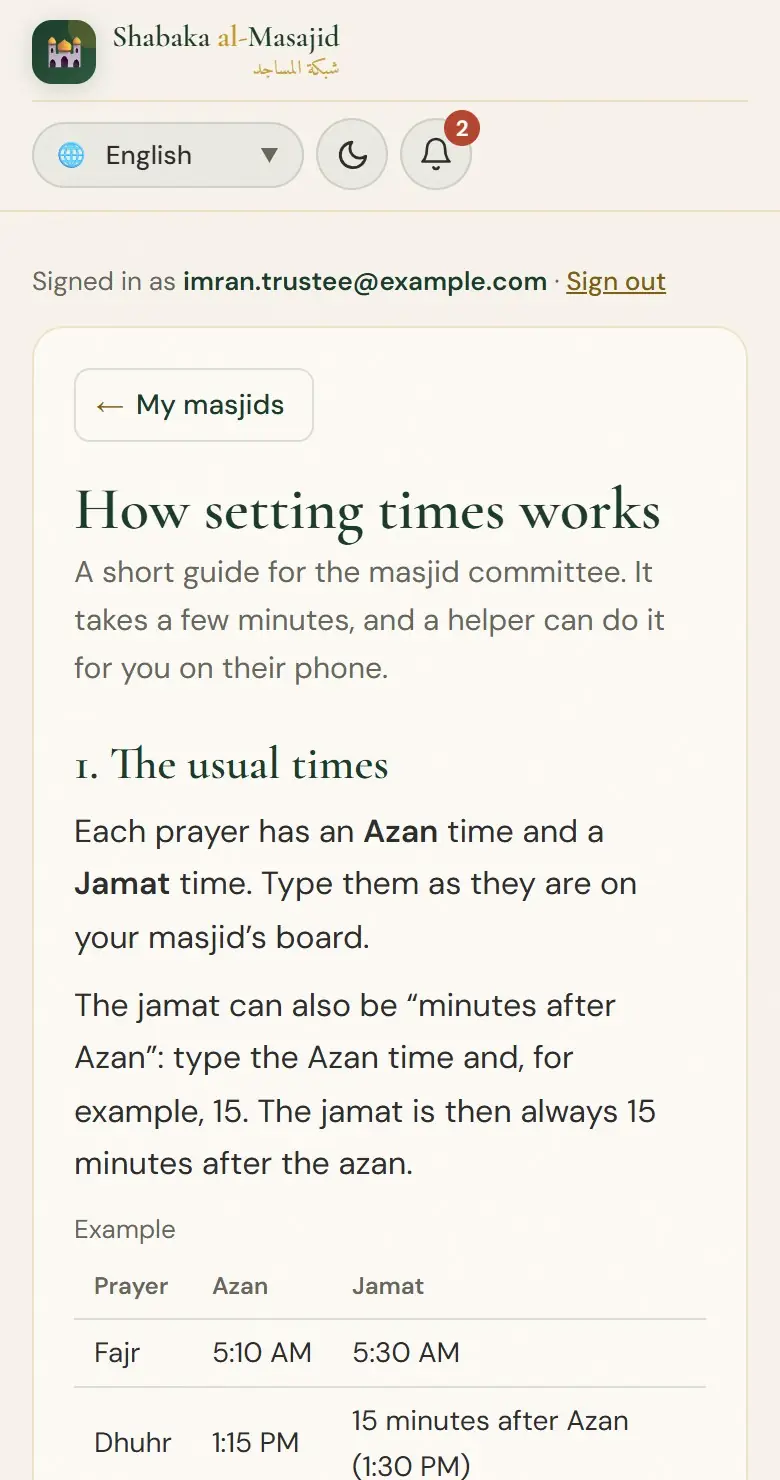
Each prayer has an Azan time and a Jamat time. Type them as they are on your masjid’s board. The jamat can also be “minutes after Azan”: type the Azan time and, for example, 15. The jamat is then always 15 minutes after the azan.
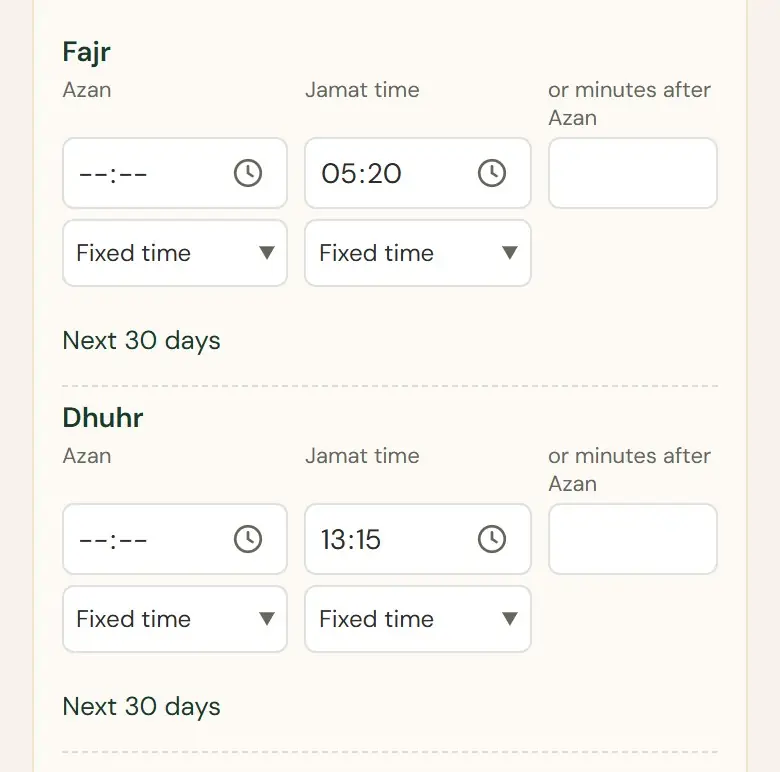
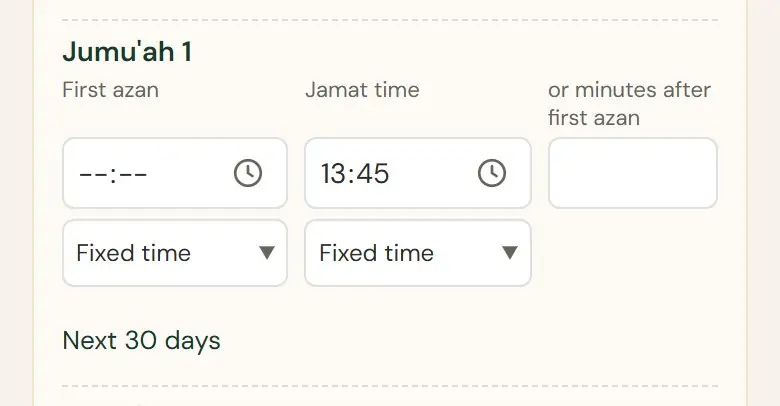
On Fridays Jumu’ah takes the place of Dhuhr. Give its first azan and its jamat time. A second or third Jumu’ah jamat goes in the rows Jumu’ah 2 and Jumu’ah 3.
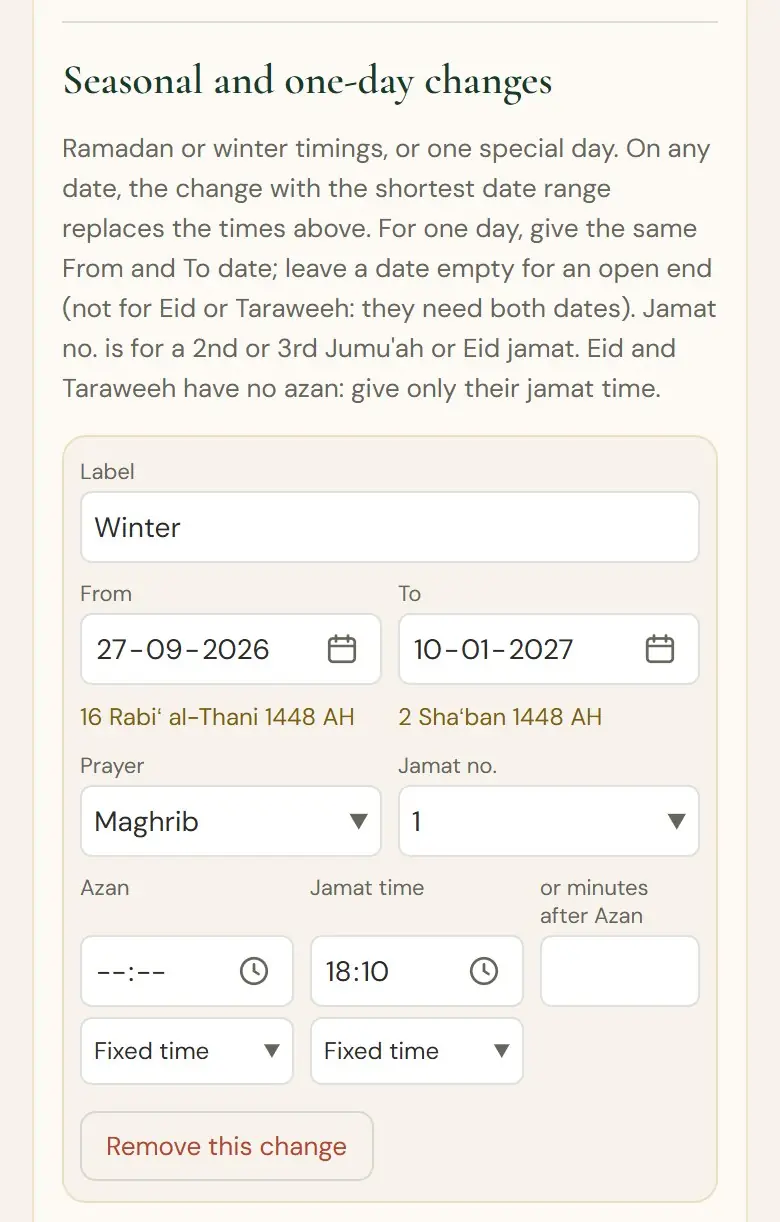
Under “Seasonal and one-day changes”, add a change with a From and a To date, for example winter timings. On those dates it replaces the usual time. For one day only, give the same From and To date. When two changes cover the same day, the one with the shorter date range is used that day.
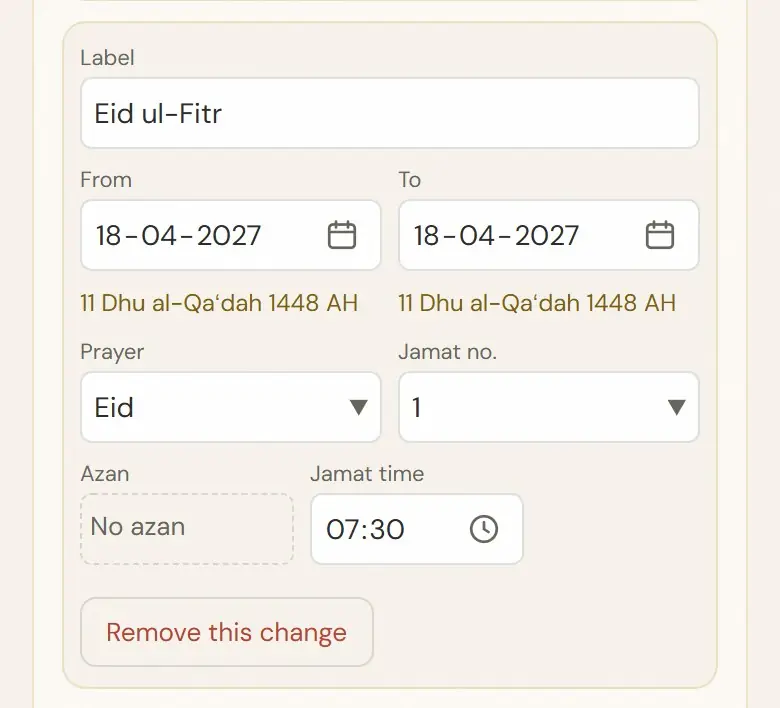
Eid and Taraweeh have no azan: give only the jamat time and the dates. Eid: 1 to 3 days (a second Eid jamat is Jamat no. 2). Taraweeh: the nights of Ramadan, at most 31 days. Tap + Add a change, then choose the prayer.
You don’t have to edit the times every week. Under each Azan and Jamat time, choose one of three:
- Fixed time: the same time every day. Simplest, and fine for most prayers.
- Step change: from a start date, the time moves a few minutes every few days, and stops at a limit you choose. Useful for Fajr through the winter.
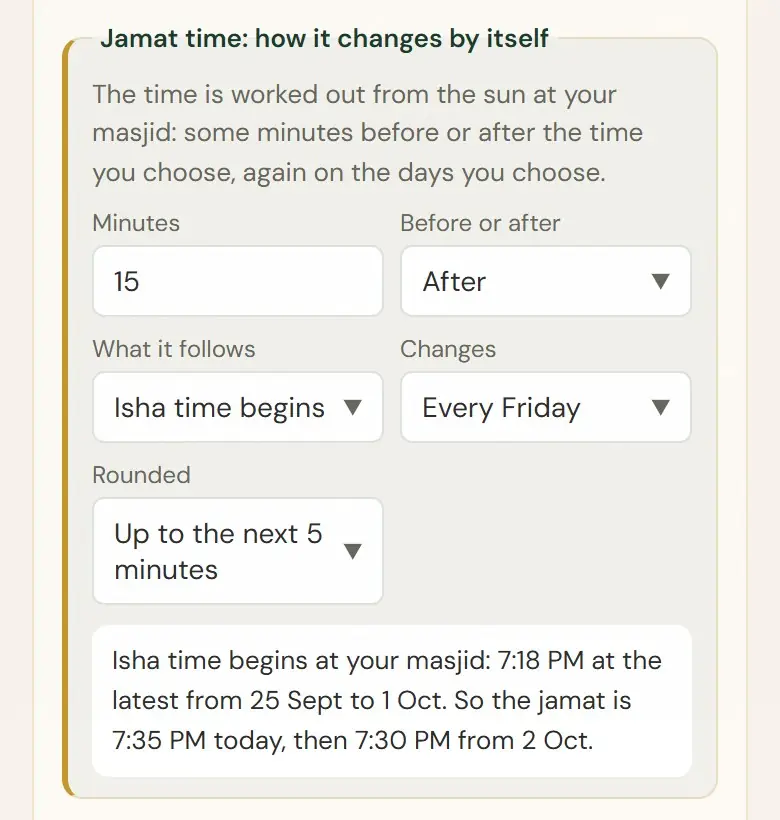
- Follow the sun: the time follows the sun at your masjid, for example Maghrib 5 minutes after sunset. It can change every day, or every week.
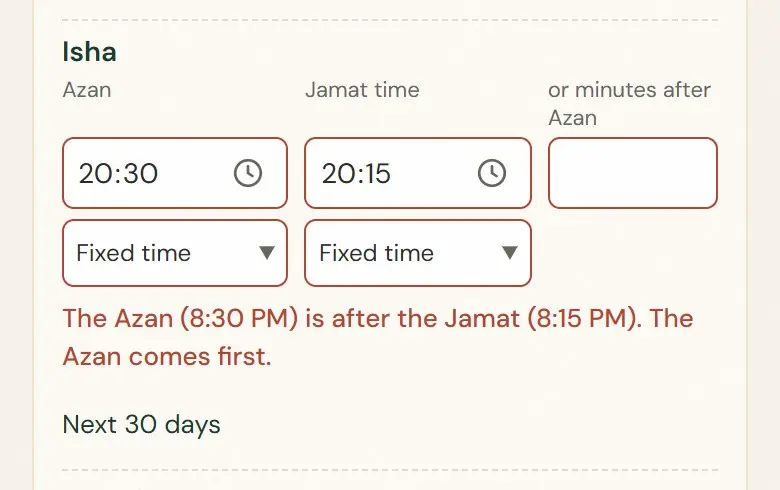
- The azan must always come before the jamat. Easiest: keep the jamat as minutes after the azan.
- Before saving, open Next 30 days under a prayer to see its times day by day.
- Not sure? Keep Fixed time, and add winter and summer changes with dates, as above.
Red messages: something can’t be saved yet, for example a jamat before its azan, or a step change that never stops. Each one says what to change.
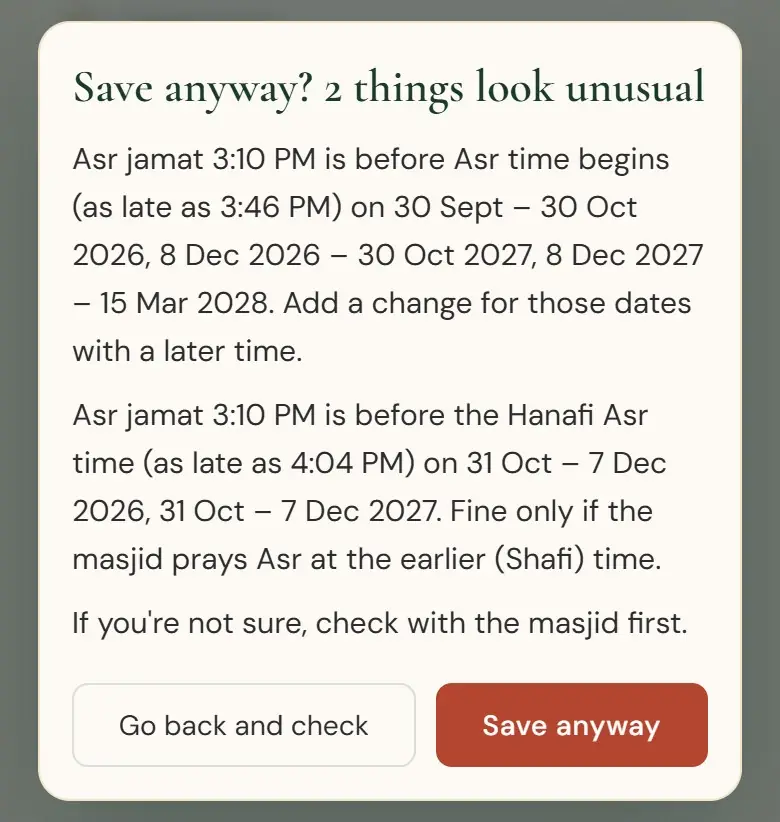
Gold notes, and Save anyway? when you save: something looks unusual, for example Maghrib before sunset on some days. If you are sure, you can still save. Tap Go back and check to look again, or Save anyway when you are sure.
Find a Masjid shows the new times within about 2 minutes. People who follow your masjid get a short notice when you change the times, and the evening before a seasonal change starts. Times that change by themselves are not announced each time: the masjid’s page shows a note such as “Fajr azan moves 1 min earlier every 2 days.”
Ramadan times
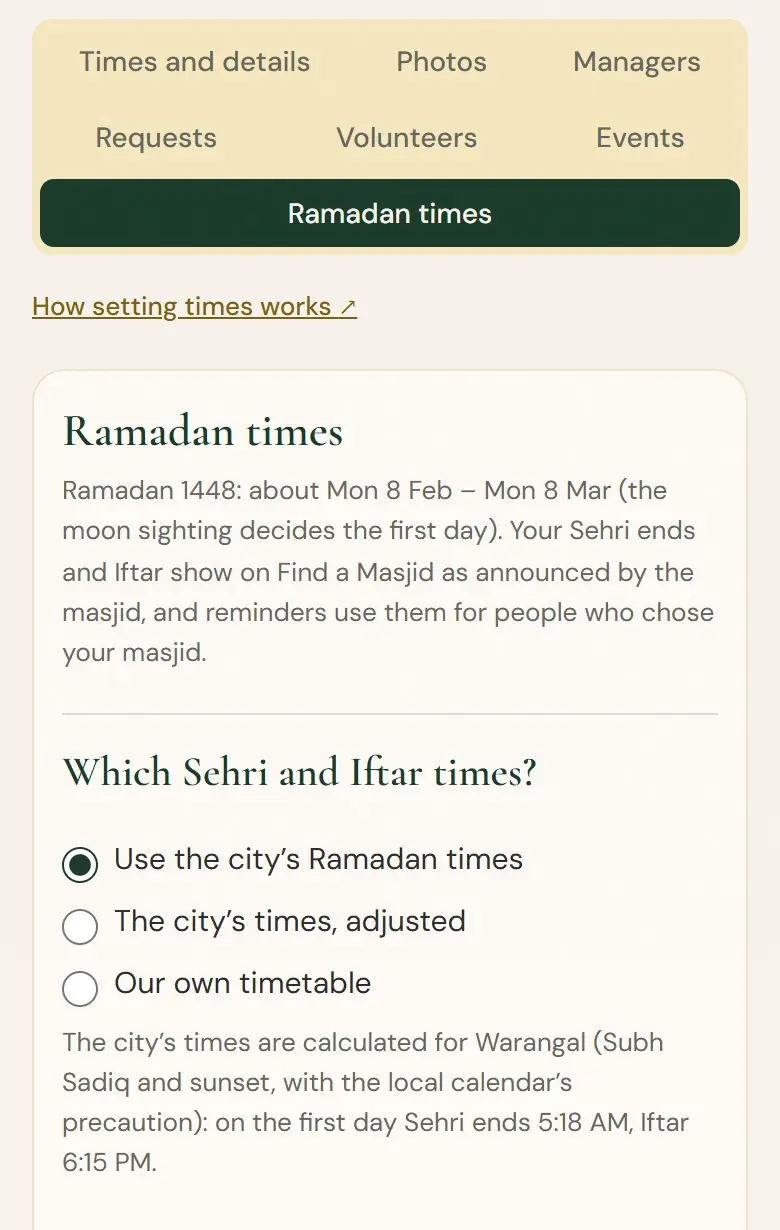
In Ramadan, Find a Masjid shows each masjid’s Sehri ends and Iftar. Open your masjid’s Ramadan times tab and choose one:
- Use the city’s Ramadan times: calculated for your city, or from the city’s Ramadan calendar. Nothing more to do.
- The city’s times, adjusted: for example Sehri ends 5 minutes earlier and Iftar 2 minutes later than the city’s, every day.
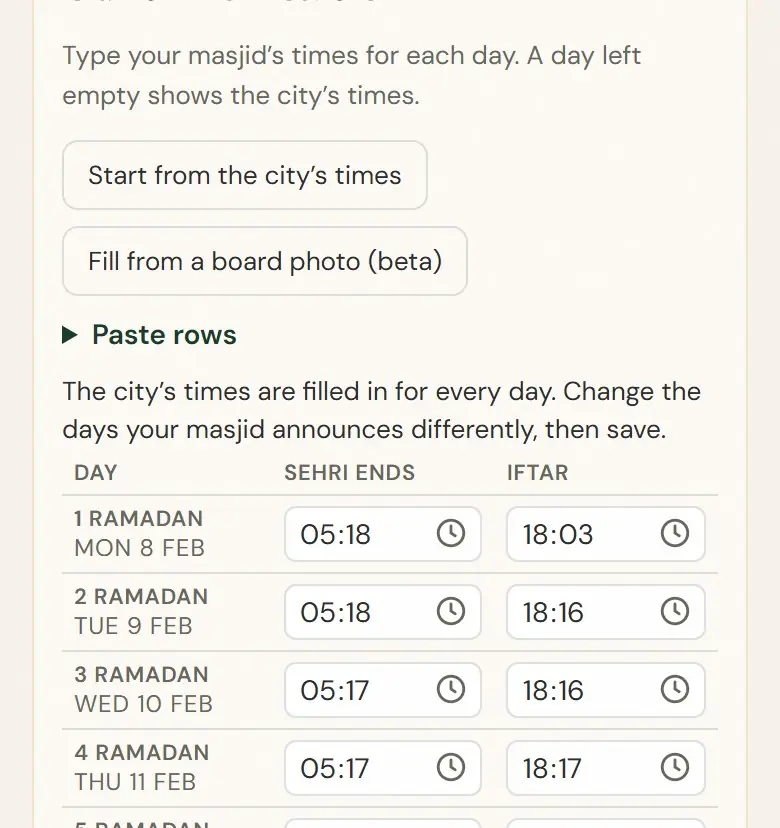
- Our own timetable: your masjid’s times for each day. Start from the city’s times and change the days that differ, paste rows from a spreadsheet, or fill them from a photo of your Ramadan timetable, then check each one.
For Our own timetable, tap Start from the city’s times, then change only the days your masjid announces differently. You can also paste rows from a spreadsheet, or fill them from a photo of your Ramadan timetable.
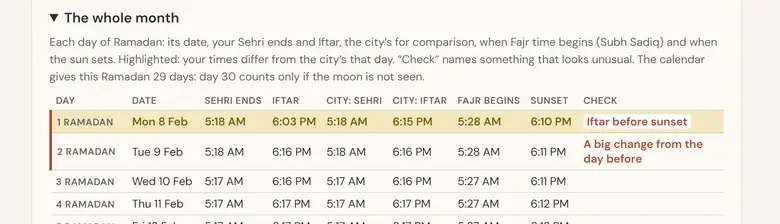
The choice is for one Ramadan. Next year starts from the city’s times again; an adjustment can be copied with “Use last year’s adjustment”. Find a Masjid then shows your times “as announced by the masjid”, and people who chose your masjid for Sehri and Iftar reminders get them at your times.
The weekly check
Once a week, your masjid’s page and the bell ask: Are this week’s times still right? People plan their prayers by these times. If the board still says the same, tap Yes, still correct. If not, tap Update the times and change them.
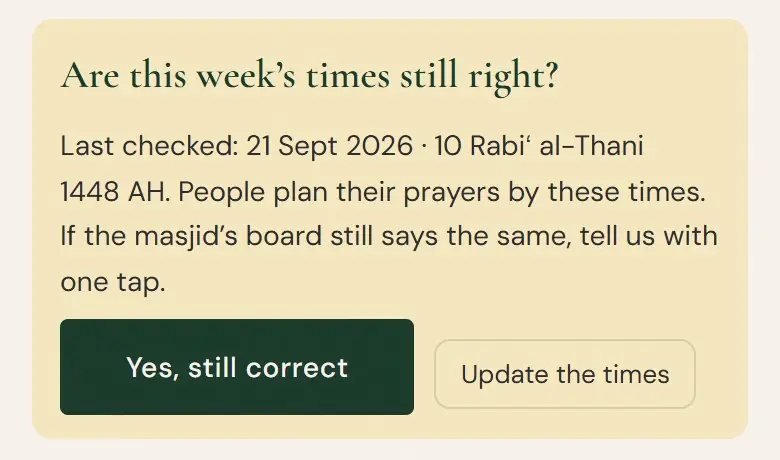
If nobody confirms or changes the times for 45 days: Find a Masjid now says “Times may be out of date” for this masjid. After 60 days: Find a Masjid now says “Times may be out of date” and leaves this masjid out of Next jamat.
Managers and invites
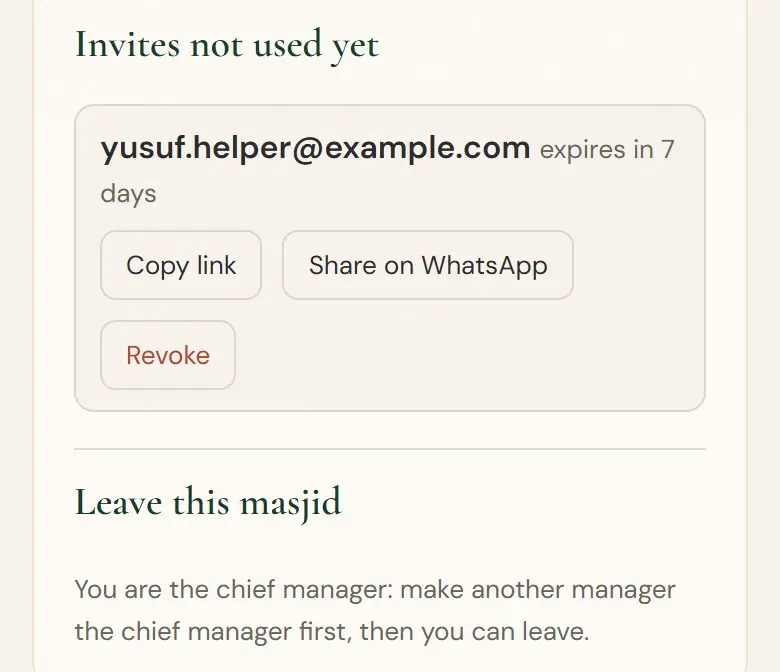
Up to 5 people can manage this masjid, each with their own account. The chief manager invites and removes managers.
Open Managers to see who looks after the masjid, and since when.
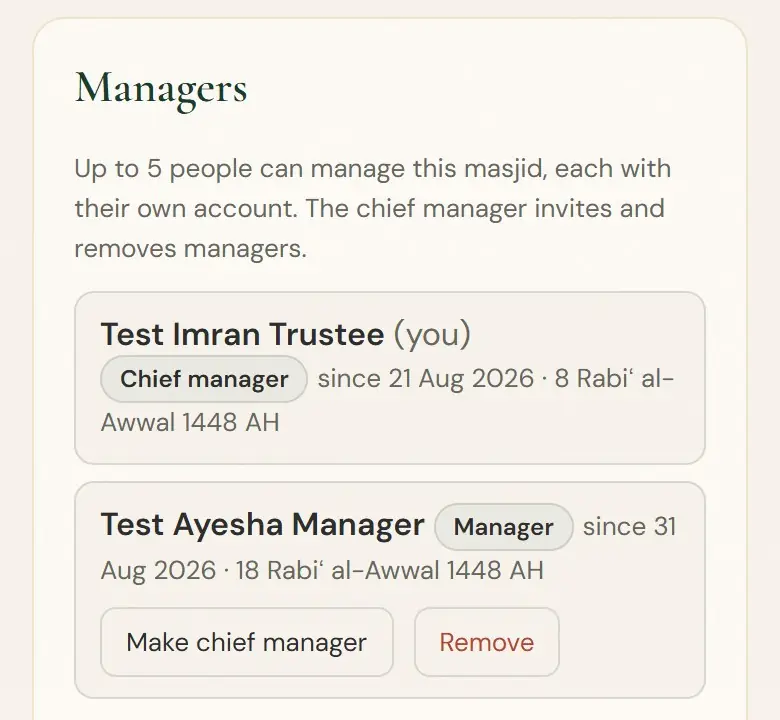
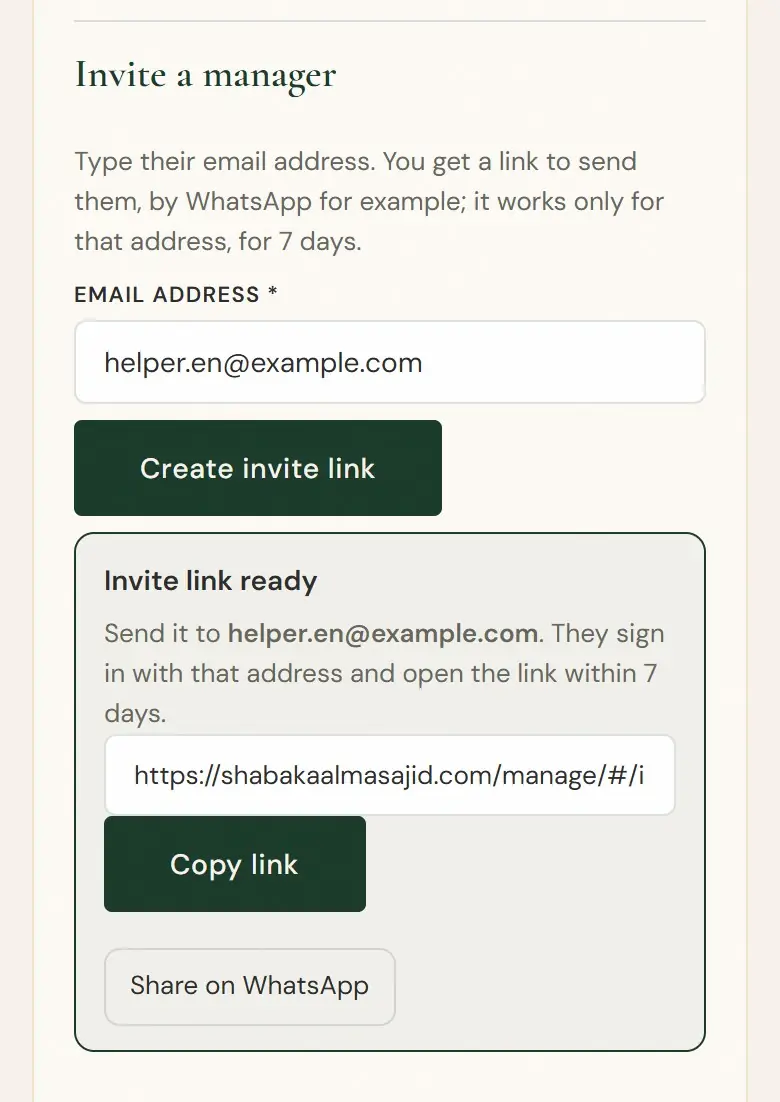
The chief manager invites: under Invite a manager, type the helper’s email address and tap Create invite link. Send them the link with Copy link or Share on WhatsApp. It works only for that address, for 7 days.
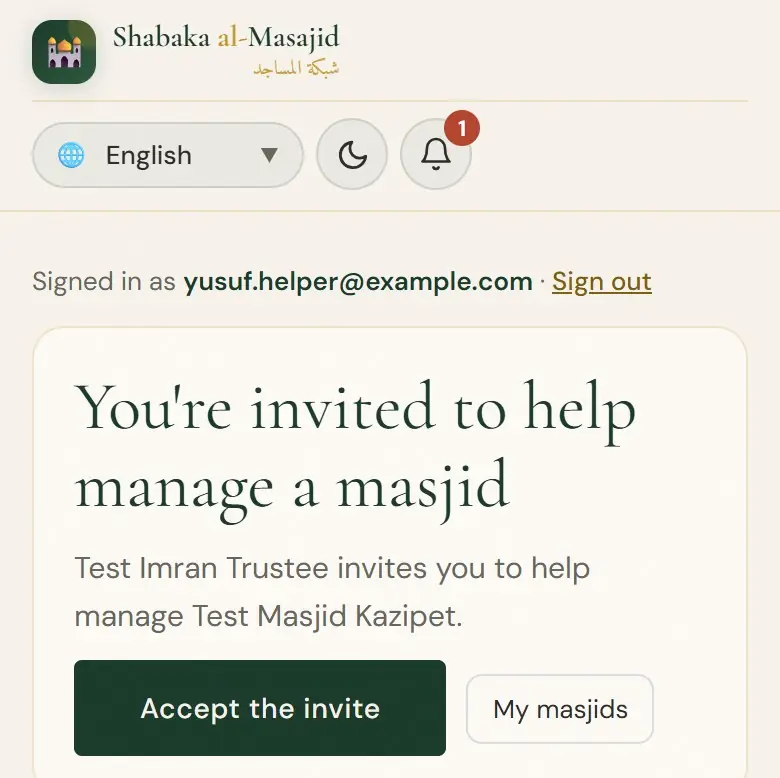
The helper opens the link, signs in with that email address and taps Accept the invite.
Rename, suspend or delete
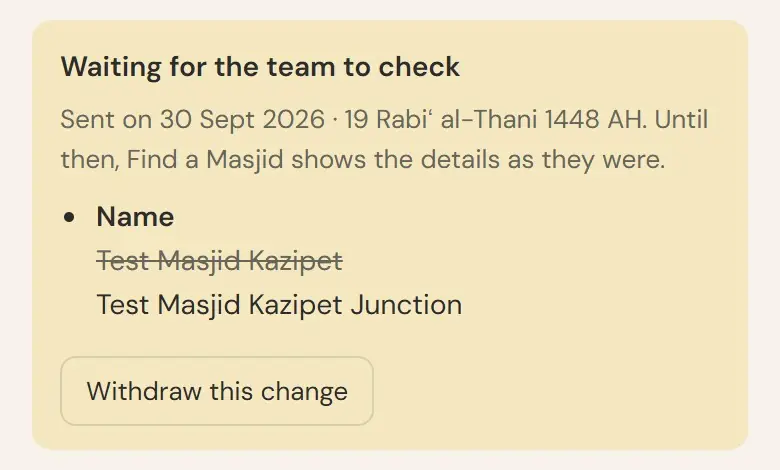
To rename the masjid, change its name on Times and details and save. Prayer times, seasonal changes, the area and the facilities show on Find a Masjid within a couple of minutes of saving. A new name, address or city, or a pin moved more than 100 m, is checked by the team first. Changed your mind? Tap Withdraw this change.
Ask the team to take this masjid off Find a Masjid for a while (suspend: any manager can ask), or to remove it for good (delete: only the chief manager). Other managers can object within 7 days, and the team calls the trustee before deciding. Open New request, choose what the team should do, write why, and tap Send the request.
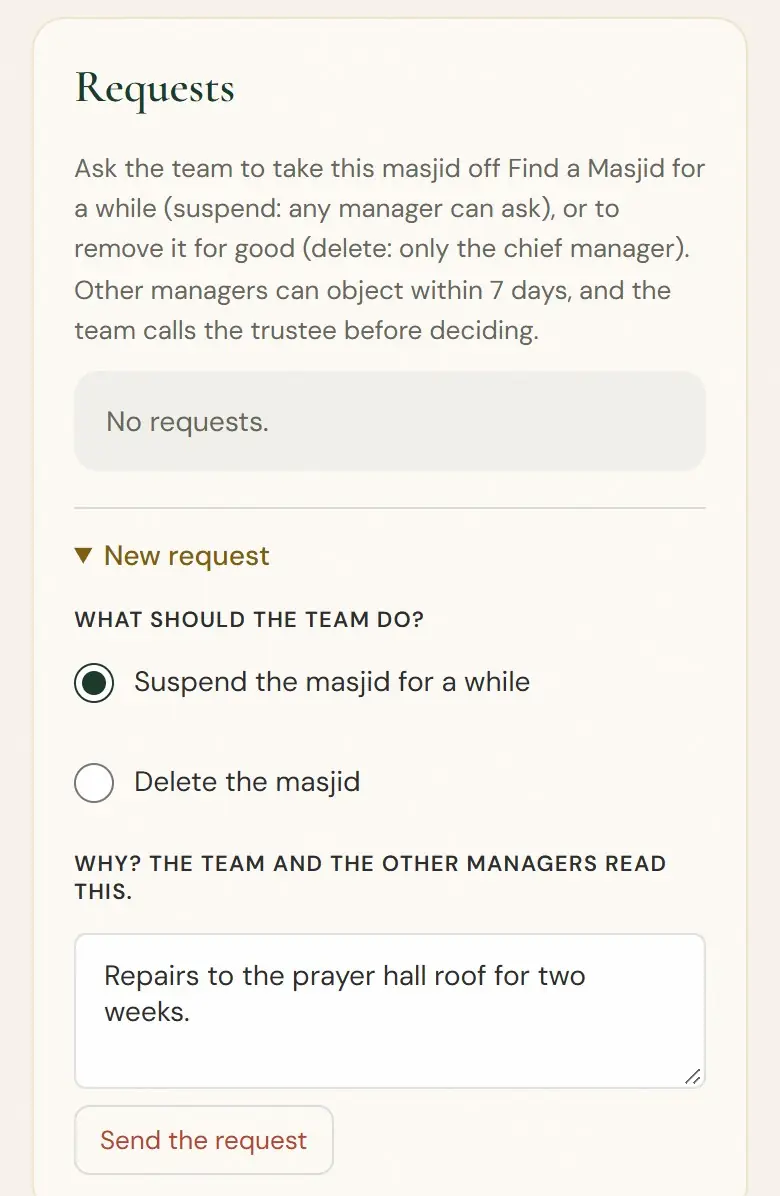
Other managers can tap Object to this within 7 days. While your request is open, you can Withdraw it.
Events
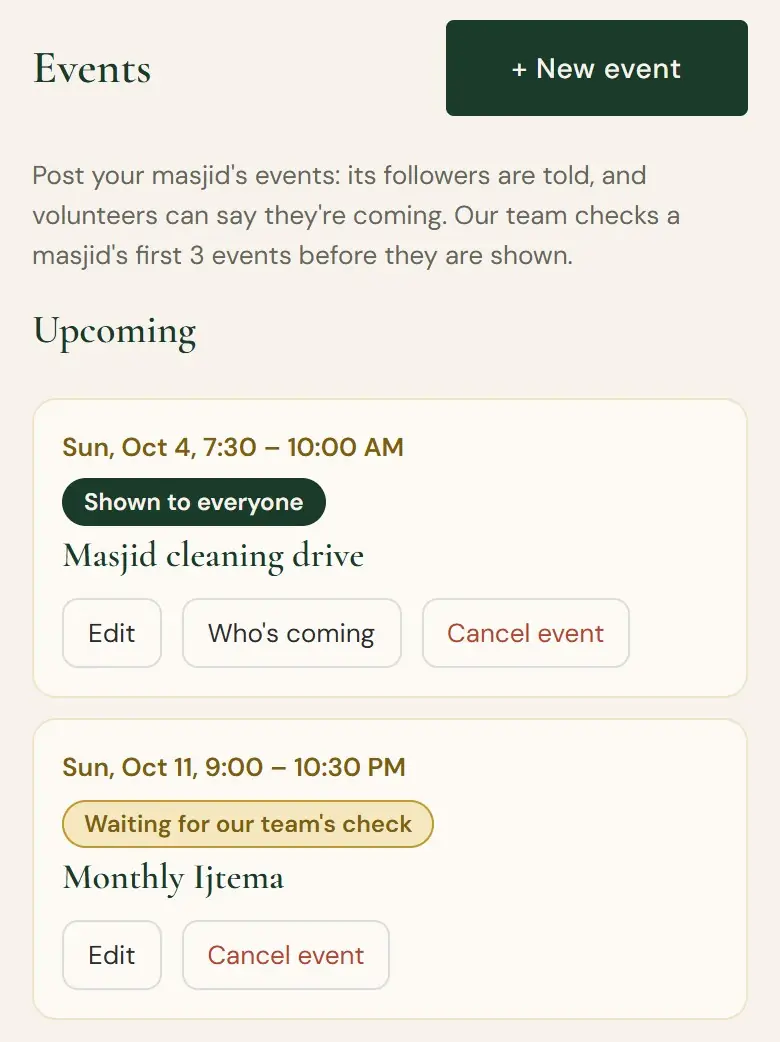
Post your masjid's events: its followers are told, and volunteers can say they're coming. Our team checks a masjid's first 3 events before they are shown.
Open Events and tap + New event. Choose the language you write in, then give a title, the type of event, the date and time. Need volunteers? Say how many and which skills. Tap Post event. Don't name children or post anyone's phone number. Links, phone numbers, emails and UPI IDs can't be posted.
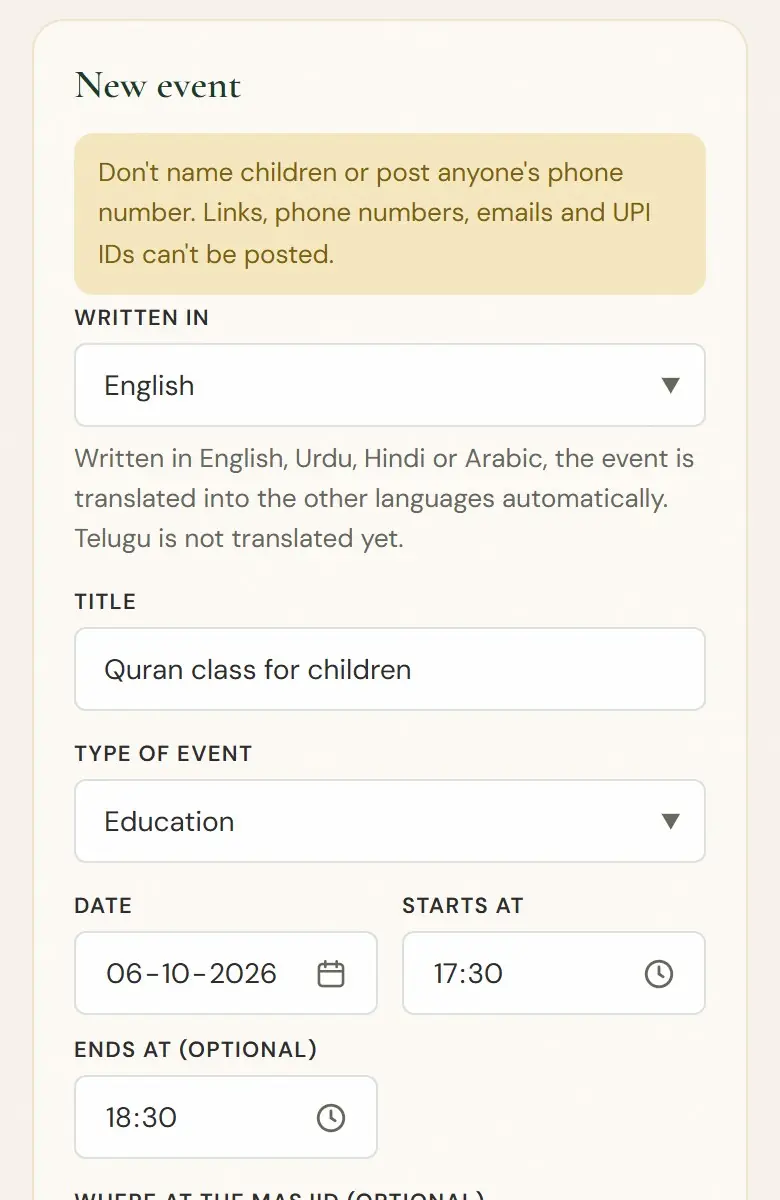
Written in English, Urdu, Hindi or Arabic, the event is translated into the other languages automatically. Telugu is not translated yet. Your masjid’s first 3 events show Waiting for our team's check until our team has checked them, usually within a day. Then they show Shown to everyone.
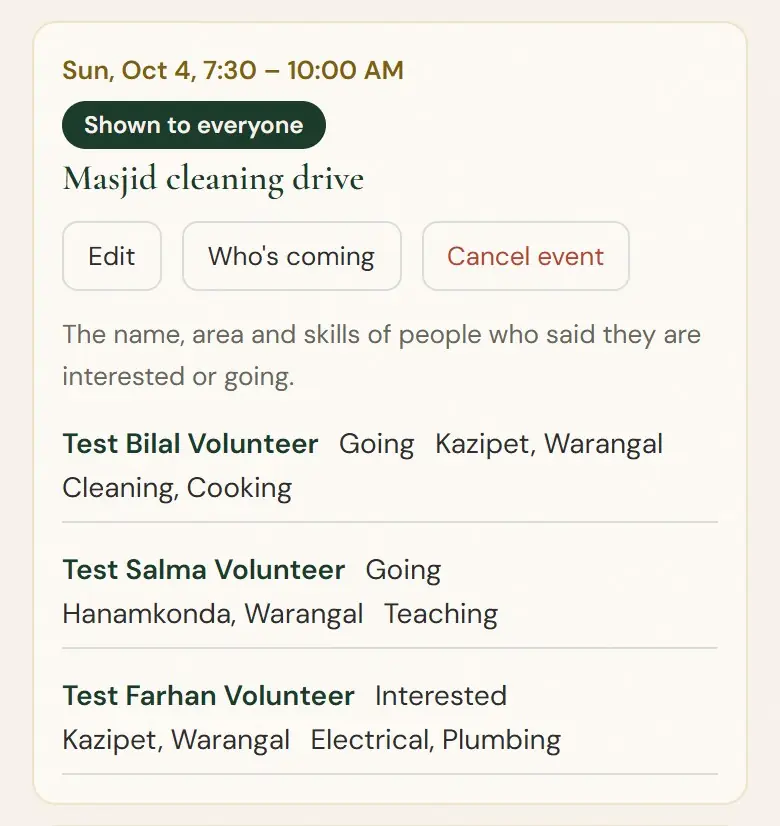
Tap Who's coming: The name, area and skills of people who said they are interested or going.
Janazah announcements
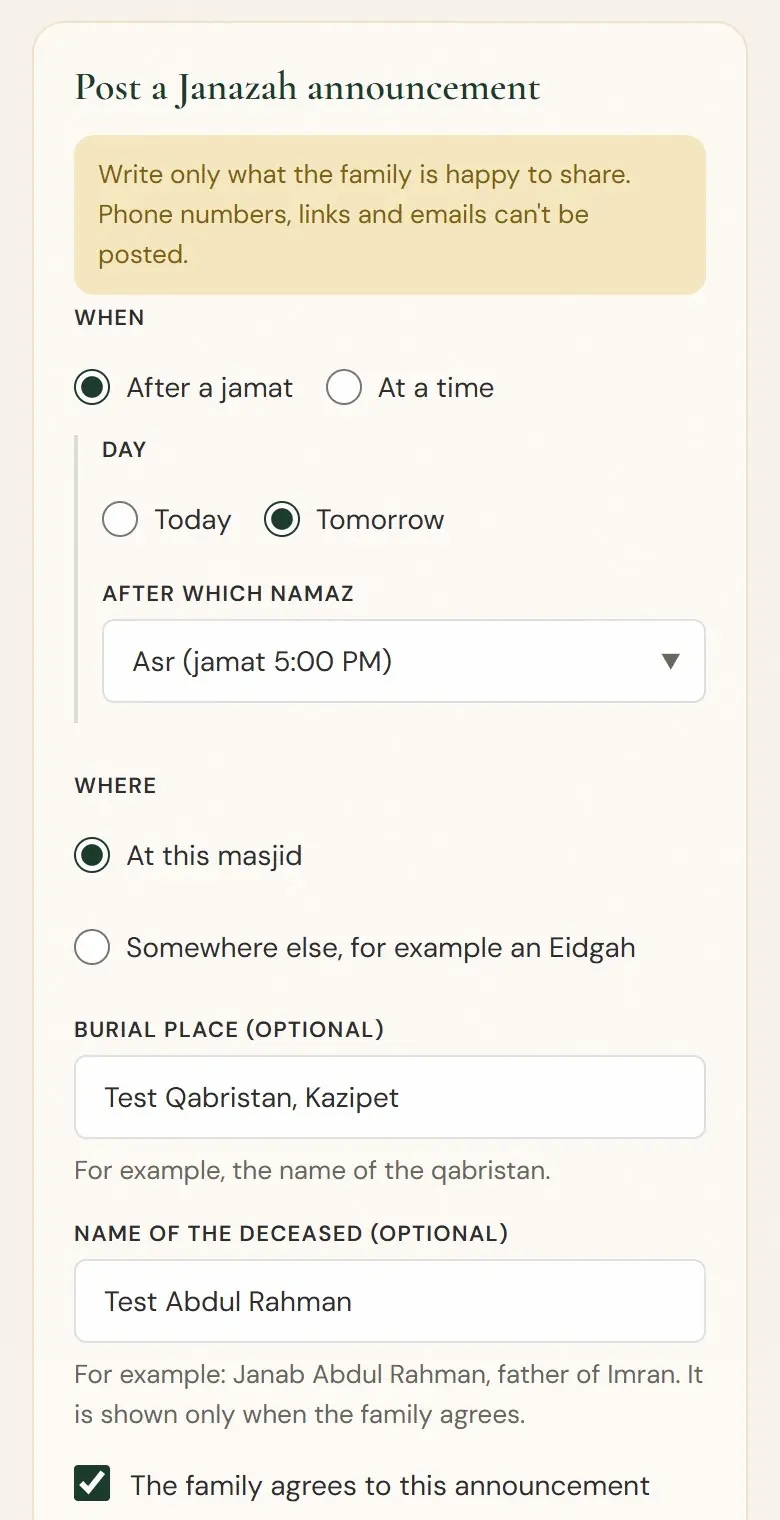
Announce a Namaz-e-Janazah. It shows on Find a Masjid at once, and people who follow your masjid are told, and people in your city who asked. At most 3 a day.
Open your masjid, then Events, then Post a Janazah announcement. When: “After a jamat” today or tomorrow uses your masjid’s own jamat time that day, for example “Today, after Asr (jamat 5:10 PM)”. Or choose a date and a time, up to 48 hours ahead. Where: your masjid, or another place such as an Eidgah. You can also write the burial place (the qabristan).
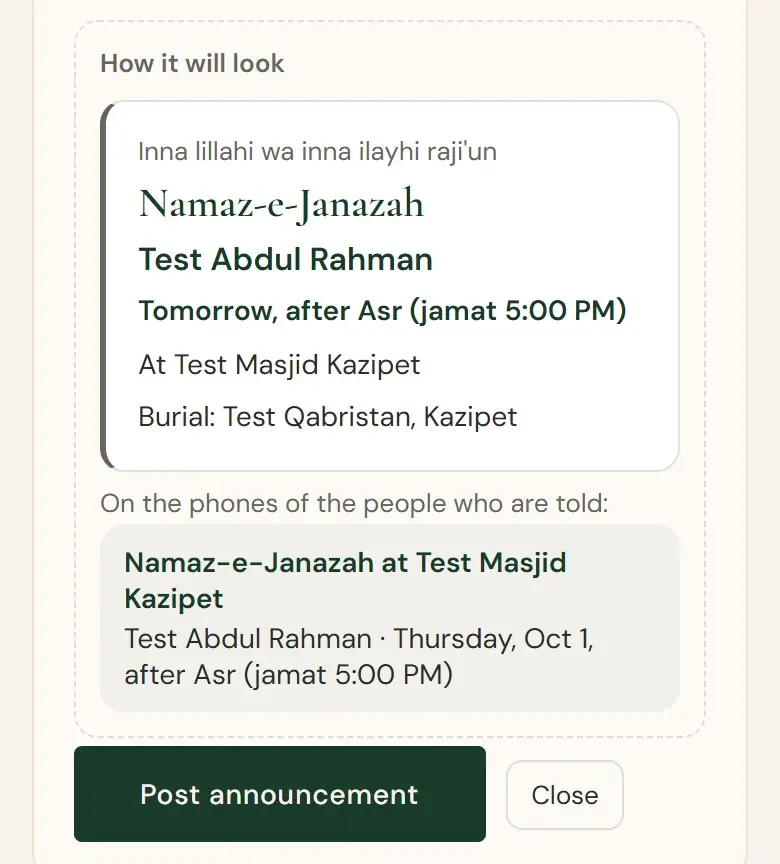
Before posting, How it will look shows the card and the notice as people will see them. Tap Post announcement.
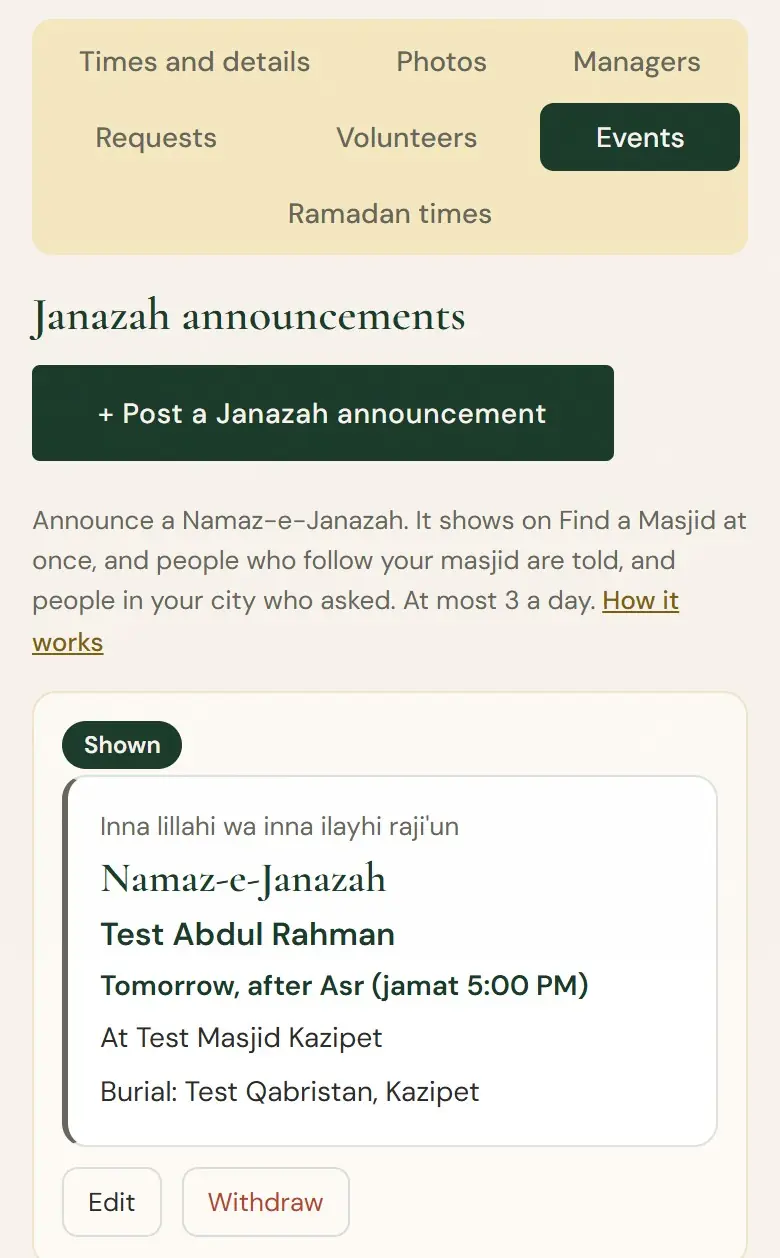
It is shown at once. To correct it, tap Edit. To take it off, tap Withdraw.
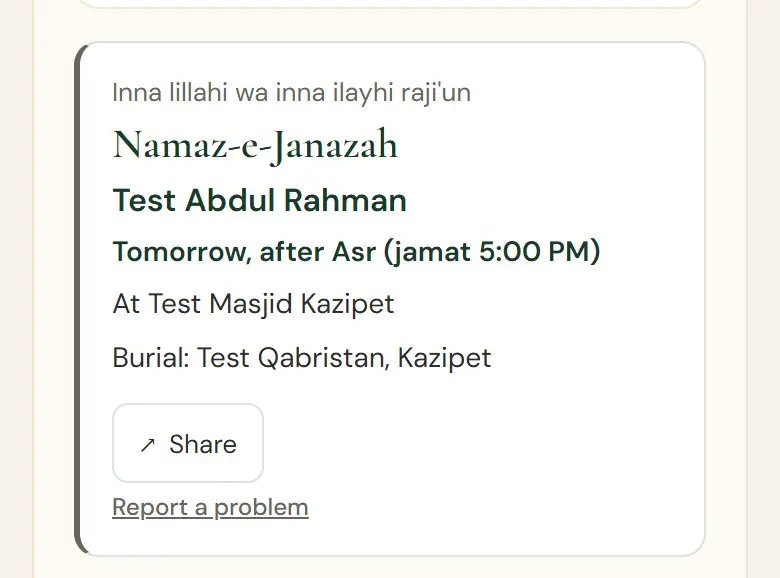
It shows on Find a Masjid at once, until 2 hours after the Janazah. People who follow your masjid are told on their phones in their own language (at night, from 5 AM), and so are people in your city who asked. It is deleted after 7 days. If something is wrong, open it and change it, or withdraw it. At most 3 a day.
Volunteers ready to help
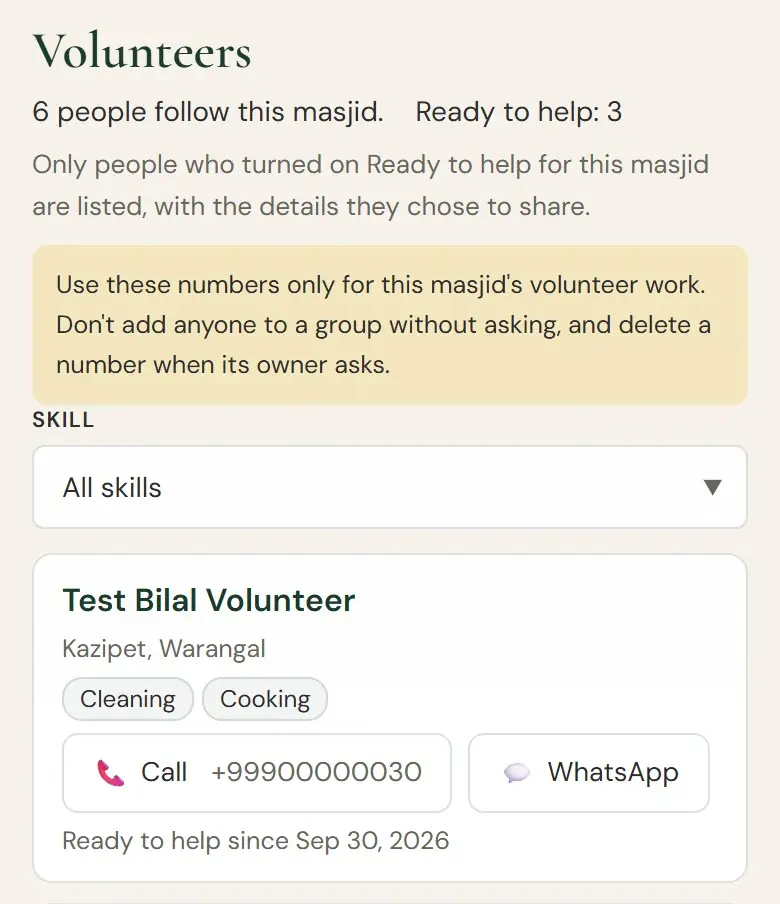
Open Volunteers. Only people who turned on Ready to help for this masjid are listed, with the details they chose to share. Tap Call or WhatsApp, or choose a Skill to see only those who have it.
Notifications
The bell at the top of the page shows news about your masjid: the weekly check, new volunteers ready to help, the team’s decisions and invites. A red number shows how many are new.
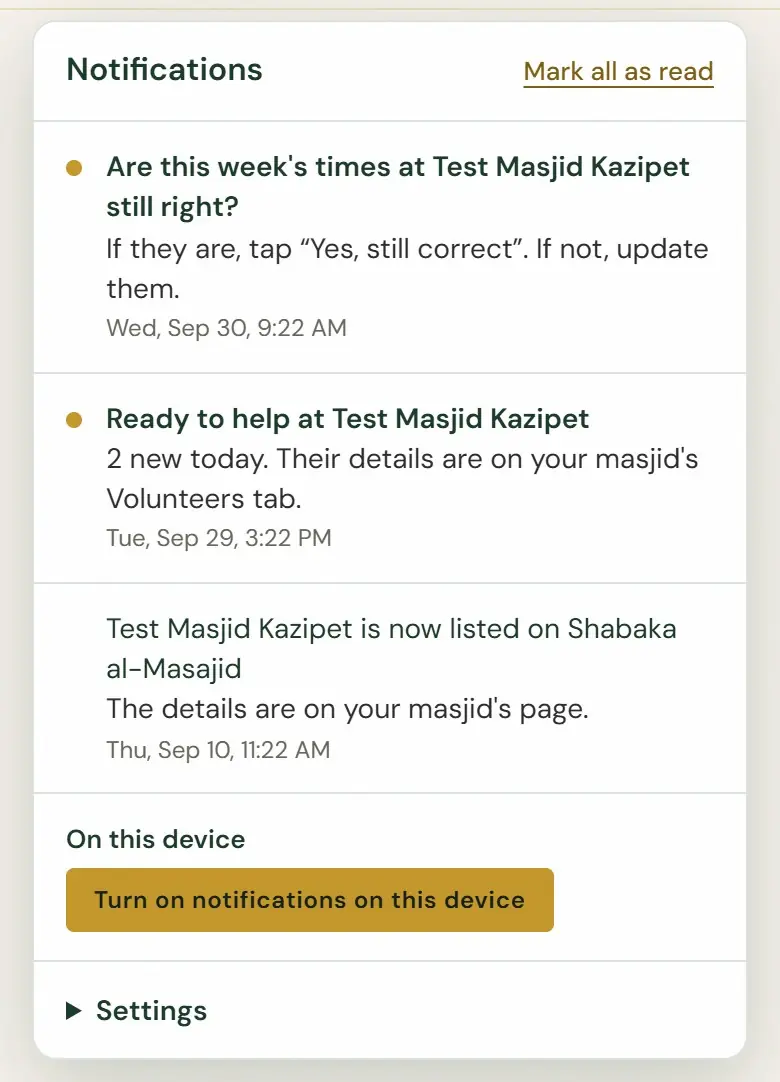
Tap Turn on notifications on this device to get them on your phone too. Under Settings you choose which ones you get. Emails come only for important things, such as the team’s decision about your masjid or an invite.
Getting help
The guide How setting times works is on the managers’ page, in your language. Open it with How setting times works above the prayer times, or on the Ramadan and Janazah parts.
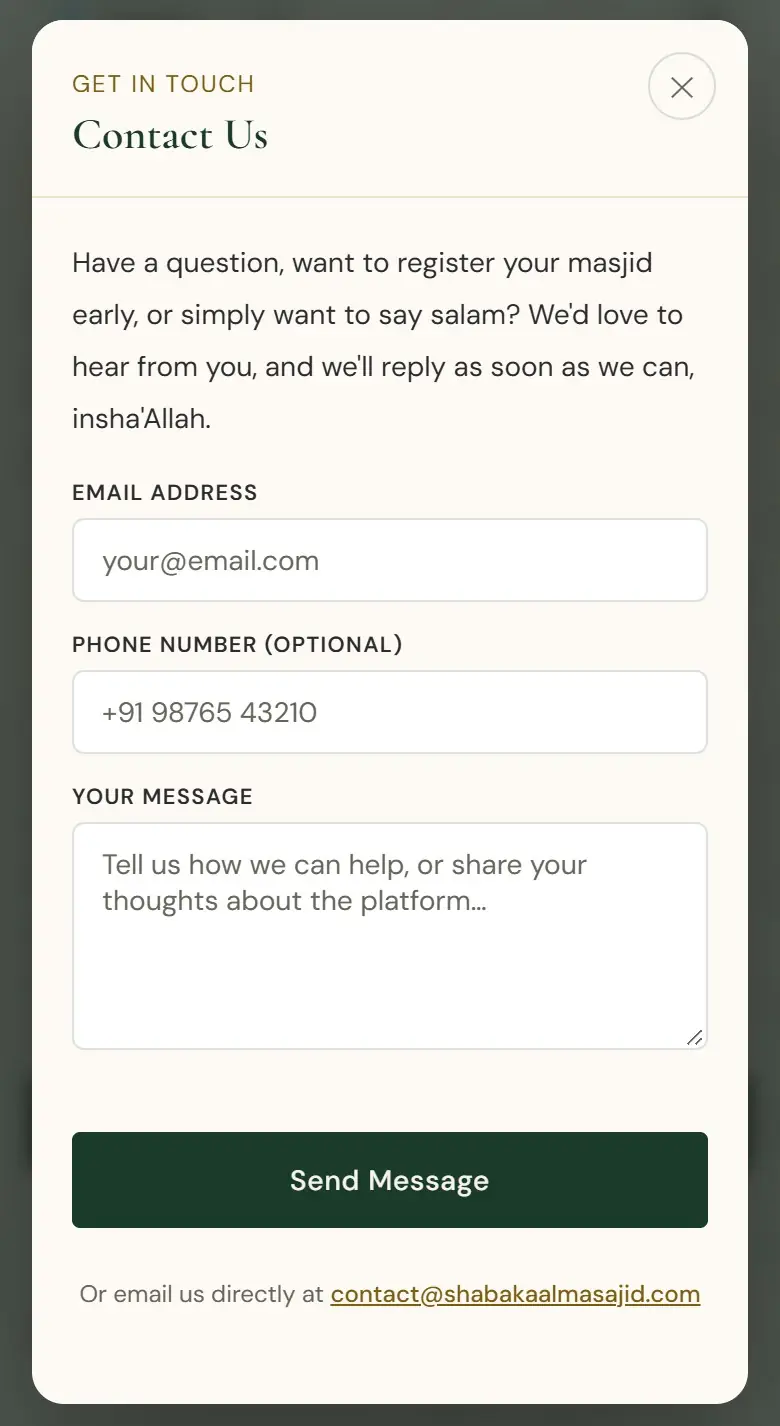
Write to us with Contact at the bottom of the home page, or email contact@shabakaalmasajid.com. We reply as soon as we can, insha’Allah. Shabaka al-Masajid will never call you to ask for a code or a password, and never asks for money.
Still need help? Write to us at contact@shabakaalmasajid.com.